

Phase 2 - Configure object storage
1. Create buckets in Object Store
CircleCI Server supports S3 compatible storage for air-gapped object storage. With an air-gapped Object Store instance installed, complete the steps outlined in the next sections.

2. Copy the CircleCI build agent
Follow the steps in this section to copy the pinned CircleCI build agent into Object Store within your air-gapped environment.
a. Extract the pinned agent version from the Helm chart
Fetch the circleci-server Helm chart and extract the pinned agent version from it. Set this to the environment variable $CIRCLE_AGENT_VERSION so that it can be referenced in later steps.
# Fetch the Helm chart for inspection. Replace `<version>` with the full version of CircleCI Server.
helm fetch oci://cciserver.azurecr.io/circleci-server --version <version> --untar

# Set `$CIRCLE_AGENT_VERSION` to the value of `circleci/picard` in `images.yaml`.
export CIRCLE_AGENT_VERSION=$(grep 'circleci/picard:' ./circleci-server/images.yaml | cut -d' ' -f2)

# Verify `$CIRCLE_AGENT_VERSION` is set. The value should be similar in form to `1.0.217358-0b5336a7`.
echo $CIRCLE_AGENT_VERSION
b. Create a release.txt file and copy to Object Store
Create a release.txt file with the value of $CIRCLE_AGENT_VERSION. Copy this file to your air-gapped environment and place it in the root of the circleci-data bucket in Object Store.
c. Retrieve the pinned agent binary
Retrieve and download the pinned circleci-agent release and checksums from the CircleCI binary releases public bucket.
# Download circleci-agent
curl -O --compressed https://circleci-binary-releases.s3.amazonaws.com/circleci-agent/$CIRCLE_AGENT_VERSION/linux/amd64/circleci-agent

# Download checksums
curl -O https://circleci-binary-releases.s3.amazonaws.com/circleci-agent/$CIRCLE_AGENT_VERSION/checksums.txt
d. Create a release directory in the circleci-data bucket
Using the version specified by release.txt, create a new directory in the root of the circleci-data bucket with the name of that release. In the following examples, a directory is created at the root of circleci-data in Object Store with the name $CIRCLE_AGENT_VERSION. Note $CIRCLE_AGENT_VERSION is not a literal string, but the value of the environment variable we set earlier.
e. Upload the checksums.txt file to the newly created directory.
Copy the downloaded checksums.txt file (step c) to your virtual environment, and place it in Object Store nested under the newly created release directory (step d).
# The structure of the directory should now look like this.
# Note `$CIRCLE_AGENT_VERSION` is not a literal string, but the value of the environment variable we set earlier.
$CIRCLE_AGENT_VERSION/
└── checksums.txt
f. Create two new subdirectories in the release directory
Within the release directory (step d), create two new nested subdirectories, first linux, and then within it, amd64.
# The structure of the directory of the bucket should look like this:
$CIRCLE_AGENT_VERSION/
├── checksums.txt
└── linux/
    └── amd64/

g. Copy the downloaded circleci-agent file
Copy the downloaded circleci-agent file (step c) to your virtual environment, and place it in the amd64 directory you just created.
# The final structure of the bucket should look similar to this:
CIRCLE_AGENT_VERSION/
├── checksums.txt
└── linux/
    └── amd64/
        └── circleci-agent
3. Copy other agents
In a similar manner to circleci-agent from step 2, we also need to copy docker-agent and machine-agent to the circleci-data bucket.
a. Download docker agent
# Set `DOCKER_AGENT_VERSION` using the value of `circleci/docker-agent` from `images.yaml`
export DOCKER_AGENT_VERSION=$(grep 'circleci/docker-agent:' ./circleci-server/images.yaml | cut -d' ' -f2)

# Download the Docker agent
curl -O --compressed https://circleci-binary-releases.s3.amazonaws.com/docker-provisioner/$DOCKER_AGENT_VERSION/linux/amd64/agent

# Download the checksums
curl -O https://circleci-binary-releases.s3.amazonaws.com/docker-provisioner/$DOCKER_AGENT_VERSION/checksums.txt
b. Download machine agent
# Set `MACHINE_AGENT_VERSION` using the value of `circleci/machine-agent` from `images.yaml`
export MACHINE_AGENT_VERSION=$(grep 'circleci/machine-agent:' ./circleci-server/images.yaml | cut -d' ' -f2)

# Download the Machine agent
curl -O --compressed https://circleci-binary-releases.s3.amazonaws.com/machine-provisioner/$MACHINE_AGENT_VERSION/linux/amd64/agent

# Download the checksums
curl -O https://circleci-binary-releases.s3.amazonaws.com/machine-provisioner/$MACHINE_AGENT_VERSION/checksums.txt
c. Copy the downloaded agents
Copy the downloaded docker-agent and machine-agent files (from steps a and b) to your virtual environment, and create a directory structure as follows:
# The final structure should look like this:
docker-provisioner/
├── release.txt # contains the value of $DOCKER_AGENT_VERSION
└── DOCKER_AGENT_VERSION/ # not a literal string, but the value of release.txt
    ├── checksums.txt
    └── linux/
        └── amd64/
            └── agent
machine-provisioner/
├── release.txt # contains the value of $MACHINE_AGENT_VERSION
└── MACHINE_AGENT_VERSION/ # not a literal string, but the value of release.txt
    ├── checksums.txt
    └── linux/
        └── amd64/
            └── agent
4. Copy other miscellaneous files
Follow the steps in this section to copy the required files into Object Store within your air-gapped environment.
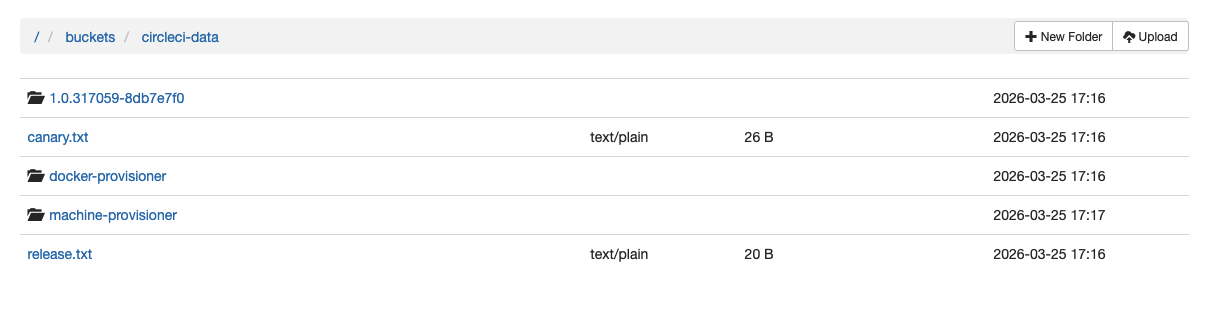
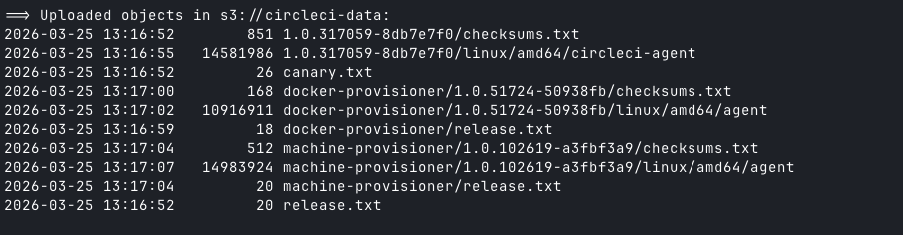
5. S3 bucket data tree
After uploading all required binaries and files, S3 bucket structure will be as below -
Next steps
Once the steps on this page are complete, go to the Phase 3 - Install CircleCI Server guide.