

Android images with the machine executor
Overview
You access the Android machine image through the Linux Machine Executor, like other Linux machine images on CircleCI. The Android machine image supports nested virtualization and x86 Android emulators, so you can use it for Android UI testing. It also comes with the Android SDK pre-installed.
Using the Android machine image
You can configure the Android image in your configuration using Orbs, or manually. The Android orb simplifies your configuration. More complex and custom configurations may work better with manual configuration instead of the orb. This document covers both use cases. Refer to the Examples section below for more details.
Available resource classes
Gen1
| Class | vCPUs | RAM | Disk Size | Cloud | Server |
|---|---|---|---|---|---|
|
2 |
7.5 GB |
150GB |
Yes |
Yes |
|
4 |
15 GB |
150GB |
Yes |
Yes |
|
8 |
32 GB |
150GB |
Yes |
Yes |
|
16 |
64 GB |
150GB |
Yes |
Yes |
|
32 |
64 GB |
150GB |
Yes |
Yes |
View resource usage
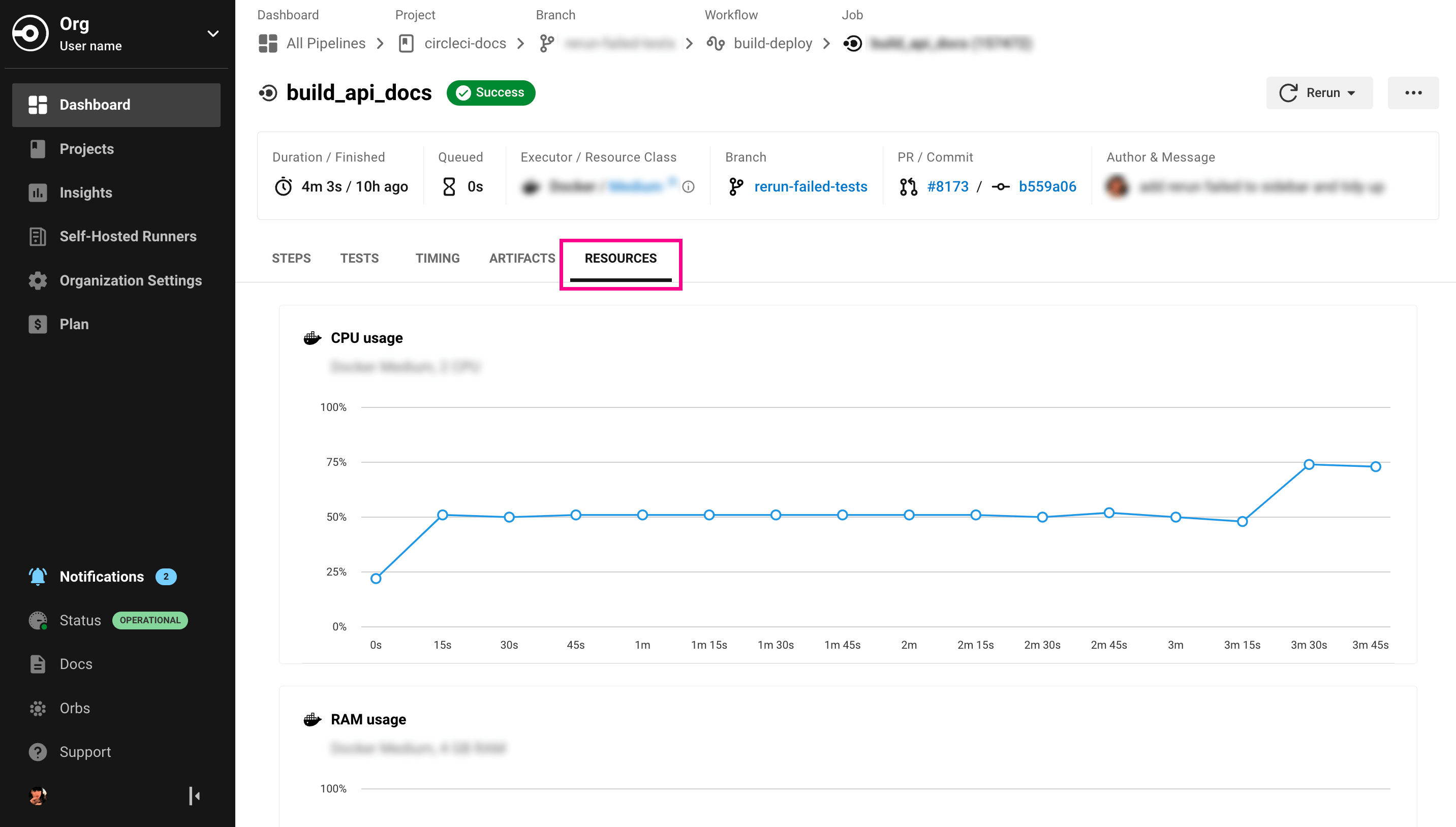
To view the compute resource usage for the duration of a job in the CircleCI web app:
-
In the CircleCI web app, select your org from the org cards on your user homepage.
-
Select Pipelines from the sidebar and locate your pipeline from the list. You can use the project, branch, date, and status search options to help.
-
Select the job you want to access by selecting the job name.
-
Select the Resources tab to view CPU and RAM usage for the duration of the job.
You can use these insights to decide whether to make changes to the job’s configured resource class.
Pre-installed software
View the latest update announcement on our Discuss page for a list of current pre-installed software.
Examples
The following examples show how to use the Android machine image, both with and without orbs.
Using the Android image
| Android machine images are only available on server installations on Google Cloud Platform (GCP). |
To use the Android image in your projects, set the image key to android-default in your jobs.
version: 2.1

jobs:
  my-job:
    machine:
      image: android-default
    steps:
    # job steps here
You can also use the Android orb. Your server administrator needs to import the orb first. You also need to define the android-default image for the machine executor, as shown in the example below, rather than using the default executor built into the orb. View the CircleCI Server Orbs page for instructions on importing orbs.
This example shows how you can use granular orb commands to achieve what the start-emulator-and-run-tests command does.
| Make sure to replace any placeholder versions in the example. |
# .circleci/config.yml
version: 2.1
orbs:
  android: circleci/android@x.y.z
  # https://circleci.com/developer/orbs/orb/circleci/android for latest version
jobs:
  test:
    machine:
      image: android-default
    steps:
      - checkout
      # Create an AVD named "myavd"
      - android/create-avd:
          avd-name: myavd
          system-image: system-images;android-29;default;x86
          install: true
      # By default, after starting up the emulator, a cache will be restored,
      # "./gradlew assembleDebugAndroidTest" will be run and then a script
      # will be run to wait for the emulator to start up.
      # Specify the "post-emulator-launch-assemble-command" command to override
      # the gradle command run, or set "wait-for-emulator" to false to disable
      # waiting for the emulator altogether.
      - android/start-emulator:
          avd-name: myavd
          no-window: true
          restore-gradle-cache-prefix: v1a
      # Runs "./gradlew connectedDebugAndroidTest" by default.
      # Specify the "test-command" parameter to customize the command run.
      - android/run-tests
      - android/save-gradle-cache:
          cache-prefix: v1a
workflows:
  test:
    jobs:
      - test