Using the Arm VM execution environment
You can access the Arm VM (virtual machine) execution environment for a job by using the machine executor and specifying a Linux virtual machine image that includes Arm resources. You then specify an Arm resource class.
-
Cloud
-
Server
# .circleci/config.yml
jobs:
  my-job:
    machine:
      image: ubuntu-2404:current
    resource_class: arm.medium
    steps:
      - run: uname -a
      - run: echo "Hello, Arm!"
# .circleci/config.yml
jobs:
my-job:
machine:
image: arm-default
resource_class: arm.medium
steps:
- run: uname -a
- run: echo "Hello, Arm!"Available resource classes
The following Arm resources are available as part of the machine executor:
Gen1
| Class | vCPUs | RAM | Disk Size | Cloud | Server |
|---|---|---|---|---|---|
|
2 |
8GB |
100 GB |
Yes |
Yes |
|
4 |
16GB |
100 GB |
Yes |
Yes |
|
8 |
32GB |
100 GB |
Yes |
Yes |
|
16 |
64GB |
100 GB |
Yes |
Yes |
| Using server? Check with your systems administrator whether you have access to the Arm execution environment. |
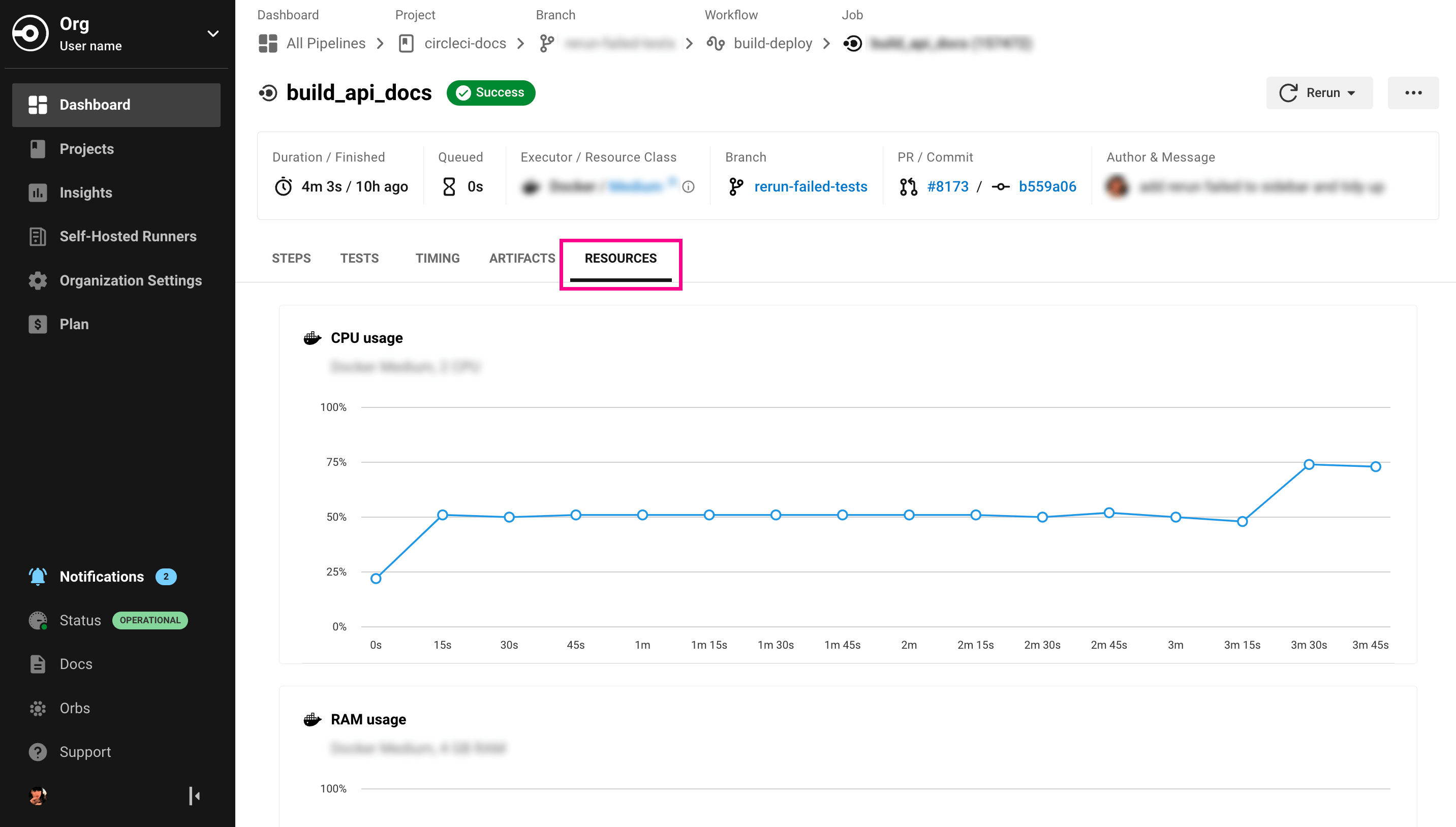
View resource usage
To view the compute resource usage for the duration of a job in the CircleCI web app:
-
In the CircleCI web app, select your org from the org cards on your user homepage.
-
Select Pipelines from the sidebar and locate your pipeline from the list. You can use the project, branch, date, and status search options to help.
-
Select the job you want to access by selecting the job name.
-
Select the Resources tab to view CPU and RAM usage for the duration of the job.
You can use these insights to decide whether to make changes to the job’s configured resource class.