

Trigger options
Pipelines are triggered in response to actions or scheduled to run at specific times and frequencies. Each method of triggering a pipeline is described below.
Trigger a pipeline on a repo event
Trigger a pipeline on an event in your repository. The options available to you will be different depending on which integration you have set up, and for GitHub accounts, which GitHub authentication method you use.
Once triggered, a running pipeline appears on the pipelines dashboard, which is accessible by selecting Pipelines from the left hand sidebar in the CircleCI web app. This option is called Dashboard if you are using CircleCI Server.
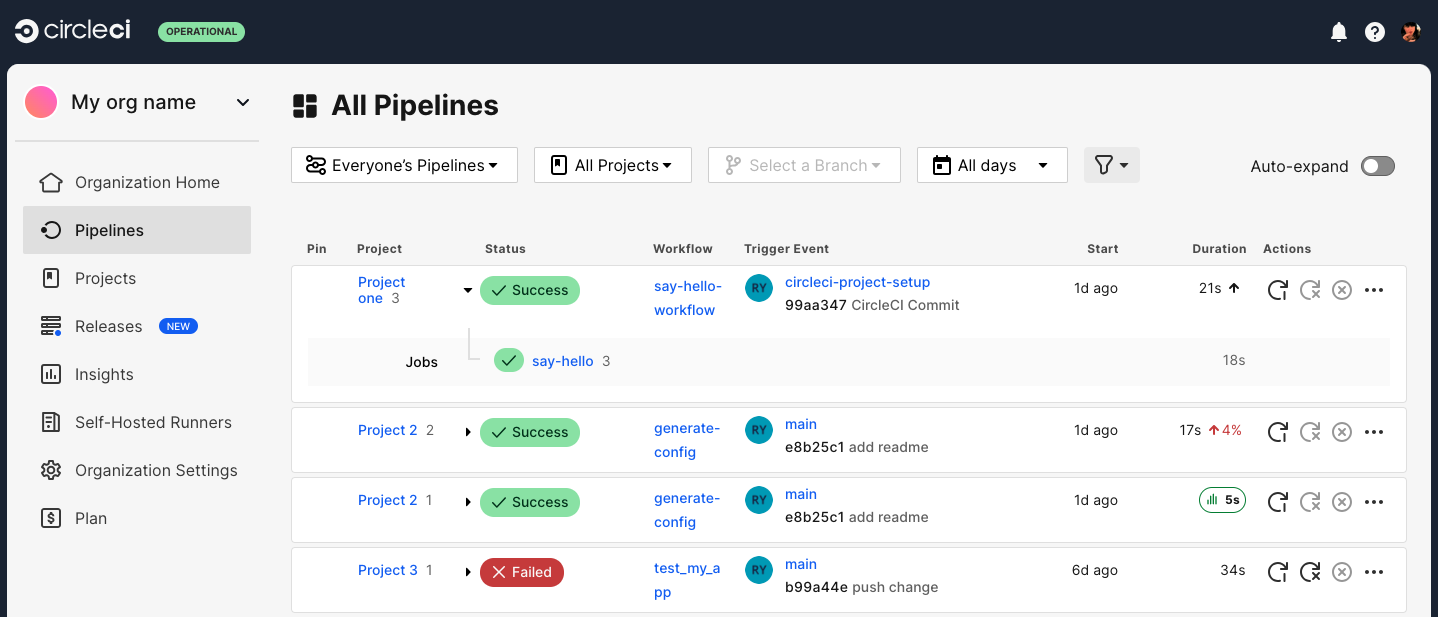
Trigger a pipeline from the CircleCI web app
-
In the CircleCI web app, select your organization from your homepage.
-
Select Pipelines for your project. If you do not see your project listed, select Projects in the sidebar to get to a full list. You will now be on your project’s pipelines page.
-
Select Trigger Pipeline.
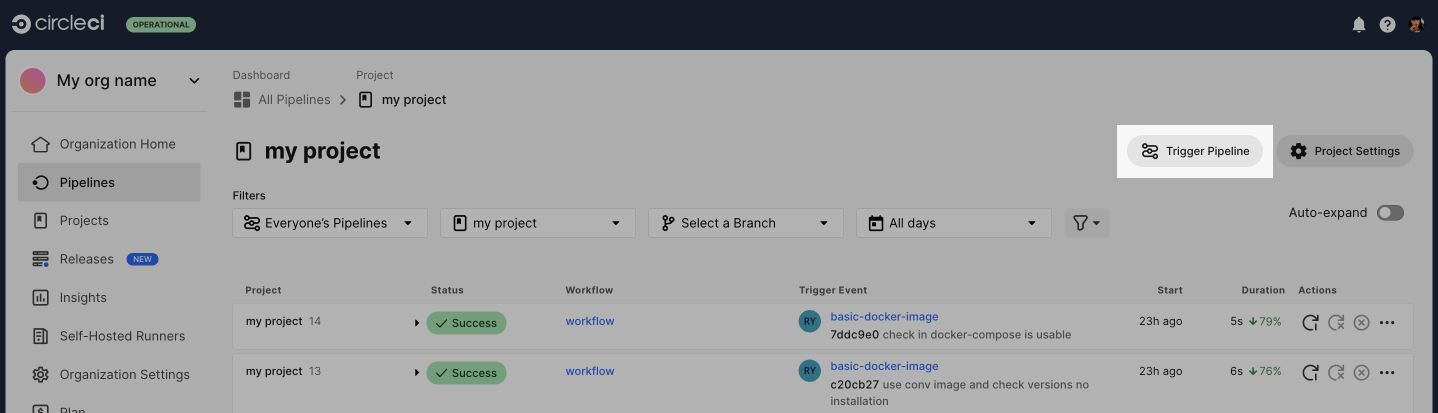 Figure 2. Screenshot showing the trigger pipeline button in the CircleCI web app
 -
Select the pipeline you want to trigger from the dropdown menu.
-
Select your config source branch. This tells CircleCI where (repo and branch) to find your pipeline config.
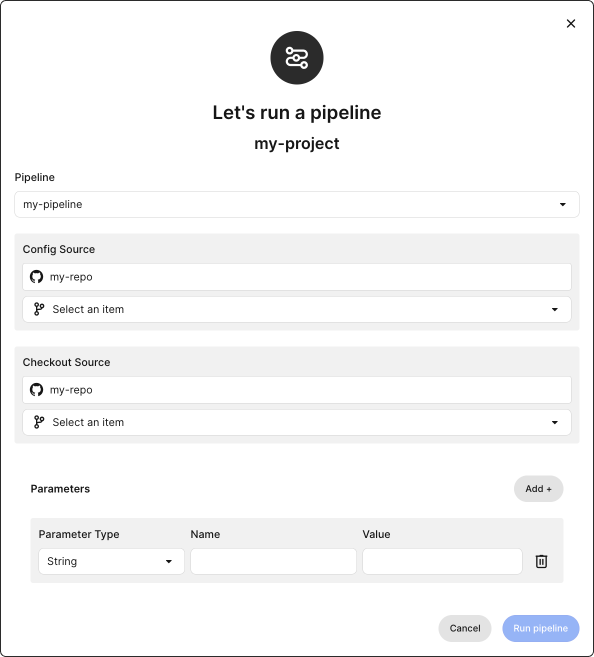 Figure 3. Screenshot showing the trigger pipeline modal
 -
If your code is integrated via the GitHub App or Cursor Origin, select your checkout source and branch. This tells CircleCI which code to check out when running a
checkoutstep. If your code is integrated via GitHub OAuth or Bitbucket Cloud, you can skip this step, the same location is used for both config and checkout source. -
If you would like to specify any pipeline parameters, select Add + and enter the required fields.
-
Select Run Pipeline and you will see your new pipeline running in the web app.
| If your GitHub user account connection to CircleCI is not yet authorized, you will need to select Authorize in the trigger pipeline modal to connect and continue. |
Trigger a pipeline using the API
Using server? If you are using CircleCI Server, replace https://circleci.com with your server hostname when interacting with the CircleCI API.
|
-
GitHub, Bitbucket, and Cursor Origin
-
CircleCI Server
This method is supported for GitHub (OAuth and App), Bitbucket (Cloud and Data Center), and Cursor Origin orgs.
| GitHub OAuth and Bitbucket Cloud pipelines can also be triggered using the Trigger a New Pipeline endpoint, which is described in the CircleCI Server tab. However, the method outlined in this section is recommended. |
Trigger a pipeline for a project using the v2 API endpoint https://circleci.com/api/v2/project/<project-slug>/pipeline/run.
-
If you have not already, get set up to use API v2 by following the steps in the API Developers Guide.
-
In the CircleCI web app select your organization. Over the next few steps you will collect the data you need to trigger your pipeline.
-
Find your project slug:
-
Select Projects in the CircleCI web app sidebar.
-
Find your project.
-
Select the ellipsis menu

 and choose Project Settings.
 -
Copy your project slug. Save this somewhere, you will need it later.
-
-
Find your definition ID:
-
You are in project settings if you are following these steps in sequence. If not see previous steps to get there. Select Project Setup in the sidebar, or Pipelines if you are using Bitbucket Cloud.
-
Copy the definition ID for the correct pipeline. Save this somewhere, you will need it in the next step.
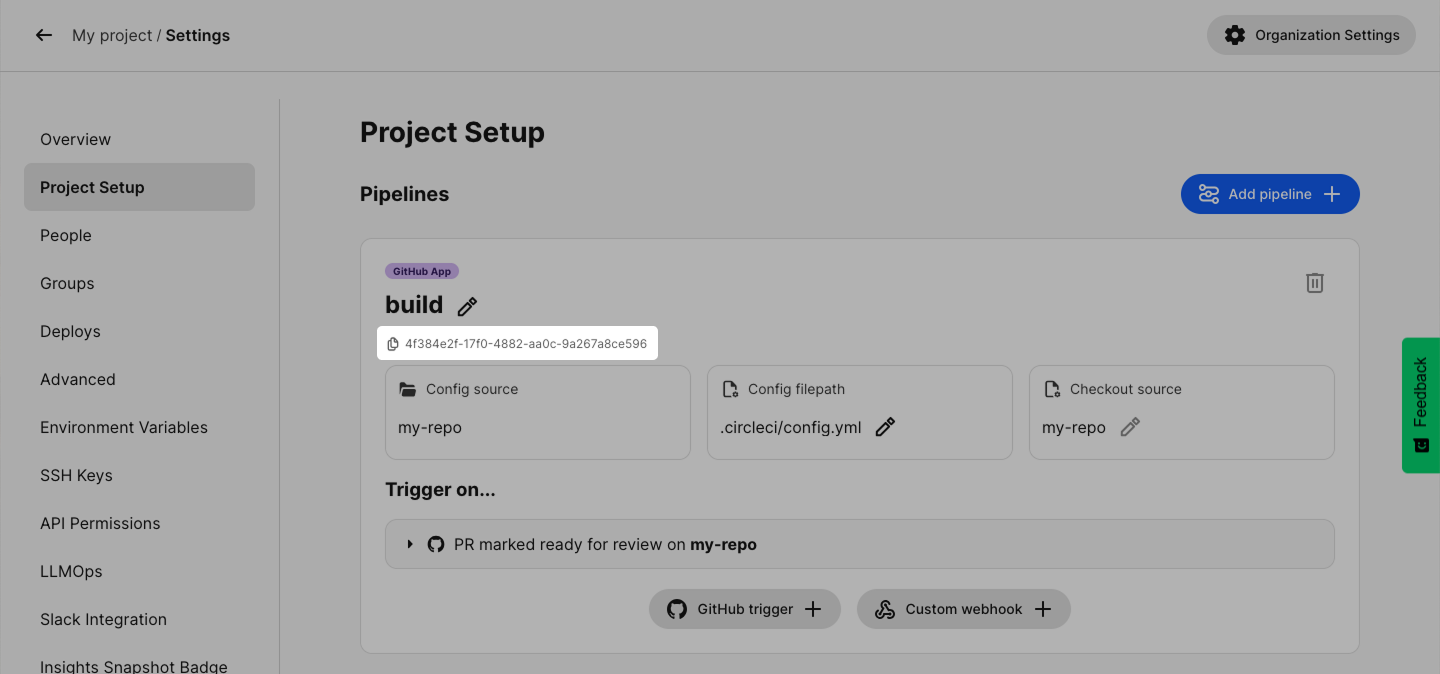 Figure 4. Screenshot showing the pipeline definition ID copy button
-
-
To trigger a pipeline from the command line using
curl, copy and paste this sample request and replace the details in< >with your details. The keyparametersis optional:curl -X POST https://circleci.com/api/v2/project/<project-slug>/pipeline/run \ --header "Circle-Token: $CIRCLE_TOKEN" \ --header "content-type: application/json" \ --data '{ "definition_id": "<pipeline-definition-id>", "config": {"branch": "<your-branch-name>"}, "checkout": {"branch": "<your-branch-name>"}, "parameters": {"<param-name>": "<param-value>"} }' -
To run a pipeline based on a tag instead of a branch, replace the
configand/orcheckoutfields with:"config": {"tag": "<your-tag-name>"}, "checkout": {"tag": "<your-tag-name>"} -
Head back to the CircleCI web app and see your pipeline running on the dashboard.
-
If you have not already, get set up to use API v2 by following the steps in the API Developers Guide.
-
To trigger a pipeline from the command line using
curl, copy and paste this sample request and replace the details in< >with your details, VCS can beghorbb:If you are using CircleCI Cloud, <your-circleci-hostname>iscircleci.com.curl -X POST https://<your-circleci-hostname>/api/v2/project/<VCS>/<your-vcs-org-or-username>/<your-repo-name>/pipeline \ --header "Circle-Token: $CIRCLE_TOKEN" \ --header "content-type: application/json" \ --data '{"branch":"<your-branch-name>"}' -
Head back to the CircleCI web app and see your pipeline running on the dashboard.
| You can also specify pipeline parameters when triggering a pipeline using the API. For full details, see the API v2 Docs. |
Schedule a pipeline
To run a workflow on a schedule, use a scheduled workflow. Add a triggers key with a cron schedule to the workflow in your .circleci/config.yml file. See Scheduling a Workflow.
GitHub webhook settings
It is possible to edit the webhooks in GitHub to restrict events that trigger a build. Editing the webhook settings lets you change which hooks get sent to CircleCI, but does not change the types of hooks that trigger builds. CircleCI will always build push hooks, and build on PR hooks (depending on settings), but if you remove push hooks from the webhook settings, CircleCI will not build.
Refer to the GitHub Edit a Hook document for details.
Next steps
Read about orchestrating elements of work within pipelines on the Using Workflows to Orchestrate Jobs page.