

VS Code extension overview
The CircleCI Visual Studio Code extension enables you to manage your CircleCI pipelines directly from VS Code.
Introduction
The VS Code extension includes:
-
The Pipeline Manager, which lets you view and manage pipelines within the IDE (integrated development environment). The pipeline manager allows you to identify issues and take immediate action on your pipelines without switching between VS Code and your browser.
-
The Config Helper, which provides in-file help with navigating, writing, and editing configuration files.
Install the VS Code extension
For installation and setup instructions, visit the VS Code Marketplace page, or search for the official CircleCI extension on the Extensions tab in the VS Code.
Pipelines panel
The pipelines panel provides a visual interface for managing your pipelines. The panel lists your most recent pipelines, workflows, and jobs in a project, and lets you monitor their status as well as interact with them.
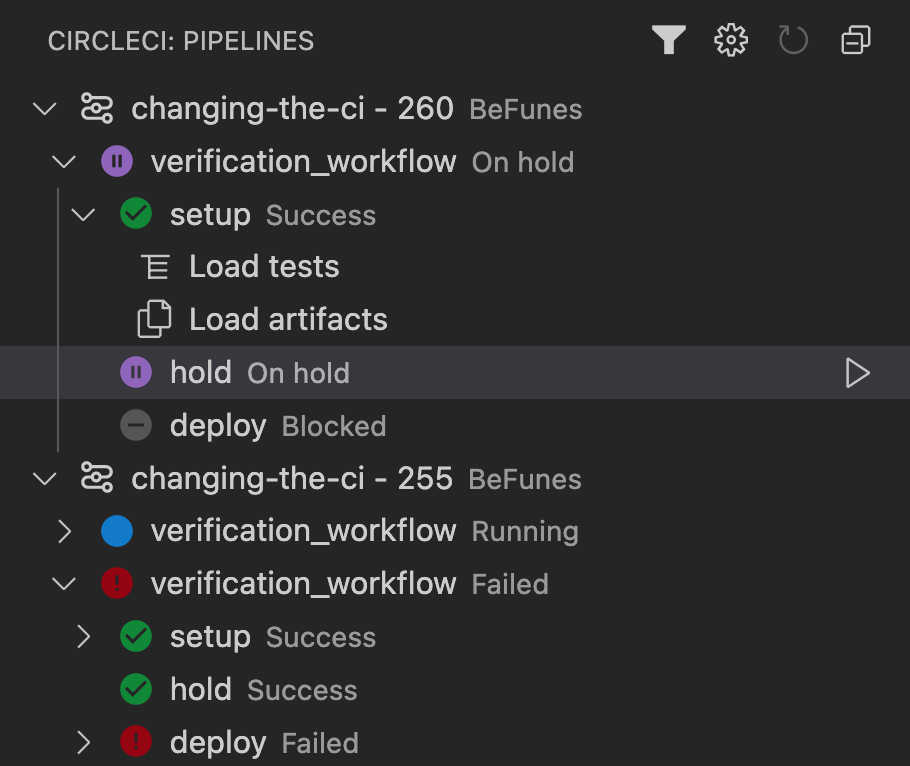
For each object, you can trigger certain events on hover.
Pipeline
Pipelines are the top-level tree item in the panel, and they contain your workflows. Hovering over a pipeline lets you:
-
Open in browser, to view pipeline details in the CircleCI app in your default web browser
Workflow
Workflows are nested under each pipeline, and contain jobs. Hovering over a workflow lets you:
-
Open in browser, to view workflow details in the CircleCI app, in your default web browser
-
Rerun the workflow from start, to re-trigger the entire workflow
-
Rerun the workflow from failed, to rerun only the workflow’s failed jobs
Job
Jobs are nested under each workflow, and can contain tests and artifacts. Hovering over a job lets you:
-
Approve the job (only if the job needs approval)
-
Cancel the job (only if the job is running)
-
Re-run the job with SSH (refer to the Re-run With SSH section below for more information)
-
View job details
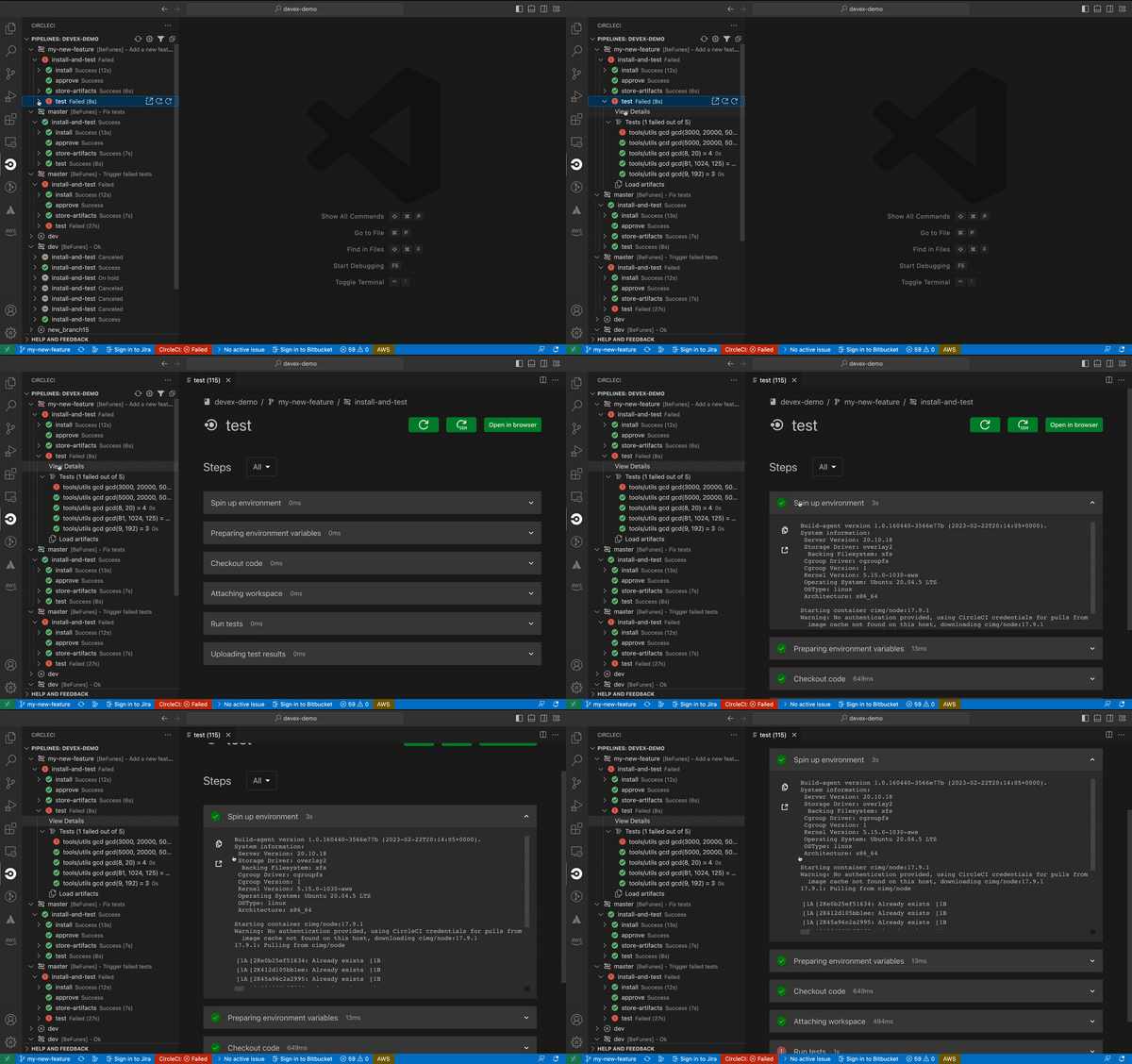 Figure 2. Job Details
Expanding a job also lets you:
Re-run with SSH
Re-run jobs with SSH directly from VS Code in one of two ways:
-
Open the job detail page, then select the SSH button on the top right.
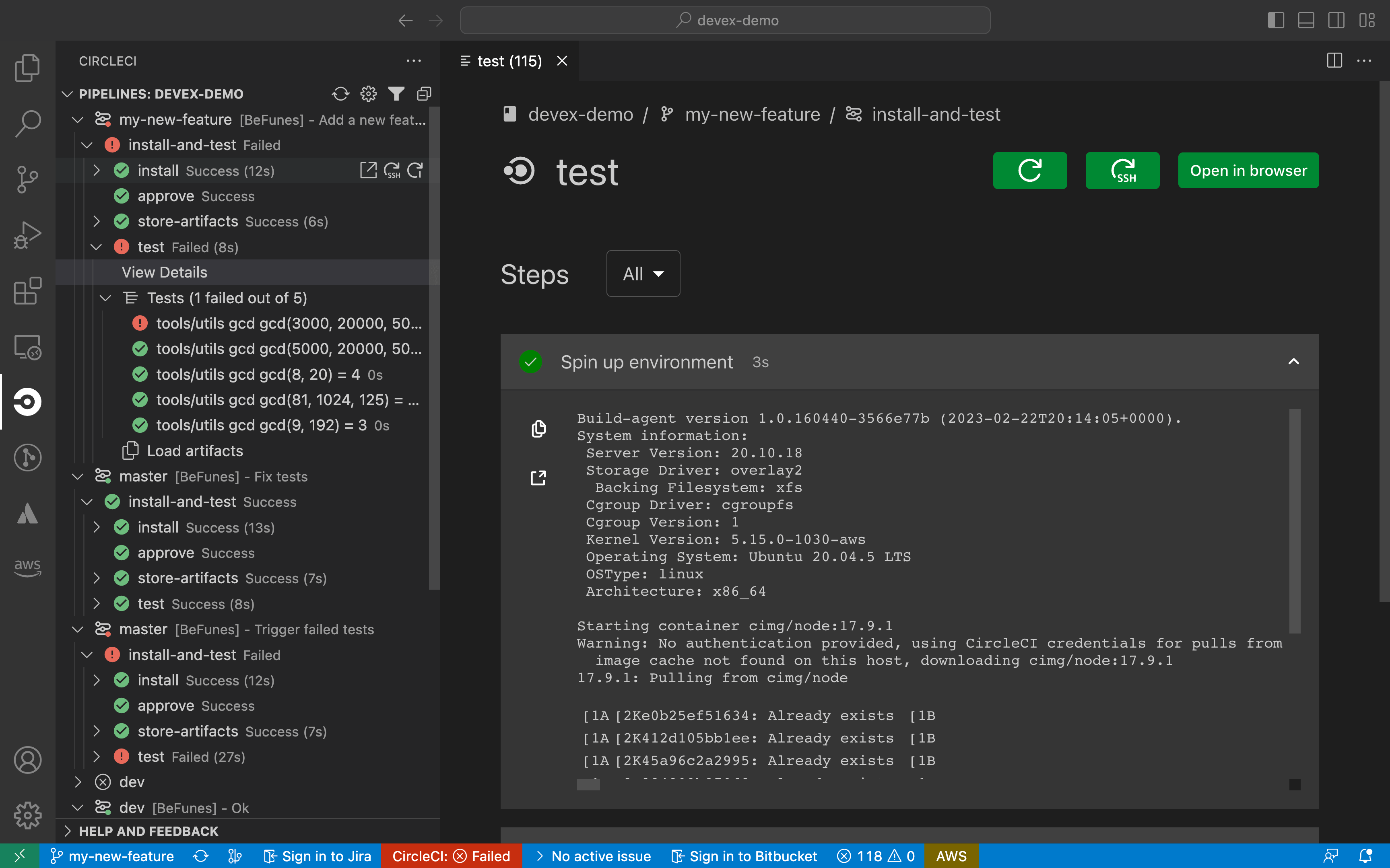 Figure 3. Job Details Panel
 -
Or, hover over the job in the pipelines panel, and select the SSH action button next to the job name.
 Figure 4. SSH Action in Side Panel
In both cases, you will be presented with two options:
-
Open an SSH session in the terminal.
-
Open an SSH session in a remote VS Code window.
Using a remote development window requires the official VS Code Remote - SSH extension. You can find more information on remote development in VS Code using SSH in the VS Code docs.
To re-run your job with SSH, you will first have to set the path to your GitHub or Bitbucket SSH key. The first time you attempt to re-run with SSH, the extension will guide you to select the path of the relevant SSH key. If you skipped this step or want to modify the path later, update it in the SSH section of the CircleCI VS Code extension settings.
If the job you want to re-run uses parallelism, you will be able to select which parallel run you want to SSH into.
Notifications
You can set up notifications to warn you when a workflow in your pipelines panel has changed status.

If you are not following a workflow in the pipelines panel, you cannot be notified about a status change event. For instance, if you have set the extension to follow only the current branch, you cannot be notified of status changes for other branches.
| We do not recommend enabling notifications for when a status changes to "Running", which may result in too many notifications to be useful. |
Status bar
The status bar provides information at-a-glance about the status of the CircleCI extension, your project, and your most recent workflow.

The status bar can display the following statuses:
-
Not logged in: Upon clicking on the status bar, a CircleCI login page will open.
-
No project: Upon clicking on the status bar, the settings page will open so you can select a project.
-
Success / Needs Approval / Failed, and other workflow statuses: this refers to the status of the top (that is, the most recent) pipeline in your panel. Upon clicking on the status bar, the associated workflow will come into focus on the pipelines panel.
Config helper
The VS Code extension also provides in-file contextual help for your CircleCI configs, including:
-
Rich code navigation through "go-to-definition" and "go-to-reference" commands. Hover over a job name or executor parameter to verify its definition or view where they are referenced elsewhere in the file. You can also explore the definition of orb-defined commands or parameters.
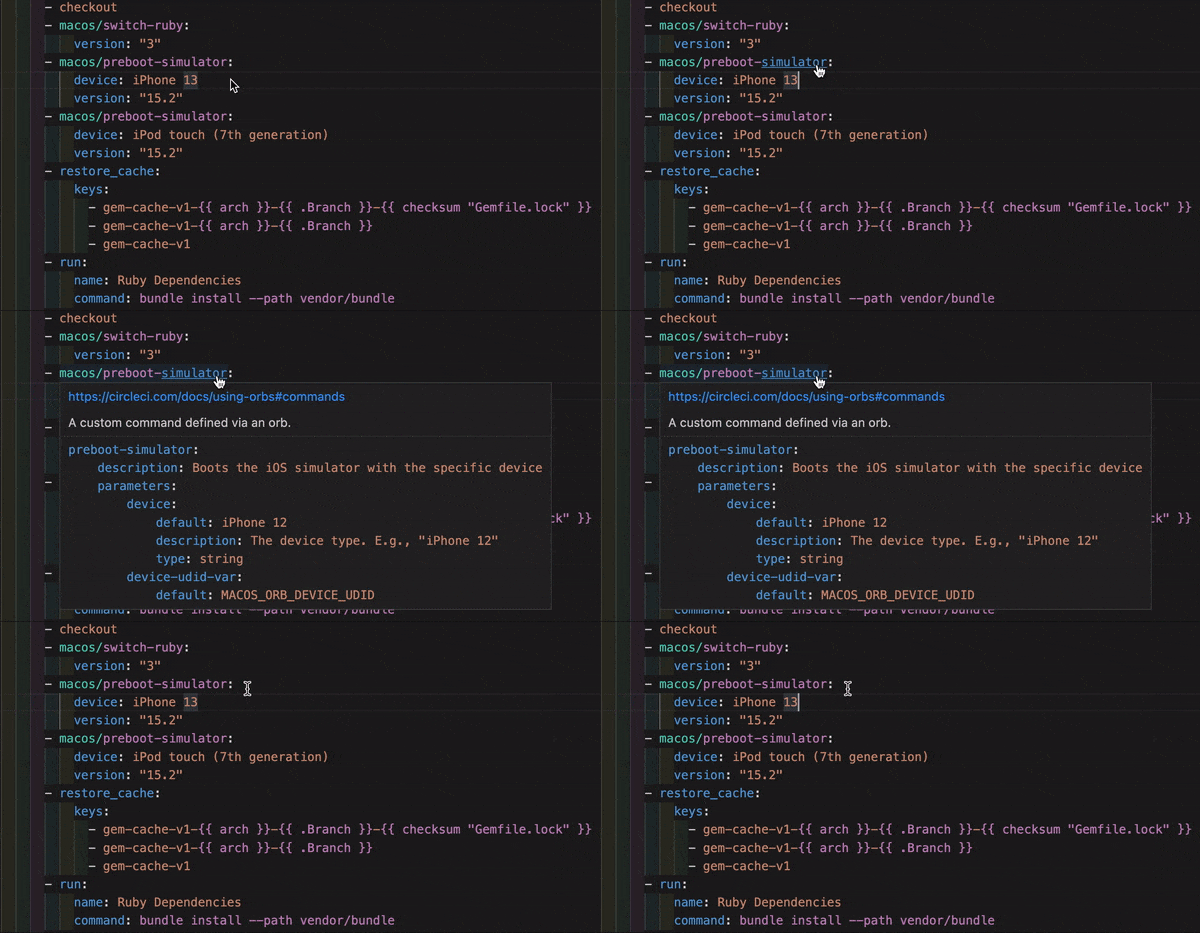 Figure 7. Go-to-Definition Feature
 -
Contextual documentation and usage hints when hovering on specific keys. This helps you avoid having to frequently switch to your browser to check the documentation when editing your configuration. Links to the official CircleCI docs are also provided on hover, for easier navigation.
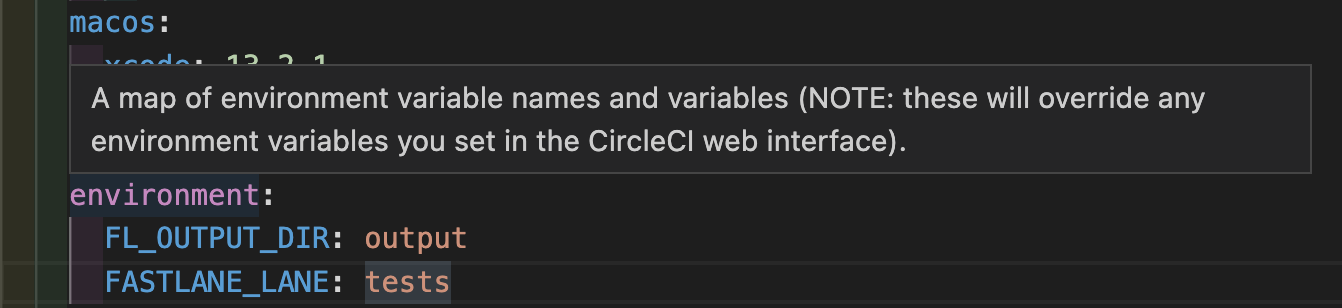 Figure 8. On-Hover Documentation
 -
Syntax validation. This helps you identify typos, incorrect use of parameters, incomplete definitions, wrong types, invalid or deprecated machine versions, etc.
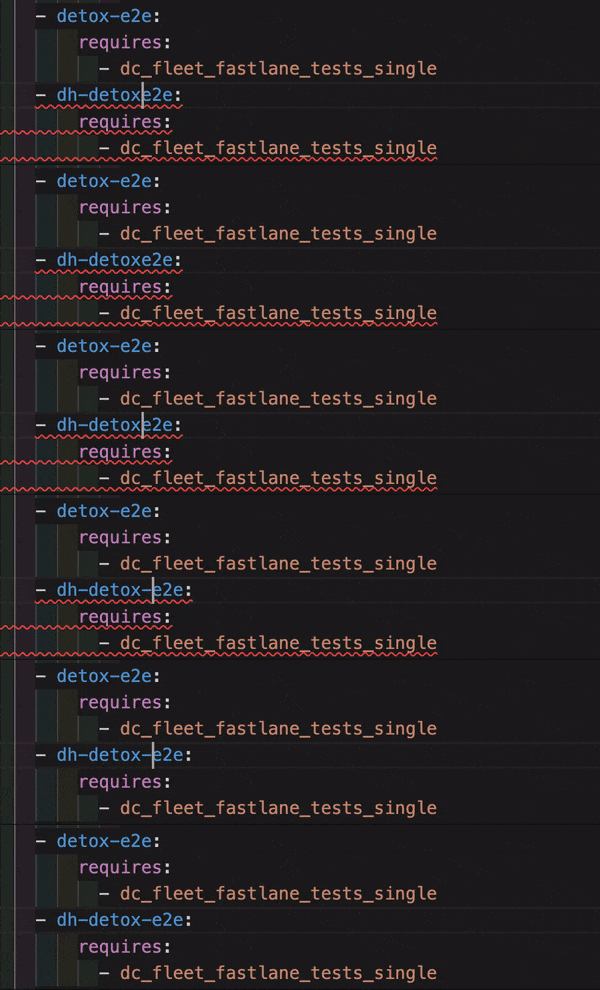 Figure 9. Syntax Validation
 -
Usage warnings. This helps you identify deprecated parameters, unused jobs or executors, or missing properties that prevent you from taking advantage of CircleCI’s full capabilities.
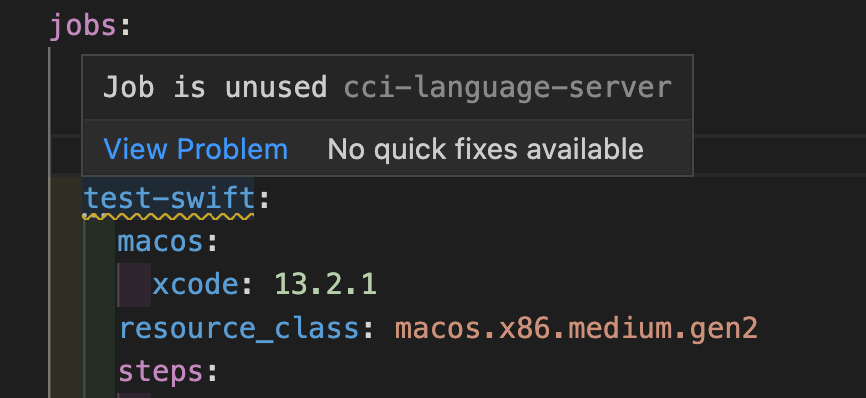 Figure 10. Usage Warnings
 -
Auto completion. Auto completion is available with both built-in keys and parameters as well as user-defined variables.
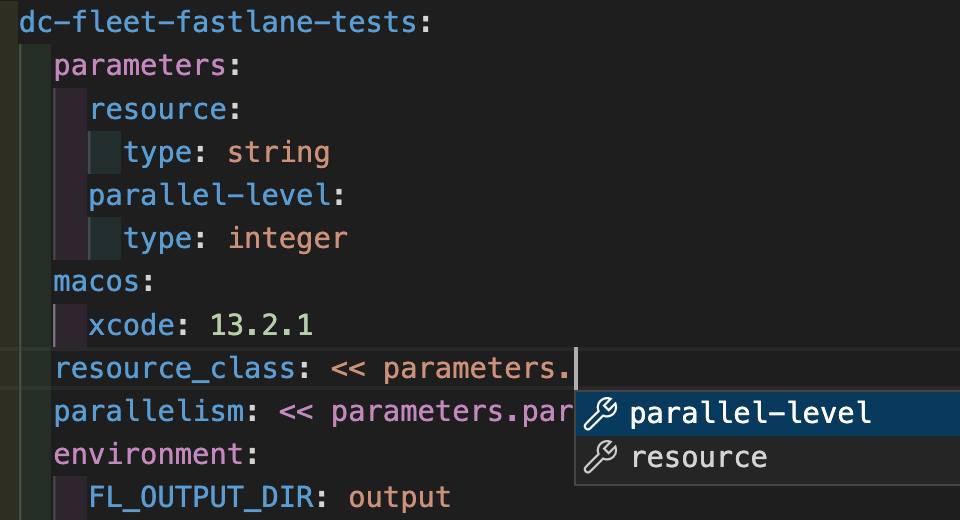 Figure 11. Autocomplete
Config validation commands
The config helper also provides two commands that help you statically validate your YAML config files without having to run a pipeline.
-
Validate current configuration file
Corresponds to the CLI command
circleci config validate, and statically verifies that the config file is well formed. This command only validates the file for structure and syntax errors, not for semantic errors (for example, "This job does not exist"). -
Validate current configuration file against org policy.
Corresponds to the CLI command
circleci policy decide, and verifies that the configuration file complies with your organization policies (if any are set).
Both of these commands can be run by:
-
Opening the VS Code Command Palette.
-
Right-clicking anywhere within an opened
.circleci/config.ymlfile. -
Clicking on the CircleCI button on the top right of the editor when you have a
.circleci/config.ymlopen. Note that the button will not be visible if you are editing any other file.
Open source language server
The config helper is based on a dedicated language server specific for CircleCI YAML files, which is open source. You can view its source code, contribute and add issues directly on the project repository: CircleCI YAML language server.
You can also integrate the language server into any editor that supports the Language Server Protocol. Build your own plugin to benefit from config helper capabilities in your preferred editor.