

Using the Windows execution environment
The Windows execution environment provides the tools to build Windows projects, such as a Universal Windows Platform (UWP) application, a .NET executable, or Windows-specific (like the .NET framework) projects. The following specifications detail the capacities and included features of the Windows executor:
-
Is VM-based to guarantee full job isolation.
-
Can use either the Server Core version of Windows Server 2019 Datacenter Edition, or Windows Server 2022 Datacenter edition.
-
PowerShell is the default shell (Bash and CMD are available to be manually selected).
-
Docker Engine - Enterprise is available for running Windows containers.
You can access the Windows execution environment by using the machine executor and specifying a Windows image.
Quickstart
Configuration options for using the Windows execution environment are shown below.
-
Cloud
-
Server
version: 2.1

jobs:
  build: # name of your job
    resource_class: 'windows.medium'
    machine:
      image: 'windows-server-2022-gui:current'
      shell: 'powershell.exe -ExecutionPolicy Bypass'
    steps:
      # Commands are run in a Windows virtual machine environment
        - checkout
- run: Write-Host 'Hello, Windows'version: 2.1
jobs:
build: # name of your job
machine:
image: windows-default
steps:
# Commands are run in a Windows virtual machine environment
- checkout
- run: Write-Host 'Hello, Windows'Available resource classes
| Class | vCPUs | RAM | Disk Size | Cloud | Server |
|---|---|---|---|---|---|
|
4 |
16GB |
200 GB |
Yes |
Yes |
|
8 |
32GB |
200 GB |
Yes |
Yes |
|
16 |
64GB |
200 GB |
Yes |
Yes |
|
32 |
128GB |
200 GB |
Yes |
Yes |
| Using server? Check with your systems administrator whether you have access to the Windows execution environment. |
-
Cloud with orb
-
Cloud with machine
-
Server
version: 2.1 # Use version 2.1 to enable Orb usage.

orbs:
  win: circleci/windows@5.0 # The Windows orb gives you everything you need to start using the Windows executor.

jobs:
  build: # name of your job
    executor:
      name: win/default # executor type
      size: medium # can be medium, large, xlarge, 2xlarge

    steps:
      # Commands are run in a Windows virtual machine environment
      - checkout
- run: Write-Host 'Hello, Windows'version: 2.1
jobs:
build: # name of your job
machine:
image: 'windows-server-2022-gui:current'
resource_class: windows.medium # can be medium, large, xlarge, 2xlarge
steps:
# Commands are run in a Windows virtual machine environment
- checkout
- run: Write-Host 'Hello, Windows'version: 2.1
jobs:
build: # name of your job
machine:
image: windows-default
resource_class: windows.medium # can be medium, large, xlarge, 2xlarge
steps:
# Commands are run in a Windows virtual machine environment
- checkout
- run: Write-Host 'Hello, Windows'View resource usage
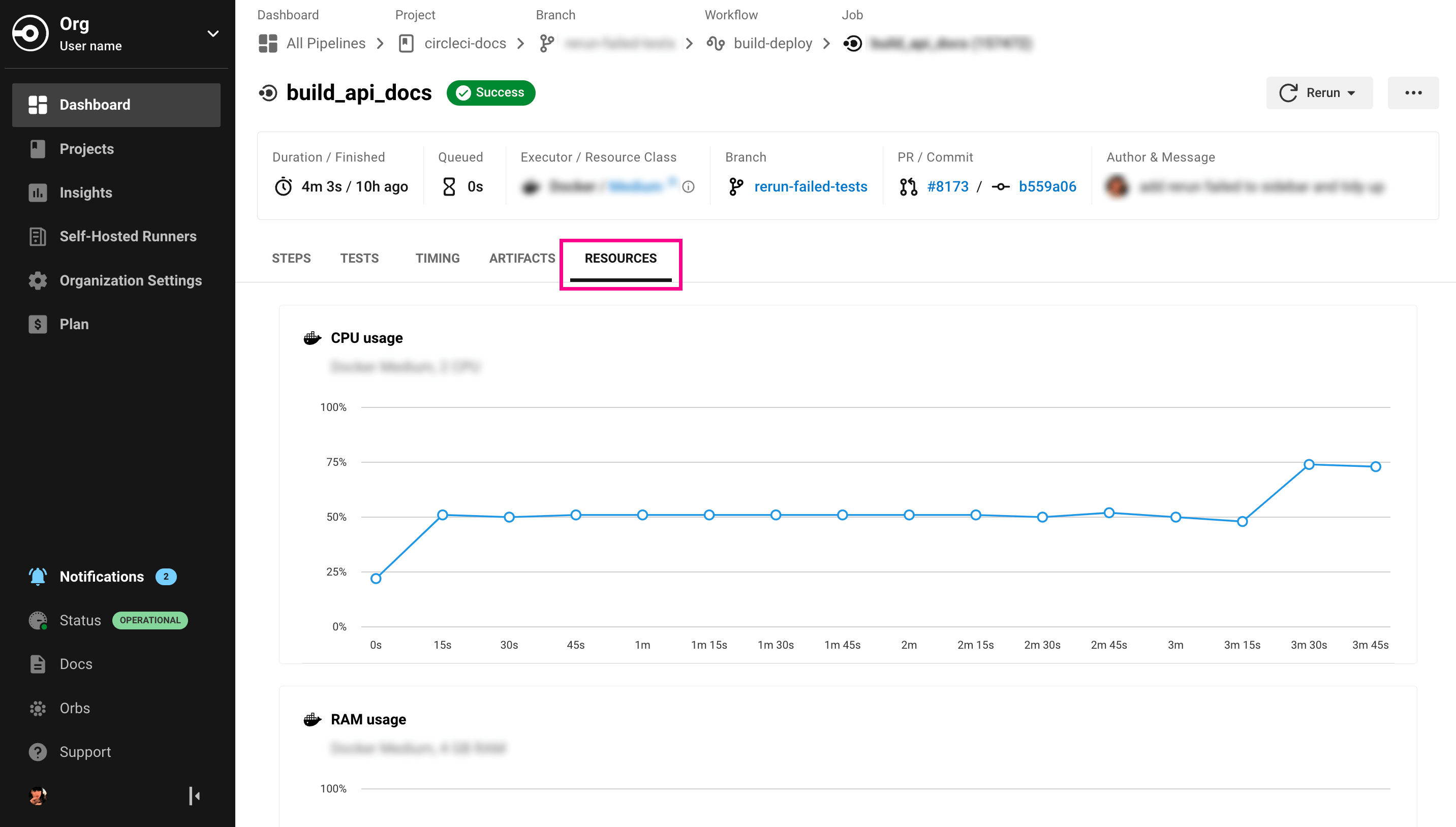
To view the compute resource usage for the duration of a job in the CircleCI web app:
-
In the CircleCI web app, select your org from the org cards on your user homepage.
-
Select Pipelines from the sidebar and locate your pipeline from the list. You can use the project, branch, date, and status search options to help.
-
Select the job you want to access by selecting the job name.
-
Select the Resources tab to view CPU and RAM usage for the duration of the job.
You can use these insights to decide whether to make changes to the job’s configured resource class.
Windows machine executor images
Your system administrator manages the Windows images available on your installation. Use the windows-default image in your job configuration.
Specifying a shell with the Windows executor
You can use one of three shells to run job steps on Windows:
-
PowerShell (default in the Windows orb).
-
Bash.
-
Command.
You can configure the shell at the job level or at the step level. It is possible to use multiple shells in the same job. Consider the example below, where we use Bash, PowerShell, and CMD by adding a shell: argument to our job and step declarations:
-
Cloud
-
Server
version: 2.1

orbs:
  win: circleci/windows@5.0

jobs:
  build:
    executor:
      name: win/default
    steps:
      # default shell is PowerShell
      - run:
         command: $(echo hello | Out-Host; $?) -and $(echo world | Out-Host; $?)
         shell: powershell.exe
      - run:
         command: echo hello && echo world
         shell: bash.exe
      - run:
         command: echo hello & echo world
shell: cmd.exeversion: 2.1
jobs:
build: # name of your job
machine:
image: windows-default # Windows machine image
resource_class: windows.medium
steps:
# default shell is PowerShell
- run:
command: $(echo hello | Out-Host; $?) -and $(echo world | Out-Host; $?)
shell: powershell.exe
- run:
command: echo hello && echo world
shell: bash.exe
- run:
command: echo hello & echo world
shell: cmd.exe
It is possible to install updated or other Windows shell-tooling. For example, you could install the latest version of PowerShell Core with the dotnet CLI and use it in a job’s successive steps:
|
-
Cloud
-
Server
version: 2.1

orbs:
  win: circleci/windows@5.0

jobs:
  build:
    executor: win/default
    steps:
      - checkout
      - run: dotnet tool install --global PowerShell
- run: pwsh ./<my-script>.ps1version: 2.1
jobs:
build: # name of your job
machine:
image: windows-default # Windows machine image
resource_class: windows.medium
steps:
- checkout
- run: dotnet tool install --global PowerShell
- run: pwsh ./<my-script>.ps1Running Windows Docker containers on the Windows executor
You can run Windows Docker containers on the Windows executor like so:
-
Cloud
-
Server
version: 2.1

orbs:
  win: circleci/windows@5.0

jobs:
  build:
    executor:
      name: win/default
      shell: powershell.exe
    steps:
      - checkout
      - run: systeminfo
      - run:
          name: "Check docker"
          shell: powershell.exe
          command: |
            docker info
docker run -it mcr.microsoft.com/windows/nanoserver:ltsc2022 cmd.exeversion: 2.1
jobs:
build: # name of your job
machine:
image: windows-default # Windows machine image
resource_class: windows.medium
steps:
- checkout
- run: systeminfo
- run:
name: "Check docker"
shell: powershell.exe
command: |
docker info
docker run hello-world:nanoserver-1809SSH into your Windows build
It is possible to SSH into a Windows build container, which can be useful for troubleshooting problems in your pipeline. Follow these steps to SSH into a Windows container:
Steps
| The steps described in this section apply to all CircleCI accounts. If your account is integrated through the GitHub OAuth app, you can add an SSH key to your VCS account (GitHub). Do this rather than adding it in the CircleCI app under User Settings, if you prefer. |
-
If you have not already done so, add an SSH key to your User Settings. This key will be used to connect to the container or VM that is running your job.
-
To start a job with SSH enabled, select the Rerun job with SSH option from the "Rerun Workflow" dropdown menu.
-
To see the connection details, expand the "Enable SSH" section in the job output where you will see the SSH command needed to connect.
Ensure that you are passing the name of the shell you want to run when you SSH
in. To run cmd.exe in the build above you would run: ssh -p <remote_ip> -- cmd.exe
The available options are:
-
powershell.exe -
bash.exe -
cmd.exe
You can read more about using SSH in your builds Here.
Known issues and limitations
These are the issues with the Windows executor that we are aware of and will address as soon as we can:
-
The
add_ssh_keysstep is required for any SSH key used in the job. -
It is currently not possible to do nested virtualization (for example, using the
--platform linuxflag). -
The Windows executor currently only supports Windows containers. Running Linux containers on Windows is not possible for now.
Next steps
Check out the Hello World on Windows page.