

Pipelines overview and setup
CircleCI pipelines are the highest-level unit of work in your CI/CD process. Pipelines orchestrate the execution of workflows which run jobs to build, test, and deploy your code. Each pipeline is defined by a configuration file stored in a repository (typically .circleci/config.yml).
Pipelines can be triggered in the following ways:
-
Automatically: Git events, scheduled events, custom webhooks.
-
Manually: CircleCI app, or via the API or CLI.
Pipelines provide a flexible framework for creating conditional workflows for you to customize your CI/CD process to fit your project’s needs, using the following orchestration options:
View pipelines in the CircleCI web app
Your pipelines dashboard displays pipelines for your organization. Use the various filters to find the pipelines you need. Select workflow and job names to view workflow maps and individual job steps. Use the quick controls on the right of the screen to rerun and cancel workflows.
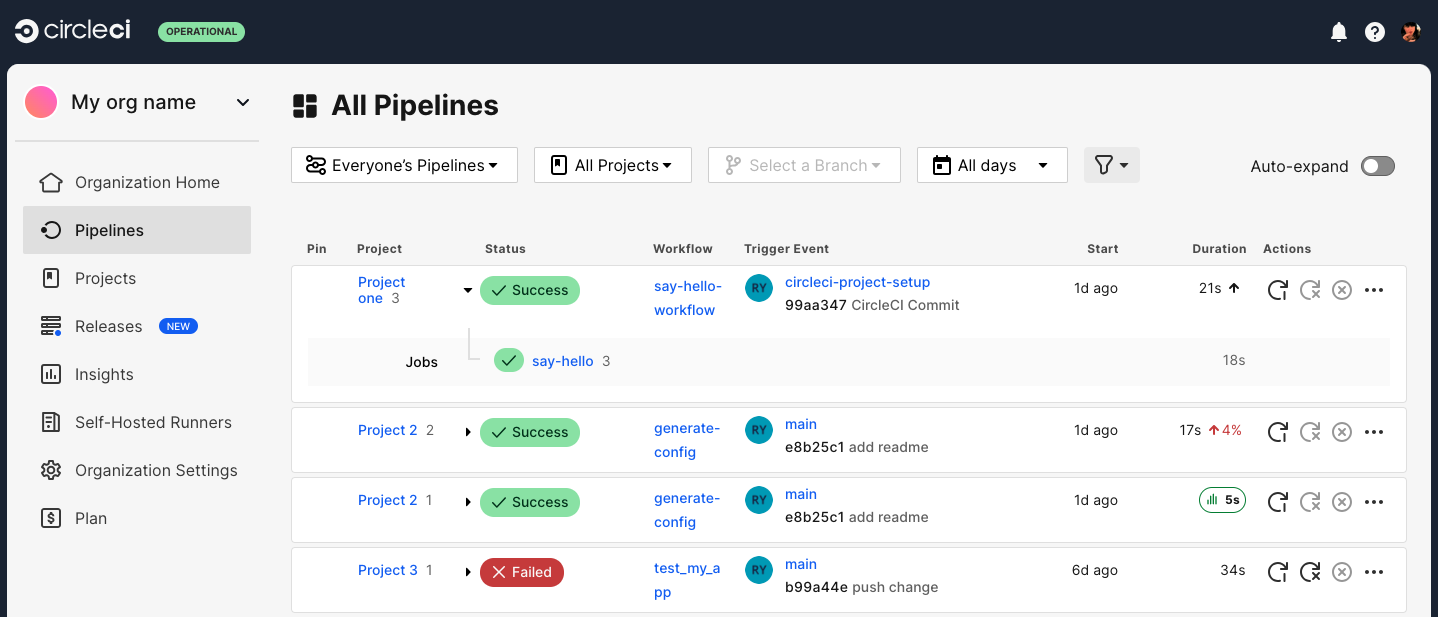
From the pipelines dashboard you can find the pipeline ID. The pipeline ID is a unique ID for a pipeline that has been triggered. You can use the pipeline ID to access pipeline information via the API.

Set up pipelines
Pipelines are set up when a project is set up and cannot be edited. The Pipeline and Trigger pages under Project Settings are not available. CircleCI configuration files must be stored in the same repository as your code, at .circleci/config.yml.
Pipeline states
The following diagram outlines the various states a pipeline can be in.
Pipeline parameters
Pipeline parameters are declared using the parameters key at the top level of a .circleci/config.yml file. Pipeline parameters can be referenced by value and used as a configuration variable under the scope pipeline.parameters.
The example below shows a configuration with two pipeline parameters (image-tag and workingdir) defined at the top of the configuration, and then subsequently referenced in the build job:
version: 2.1

parameters:
  image-tag:
    type: string
    default: "current"
  workingdir:
    type: string
    default: "~/main"

jobs:
  build:
    docker:
      - image: cimg/node:<< pipeline.parameters.image-tag >>
    environment:
      IMAGETAG: << pipeline.parameters.image-tag >>
    working_directory: << pipeline.parameters.workingdir >>
    steps:
      - run: echo "Image tag used was ${IMAGETAG}"
      - run: echo "$(pwd) == << pipeline.parameters.workingdir >>"
A pipeline can be triggered with specific parameter values using the API v2 or via the CircleCI web app.
See the Pipeline Values and Parameters page for more information.
VS Code extension
If you use Visual Studio Code, you can also monitor and interact with your pipelines directly from VS Code with the official CircleCI VS Code Extension. The extension allows you to access to:
-
Customize which projects and pipelines you want to follow.
-
View job logs and test results.
-
Download artifacts.
-
Approve, re-run, and debug jobs with SSH.
-
Get notified when your workflows fail or need approval.
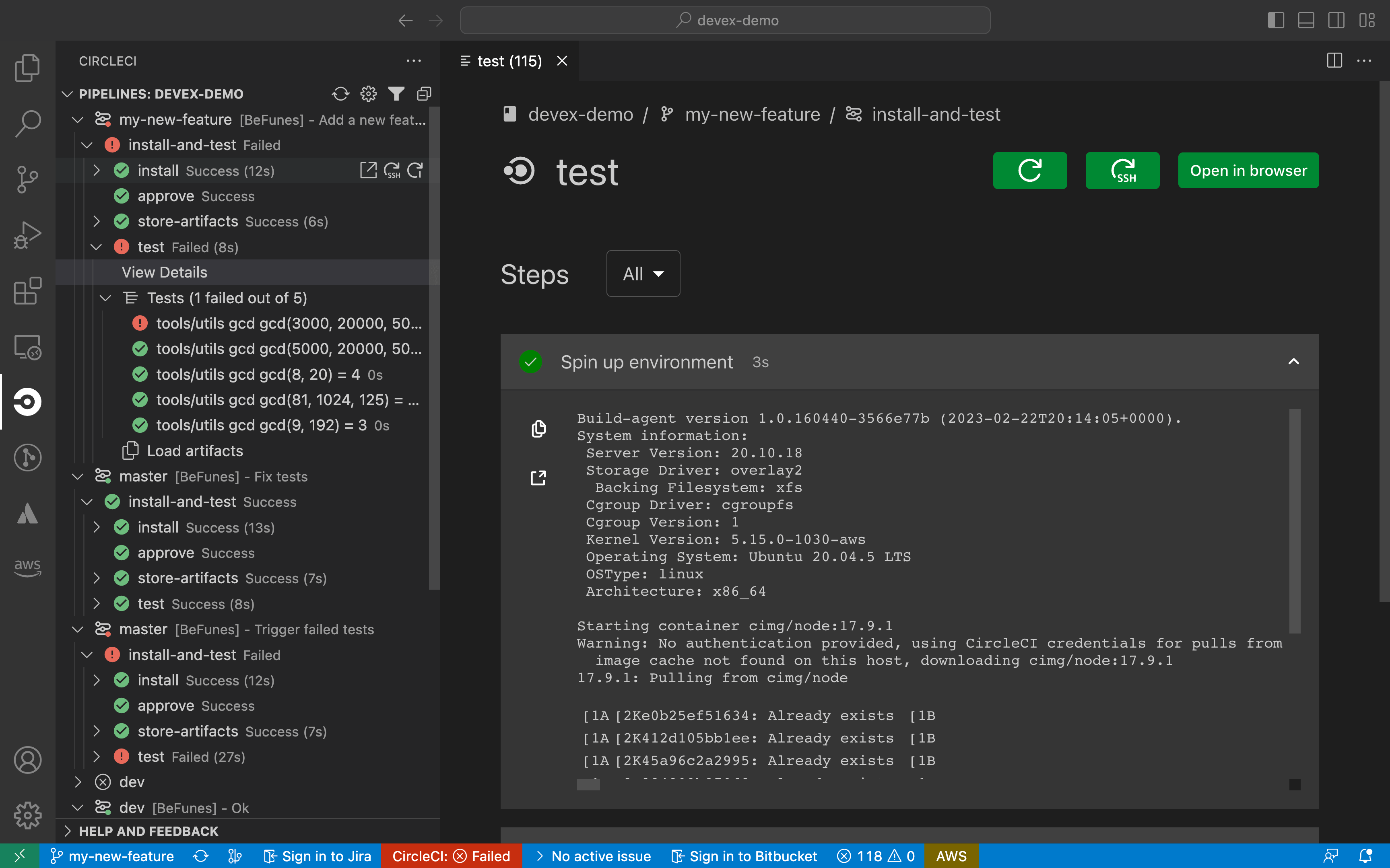
The CircleCI VS Code extension is available to download on the VS Code marketplace.
Troubleshooting
Config could not be located error
If you see the following error message, check the steps below to remediate the issue.
config file .circleci/sample-filename.yml could not be located on branch sample-branch-name in repository sample-repo-name-
Ensure that there is a CircleCI configuration file in the repository on the branch that uses the filename specified in the error message. If there is not one present, add a CircleCI configuration file.
Why is my scheduled pipeline not running?
If your scheduled pipeline is not running, verify the following things:
-
Is the actor who is set for the schedule trigger still part of the organization? You can find this setting in the Pipeline attribution section for your trigger in the CircleCI web app.
-
Does the branch set for the trigger still exist?
-
Is your VCS organization using SAML protection? SAML tokens expire often, which can cause requests to fail.
Why are my jobs not running when I push commits?
In the CircleCI application, check the individual job and workflow views for error messages. More often than not, the error is because of formatting errors in your .circleci/config.yml file.
See the YAML Introduction page for more details.
After checking your .circleci/config.yml for formatting errors, search for your issue in the CircleCI support center.
Why can I not find my project on the Projects dashboard?
If you do not see a project you would like to build, check your org in the top left corner of the CircleCI application. For instance, if the top left shows your user my-user, only projects belonging to my-user will be available under Projects. If you want to build the project your-org/project, you must switch your organization on the application’s organization switcher menu to your-org.
How do Docker image names work? Where do they come from?
CircleCI currently supports pulling (and pushing with Docker Engine) Docker images from Docker Hub. For official images, you can pull by specifying the name of the image and a tag:
golang:1.7.1-jessie
redis:3.0.7-jessie
For public images on Docker Hub, you can pull the image by prefixing the account or team username:
my-user/couchdb:1.6.1What is the best practice for specifying image versions?
It is best practice not to use the latest tag for specifying image versions. It is also best practice to use a specific version and tag, for example cimg/ruby:3.0.4-browsers. Using a specific version and tag pins down the image and prevents upstream changes to your containers when the underlying base distribution changes. For example, specifying only cimg/ruby:3.0.4 could result in unexpected changes from browsers to node. For more context, refer to Docker Image Best Practices, and CircleCI Image Best Practices.
How can I set the timezone in Docker images?
You can set the timezone in Docker images with the TZ environment variable. A sample .circleci/config.yml with a defined TZ variable would look like the following:
version: 2.1
jobs:
  build:
    docker:
      - image: your/primary-image:version-tag
        auth:
          username: mydockerhub-user
          password: $DOCKERHUB_PASSWORD  # context / project UI env-var reference
      - image: mysql:5.7
        auth:
          username: mydockerhub-user
          password: $DOCKERHUB_PASSWORD  # context / project UI env-var reference
        environment:
           TZ: "America/Los_Angeles"
    working_directory: ~/your-dir
    environment:
      TZ: "America/Los_Angeles"
In this example, the timezone is set for both the primary image and an additional MySQL image.
A full list of available timezone options is available on Wikipedia.
FAQs
Can I trigger forked PRs using pipelines?
You can trigger pipelines to build PRs from forked repositories with CircleCI API v2. However, by default, CircleCI will not build a PR from a forked repository. If you would like to turn this feature on, navigate to in the web app. If you would like more information, you can view this support article.
Next steps
Find out more about triggering pipelines in the Triggers Overview.