

Automated testing in CircleCI
CircleCI allows you to automatically test your code before changes are merged. You can integrate testing tools and frameworks such as Jest, Mocha, pytest, JUnit, Selenium, XCTest, and more. This page covers the basics that apply to every project, then helps you choose your test tooling.
Run tests in CI
When you integrate your tests into your CircleCI pipelines, you deliver software to your users more reliably and efficiently, and get faster feedback. This also means you can fix issues and failed tests faster. Test output data becomes available in CircleCI to help debug failed tests. If you save your test data in CircleCI, you can also split your tests across parallel execution nodes to reduce test time.
To automatically run your test suites in a project pipeline, you will add configuration keys in your .circleci/config.yml file. These would typically be defined as a step or collection of steps to be executed in a job.
A pipeline might consist of a single workflow, with a single job defined that includes a step to execute a suite of tests within an execution environment.
| Using Docker? Authenticating Docker pulls from image registries is recommended when using the Docker execution environment. Authenticated pulls allow access to private Docker images, and may also grant higher rate limits, depending on your registry provider. For further information, see Using Docker Authenticated Pulls. |
jobs:
  build-and-test:
    docker:
      - image: cimg/node:24.16.0
    steps:
      - checkout
      - node/install-packages:
          pkg-manager: npm
      - run:
          name: Run tests
          command: npm test
run is a built-in step that runs commands in a shell. To read more about the run step for executing tests and other commands, go to the Configuration Reference page.
The previous example runs your test command directly. To split your tests across parallel execution nodes, use test splitting and parallelism. See Choose your test tooling.
For example, for a project that uses Vitest, the following job splits the test files across four parallel execution nodes using timing data from previous runs:
jobs:
  build-and-test:
    docker:
      - image: cimg/node:24.16.0
    parallelism: 4
    steps:
      - checkout
      - node/install-packages:
          pkg-manager: npm
      - run:
          name: Run tests
          command: |
            TESTFILES=$(circleci tests glob "src/**/*.test.js" | circleci tests split --split-by=timings)
            npx vitest run --reporter=junit --outputFile=test-results/junit.xml $TESTFILES
      - store_test_results:
          path: test-results
Depending on your requirements, you might have more complex workflows that orchestrate multiple jobs. For example, you might have several concurrent jobs for building and testing your project in separate Linux and Windows execution environments. You might also want to require that a test job is run only if a preceding build job is successful.
For a more in-depth look at workflows functionality, visit the Workflows page. You can also refer to the Sample configuration page for more workflow examples.
Timing tab
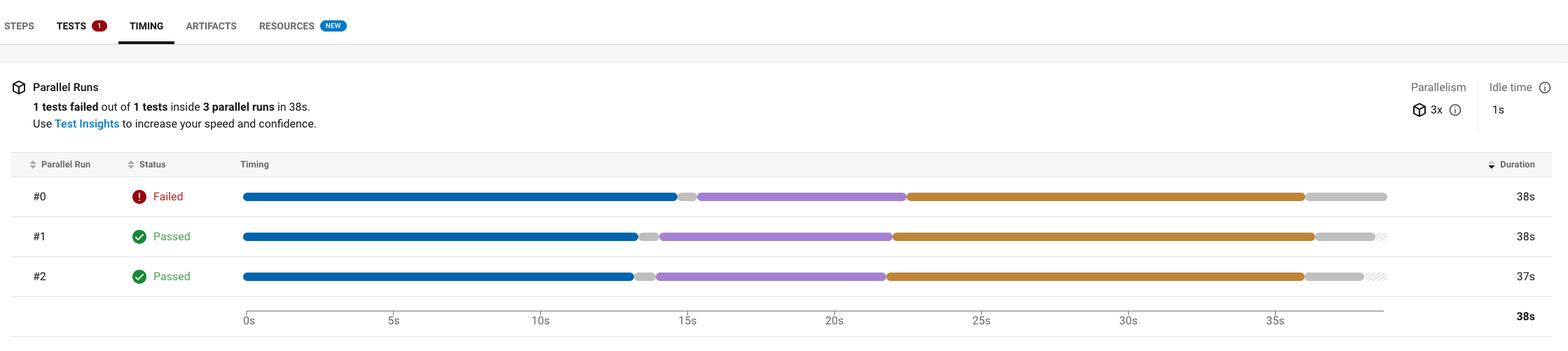
The Timing tab in the Job Details UI shows how long each step of a job took. Use it to identify which steps take the most time, so that you can make targeted improvements to reduce overall runtime.
When a job runs with parallelism and test splitting, the Timing tab shows the timing of each parallel run.
Test uploads
Use the store_test_results step to upload your test results to CircleCI:
steps:
  ... # Steps to build and test your application
  - store_test_results:
      path: test-results
This step uploads and stores test results, and also enables direct access to output from failed tests on the Tests tab of a job in the web app.
More details on store_test_results can be found on the Configuration Reference page. For more detailed examples of storing test data with different testing frameworks, refer to the Upload Test Results page.
Store test results as artifacts
You can also store test results as artifacts using the store_artifacts step. Artifacts are files you can download later. They do not appear on the Tests tab.
steps:
  ... # Steps to build and test your application
  - store_artifacts:
      path: test-results
      destination: junit
Results can later be accessed or downloaded as files via the Artifacts section of a job in the CircleCI web app, or through the API.
More details on store_artifacts can be found in the Configuration Reference page. You can also read more in the Storing Build Artifacts guide.
Choose your test tooling
To split your tests across parallel execution nodes, use the circleci tests glob and circleci tests split commands. These commands are part of the environment CLI, which is available in every job, so there is nothing to install. See Test Splitting and Parallelism and Use the Environment CLI to Split Tests.
The circleci tests run command and Smarter Testing are available on CircleCI Cloud only.
Next steps
-
Split your tests across parallel nodes with Test Splitting and Parallelism.
-
Read our Browser Testing guide to common methods for running and debugging browser tests in CircleCI.