Set up VCS connections
A VCS connection is what gives CircleCI access to the code in your repositories. It links your CircleCI organization to your version control system (VCS) provider. CircleCI can then check out your code, and receive events from your repositories such as a push or a pull request. You manage these connections at in the CircleCI web app.
You can also install a connection while creating a project. If you would rather set your connection up as part of that flow, see the Create a Project page.
For which connections are available to your organization type, and which features each supports, see the Users, Organizations, and Integrations Guide and the VCS, Pipeline Types, and Feature Support page.
View your connections
The page has two parts:
-
Connected lists the providers your organization is already connected to. Expand a connection to see the permissions it has been granted and which repositories it can access. Each connection also has controls to configure or remove it.
-
Available Providers shows the providers you can still connect, as a set of cards. Select a provider card to start installing that connection.
Some connections need extra configuration before pipelines can run. For example, a self-managed provider may show a prompt to add known_hosts values. The tabs in the next section cover what each provider requires.
Removing a connection is not deleting an org or project
Removing a VCS connection and deleting a CircleCI organization or project are separate actions, and what happens to your organization depends on the provider:
-
For
circlecitype organizations, the connection is an add-on. Removing it leaves your organization and projects in place. -
For
githubandbitbuckettype organizations, the organization exists because of the OAuth connection. Disconnecting GitHub OAuth or Bitbucket Cloud removes that organization from CircleCI.
Check the tab for your provider below before removing a connection. To delete an organization or project itself, see the Delete Organizations and Projects page.
Connect a provider
The following tabs describe your options for each integration type. Select the tab for the provider you want to connect.
How you start depends on the provider. GitLab self-managed uses a Set up integration button, while other providers are shown as cards under "Available Providers".
-
GitHub App
-
GitHub OAuth
-
Bitbucket
-
GitLab
-
GitLab self-managed
-
Cursor Origin
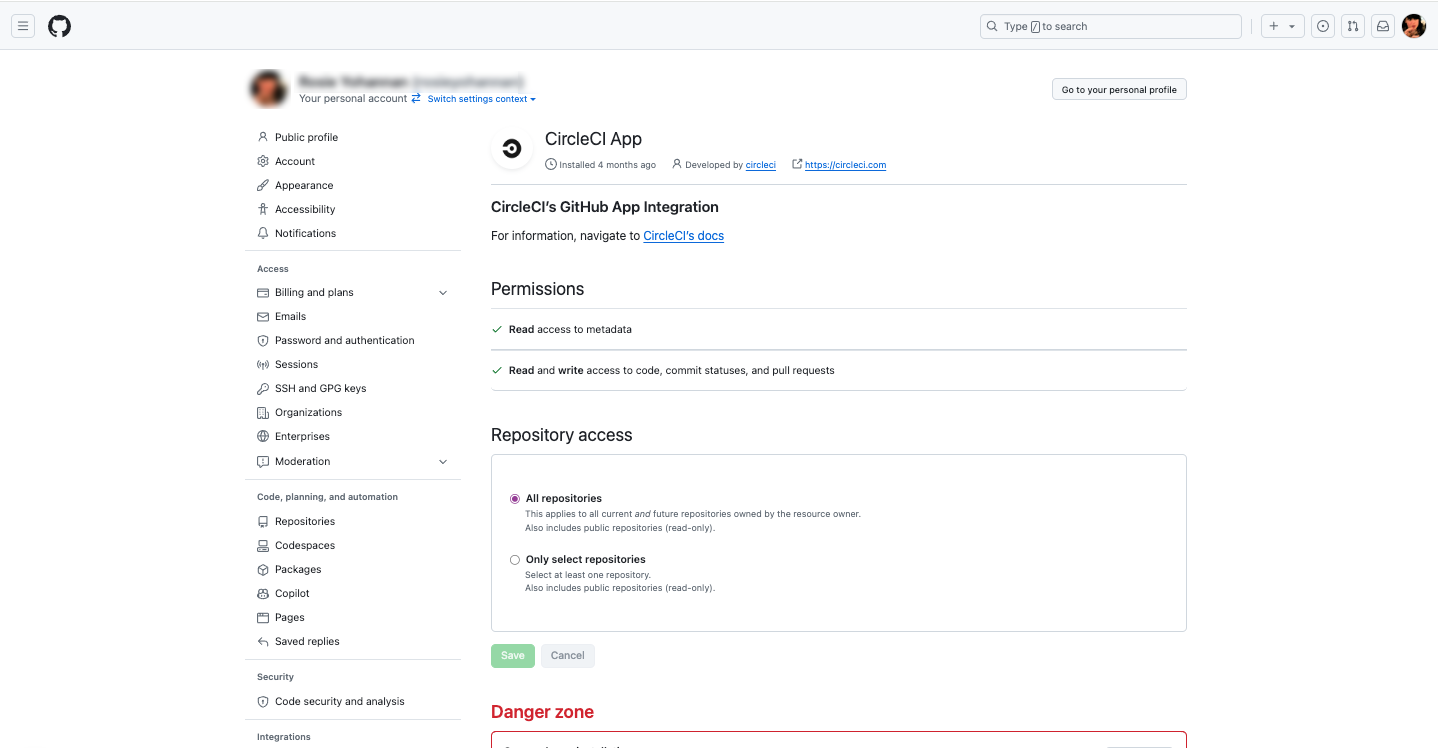
Availability: A GitHub App integration is available for circleci and github type organizations. The CircleCI GitHub App is installed into an organization. The GitHub App integration supports GitHub.com, GitHub Enterprise Cloud, and GitHub Enterprise Server. GitHub Enterprise Server support is currently in Preview. See the GitHub Enterprise Server Integration page for more information.
View: To view a GitHub App integration, navigate to . If you are in a circleci or github organization you will either see your active GitHub App integration or an option to install the GitHub App.
Disconnect: To uninstall the GitHub App from your organization, select the trash/bin button and follow the instructions.
Availability: A GitHub OAuth app integration is installed into a github type organization.
View: To view a GitHub OAuth app integration, navigate to . If the GitHub OAuth app is installed you will see this indicated in the OAuth app section.
Disconnect: You can disconnect your GitHub OAuth app integration. Doing so will remove your github organization from CircleCI. To disconnect your GitHub OAuth app integration, navigate to , select Disconnect next to your GitHub integration and follow the instructions.
Availability: A Bitbucket Cloud integration is installed into a bitbucket type organization.
View: To view a Bitbucket Cloud integration, navigate to . If the Bitbucket Cloud integration is installed you will see this indicated in the Bitbucket Cloud section.
Disconnect: You can disconnect your Bitbucket Cloud integration. Doing so will remove your bitbucket type organization from CircleCI. To disconnect your Bitbucket Cloud integration, navigate to , select Disconnect next to your Bitbucket Cloud integration and follow the instructions.
Availability: A GitLab SaaS integration is installed into a circleci type organization.
View: Currently, there is no method to manage the connection with GitLab outside of the project setup, trigger, and configuration settings.
Disconnect: Currently, there is no method to disconnect GitLab from your organization. You can delete projects that are connected to GitLab, and delete the CircleCI webhooks in GitLab to achieve this. See the Delete Organizations and Projects page for more information.
Availability: A GitLab self-managed integration is installed into a circleci type organization.
Configure: Set up an integration with your GitLab self-managed instance from as follows:
-
Select Set Up Integration next to GitLab self-managed.
-
Enter your GitLab self-managed instance URL, for example,
https://test-gitlab.circleci.com.Your self-managed instance must already contain at least one GitLab project — the authorization attempt fails if your instance has no projects. The self-managed instance must also be accessible via the public internet. If it is behind a firewall, see a suggested workaround.
-
Enter your instance’s SSH public host keys. You can retrieve this from your instance by running
ssh-keyscan <instance_url>, for example,ssh-keyscan test-gitlab.circleci.com, and copying the command’s output.The output looks something like:
➜ ~ ssh-keyscan test-gitlab.circleci.com # gitlab.com:22 SSH-2.0-GitLab-SSHD gitlab.com ssh-rsa AAAAB3NzaC1yc2EAAAADAQABAAABAQCsj2bNKTBSpIYDEGk9KxsGh3mySTRgMtXL583qmBpzeQ+jqCMRgBqB98u3z++J1sKlXHWfM9dyhSevkMwSbhoR8XIq/U0tCNyokEi/ueaBMCvbcTHhO7FcwzY92WK4Yt0aGROY5qX2UKSeOvuP4D6TPqKF1onrSzH9bx9XUf2lEdWT/ia1NEKjunUqu1xOB/StKDHMoX4/OKyIzuS0q/T1zOATthvasJFoPrAjkohTyaDUz2LN5JoH839hViyEG82yB+MjcFV5MU3N1l1QL3cVUCh93xSaua1N85qivl+siMkPGbO5xR/En4iEY6K2XPASUEMaieWVNTRCtJ4S8H+9 # gitlab.com:22 SSH-2.0-GitLab-SSHD gitlab.com ecdsa-sha2-nistp256 AAAAE2VjZHNhLXNoYTItbmlzdHAyNTYAAAAIbmlzdHAyNTYAAABBBFSMqzJeV9rUzU4kWitGjeR4PWSa29SPqJ1fVkhtj3Hw9xjLVXVYrU9QlYWrOLXBpQ6KWjbjTDTdDkoohFzgbEY= # gitlab.com:22 SSH-2.0-GitLab-SSHD gitlab.com ssh-ed25519 AAAAC3NzaC1lZDI1NTE5AAAAIAfuCHKVTjquxvt6CM6tdG4SLp1Btn/nOeHHE5UOzRdf # gitlab.com:22 SSH-2.0-GitLab-SSHD # gitlab.com:22 SSH-2.0-GitLab-SSHD -
Select Set Up Integration.
To create pipelines for your code in GitLab self-managed, you will need to generate a personal access token. This token must have the api scope.
You cannot currently edit or delete existing GitLab self-managed integrations.
View: Currently, there is no method to manage the connection with GitLab self-managed outside of the project setup, trigger, and configuration settings.
Disconnect: Currently, there is no method to disconnect GitLab self-managed from your organization. You can delete projects that are connected to GitLab self-managed and delete the CircleCI webhooks in GitLab to achieve this. See the Delete Organizations and Projects page for more information.
| The Cursor Origin integration is in beta. |
Availability: A Cursor Origin integration is installed into a circleci type organization. Cursor Origin is Cursor’s git forge for storing and sharing code. For more information, see the Cursor Origin documentation.
Configure: From , select the Cursor Origin card under "Available Providers". Follow the instructions to install and authorize the CircleCI app in your Origin codebase. You are also walked through this installation when you create your first Cursor Origin project. See the Create a Project page for those steps.
View: To view a Cursor Origin integration, navigate to .
Triggers: For the trigger events available to Cursor Origin pipelines, see the Cursor Origin Trigger Event Options page.
Disconnect: You can remove a Cursor Origin connection from , or uninstall the CircleCI app from the Origin side. Removing the connection does not delete your CircleCI organization or your projects.
Can multiple CircleCI organizations connect to the same GitHub organization?
A GitHub organization can only be connected via CircleCI GitHub App to a single CircleCI organization.
If you attempt to connect your CircleCI organization to a GitHub organization that already has the CircleCI GitHub App installed, you will be redirected to the GitHub App installation page. You will not be redirected back to CircleCI. This can be confusing because GitHub will show a successful installation. That installation, however, refers to the existing connection to a different CircleCI organization, not the one you just tried to create. You can confirm this by checking the "installed at" date at the top of the page. Unfortunately, GitHub doesn’t indicate which CircleCI organization is already connected, so if you need help identifying the existing connection, you can submit a request by filling out this form.