

Pause or stop pipelines during an incident
During an incident you may need to stop pipelines that are already running and prevent additional pipelines from starting. This page gives a practical order of operations for some common scenarios.
Introduction
During an incident you will need to take steps to pause or stop work in CircleCI. This guide provides information on the controls available in CircleCI to help you safely manage builds during an incident.
First, we present a step-by-step guide to stopping or pausing work that you can follow during an incident. Then, we provide a table detailing some common scenarios that you may encounter during an incident and look at the remediation steps to take.
Once you have paused or stopped pipelines, use Analyze Pipelines and Job Steps During an Incident to investigate what ran and what the incident exposed.
Recommended steps to take during an incident
1. Prevent new pipelines
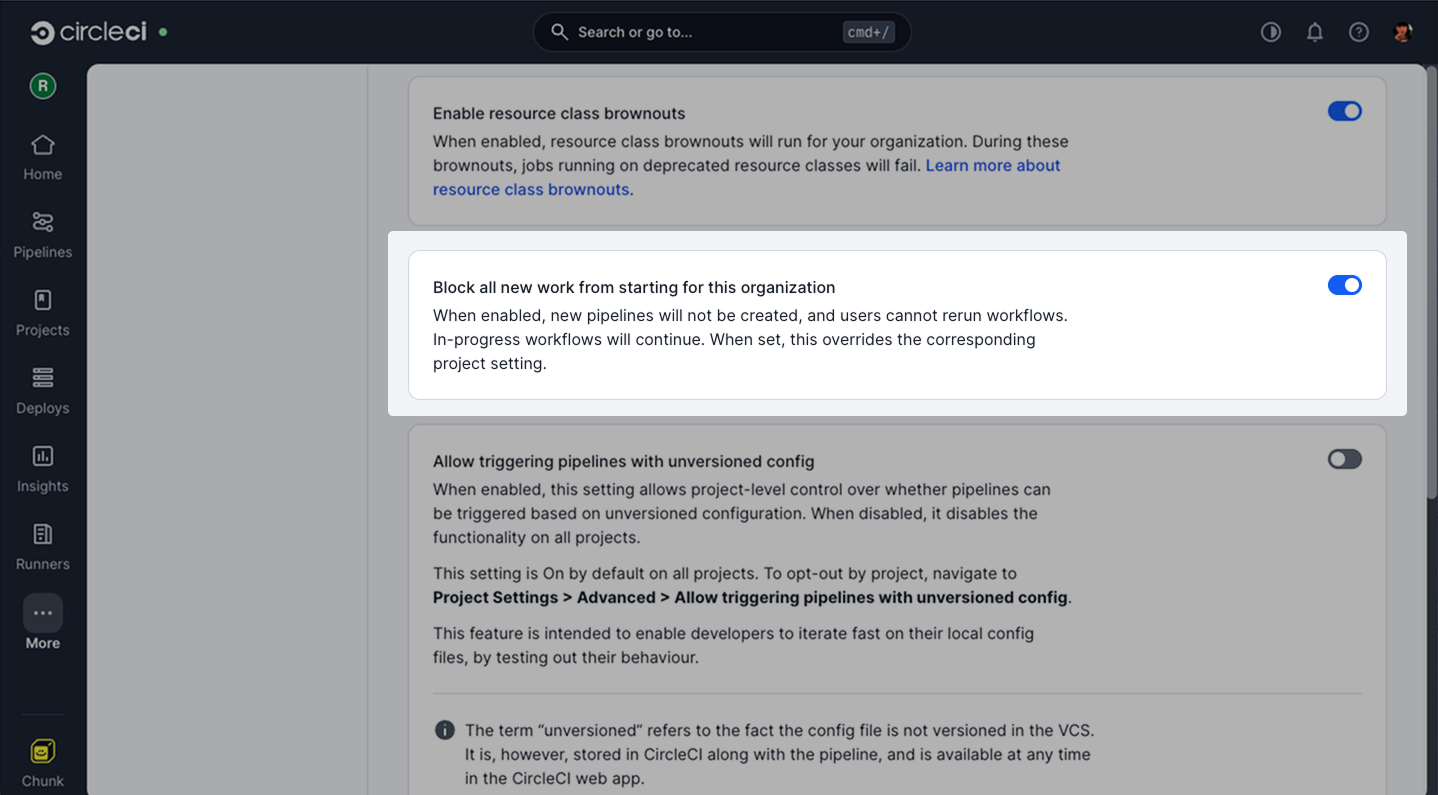
First use the Block all new work option at the organization or project level.
-
Organization
-
Project
-
In the CircleCI web app, select your org from the org cards on your user homepage.
-
Select Org from the sidebar to open your organization settings page.
-
Select Advanced.
-
Toggle the Block all new work from starting for this organization switch to the on position.
-
In the CircleCI web app, select your org from the org cards on your user homepage.
-
Select Projects from the sidebar and locate your project from the list. You can use the search to help.
-
Select the ellipsis

 next to your project and select Project Settings.
You can also access project settings from each project overview page using the Settings button. -
Select Advanced.
-
Toggle the Block all new work from starting for this project switch to the on position.
Block all new work is a toggle switch available for organizations or individual projects. Blocking all new work is the fastest way to contain an incident. Once enabled, CircleCI rejects incoming pipelines and users cannot rerun workflows. Your VCS integration stays in place. See Block All New Work for more information.
2. Cancel running work and disconnect the project
| If you already know a credential was compromised, begin rotating it now (step 4) in parallel with this step rather than waiting. Early rotation limits the window an attacker can use a leaked secret. |
The method for cancelling running work is different for different organization types. The three organization types are: github, bitbucket, and circleci. Check the Users, Organizations, and Integrations Guide to see which organization type you have.
-
githuborbitbucketorg -
circleciorg
If you have an organization of type github or bitbucket, use the Stop Building option.
Use the Stop Building to:
-
Remove all project followers.
-
Cancel all running workflows.
-
Remove the webhook and deploy key from the repository.
Once the incident is resolved, you can set up the project again.
-
In the CircleCI web app, select your org from the org cards on your user homepage.
-
Select Projects from the sidebar and locate your project from the list. You can use the search to help.
-
Select the ellipsis
next to your project and select Project Settings.You can also access project settings from each project overview page using the Settings button. -
Scroll down to the bottom of the overview page and select Stop Building.
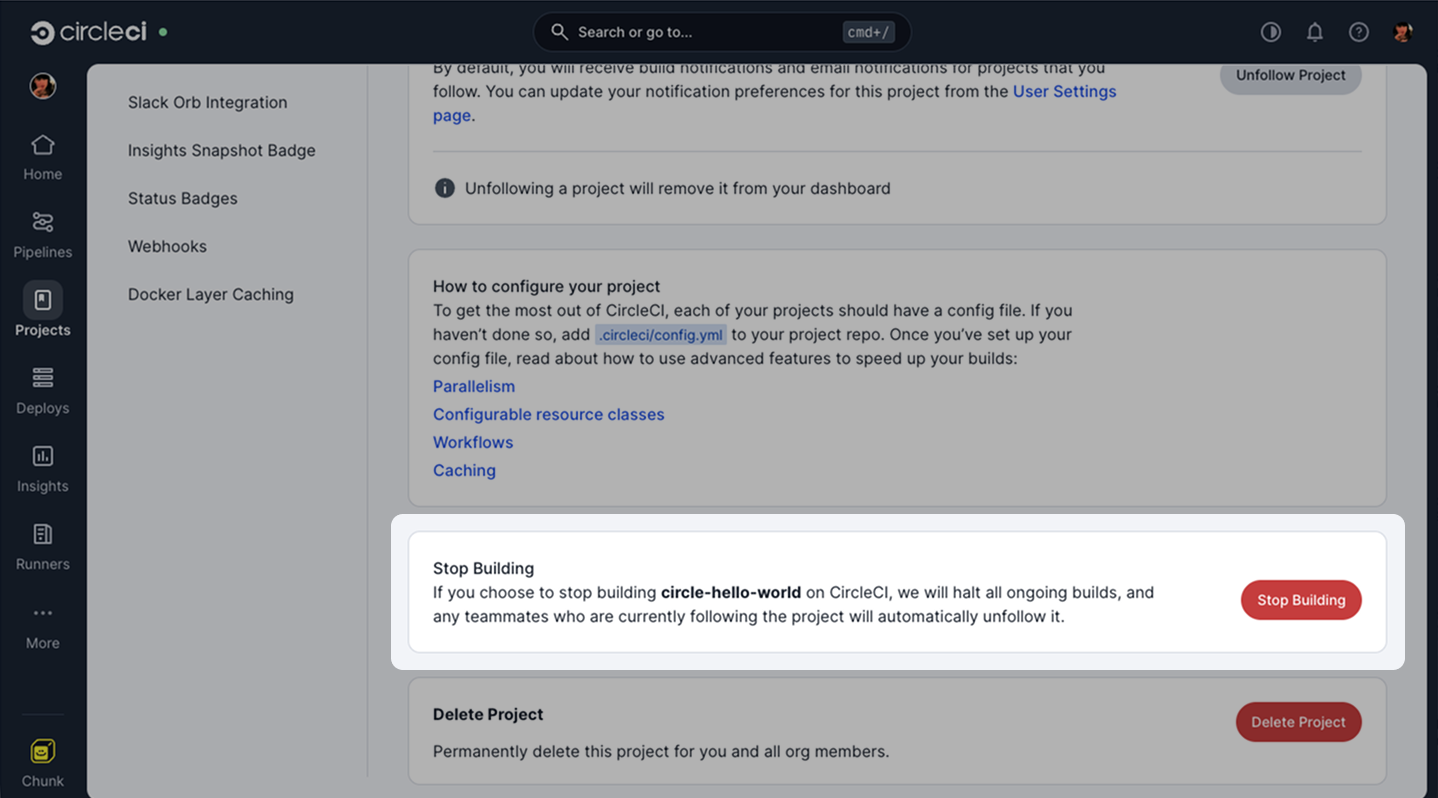
See Stop Building a Project on CircleCI for more information.
If you have an organization of type circleci, you can cancel all running workflows from the Pipelines Dashboard. Select Pipelines from the CircleCI web app sidebar. Use the cancel workflow options for any running workflows (
 ).
).
3. Coordinate who follows the project
Align with your team so that stopping or blocking work is not unintentionally undone. You can follow and unfollow projects from the Projects page in the CircleCI web app.
For some integrations, following a project can restore GitHub-side resources (such as webhook and deploy key) after the Stop Building option has been used. In this scenario there is no clear feedback in the CircleCI web app to notify others if a teammate follows the project during an incident.
4. Rotate or remove secrets
Rotate or remove secrets that might have been exposed during the incident. This includes context variables, project variables, API tokens, SSH keys, and runner tokens.
The API and CLI return masked values for project variables by design. You cannot bulk-export plaintext secrets to compare them.
Use the CLI or API to list names, remove bad variables, and store replacements.
4.1 Triage and audit logs
Start here if you suspect a leak:
To inventory variable names across multiple projects, use the open source CircleCI Environment Inspector (run with a Personal API Token; treat output as sensitive).
4.2 Environment variables
Environment variables are stored in contexts (shared across projects) and project settings (scoped to one project). Both store secrets as masked values. You rotate them differently depending on where they live and how your project connects to CircleCI.
Context variables. Use the CLI or API:
Project variables. Use the CLI or rotate in the web app:
-
*CLI:*Use the
circleci project envvarcommands. See the CLI reference for more information. -
Web app: See Set an Environment Variable.
4.3 SSH keys and self-hosted runners
-
Project SSH keys: Rotate Project SSH Keys.
-
Runner tokens: See the runner token sections in How to Use the CircleCI Local CLI.
4.4 GitHub OAuth webhooks and deploy keys
-
Rotate the GitHub webhook secret (GitHub OAuth project triggers). See Rotating the GitHub webhook secret for CircleCI GitHub OAuth project triggers for the documented flow with CircleCI-specific notes.
-
Disconnect without the CircleCI app (for example the UI is unavailable). Manually remove the CircleCI webhook and deploy key from the repository: How to stop building by manually removing the CircleCI webhook and deploy key from your GitHub repository. This stops delivery of events; it is not a substitute for rotating the webhook secret if that credential leaked.
-
Use Stop Building in the app when you can: Stop Building a Project on CircleCI removes the webhook and deploy key for supported integrations and cancels running workflows.
After a security incident, regenerate deploy keys and webhooks by reconnecting the project in CircleCI (or repeating the GitHub webhook setup) to invalidate old endpoints and secrets.
4.5 API tokens and user keys
-
Personal API tokens: Regenerate from in the web app. See Managing API Tokens.
-
Project API tokens: Regenerate from . These are deprecated but still in use on some projects.
-
User keys (checkout keys): Manage from . Remove compromised keys and add replacements.
Incident scenarios
The table in this section presents some common scenarios you may encounter during an incident along with the remediation steps to take:
| Scenario | Remediation Steps |
|---|---|
Compromised secret or credential |
Prevent new pipelines with Block all new work, cancel running work, and rotate the affected secrets before any more jobs can use them. |
Suspicious or unauthorized code |
Stop pipelines that are executing untrusted code, then investigate what ran. |
Suspicious dependency, orb, or image |
Stop work that could continue to use a compromised third-party component, then investigate where it ran. |
Compromised account or insider threat |
Stop all work, review audit logs, and rotate credentials the account had access to. |
Operational incident or release issue |
Pause new work while your team verifies configuration, dependencies, or external systems. |
After you have paused or stopped work in CircleCI, see Analyze Pipelines and Job Steps During an Incident to investigate what ran and what the incident exposed.
Block all new work vs Stop Building feature comparison
The table below compares the two controls.
| Block all new work | Stop Building | |
|---|---|---|
What it does |
Stops new pipelines and reruns at CircleCI. VCS integration remains. |
Removes all project followers, cancels all running workflows, and removes the project’s VCS connection (webhook and deploy key). You use Set Up Project to connect again later. |
Running workflows |
Already-running workflows continue until they finish, fail, or you cancel them. Block all new work does not cancel in-flight work. |
Cancels all running workflows asynchronously (in the background). The UI responds before all cancellations complete. |
Typical use |
Fast circuit breaker during an incident while you keep the project connected. Use when you want to stop new work but let in-progress builds finish. |
Full project shutdown: stops new work, cancels running work, and disconnects the VCS integration. Use when you need everything to stop. |
Where |
Org or Project Settings > Advanced |
Project Settings > Overview (bottom of page) |
Details |
Further options
-
Skip the next push only: Add
[ci skip]or[skip ci]to the latest commit (see Skip CI for a Specific Push). This does not stop work that is already queued or running across the org. -
Scale Plan (optional policy-based pause): Block all new work at organization scope is enough to stop pipelines org-wide. On Scale, you can also use config policy to fail pipelines with a custom message and exempt specific projects (for example a repo used only to publish policies). See Policy Management Overview and the Help Center sample Blocking builds org-wide through config policies.
-
Bulk "unfollow" or scripted stop (GitHub OAuth-style projects): Some teams use a scripted loop against the API v1 to unfollow multiple repositories at once. That pattern operates per user who runs it and can require Set Up Project again later. Read How to Mass Unfollow Projects From CircleCI before using it in an emergency.