

Using the Linux VM execution environment
Using the machine executor gives your application full access to OS resources and provides you with full control over the job environment. This control can be useful when you need full access to the network stack. For example, you can listen on a network interface or change the system with sysctl commands.
To use the machine executor, use the machine key in your job configuration and specify an image:
-
Cloud
-
Server
version: 2.1
jobs:
  my-job:
    machine:
      image: ubuntu-2604:current
resource_class: large.gen2version: 2.1
jobs:
my-job:
machine: true
resource_class: largeYou can view the list of available images in the Configuration Reference, or on the Developer Hub. If you are working on an installation of CircleCI Server, the syntax is slightly different. Your system administrator manages the available Linux images.
Available LinuxVM resource classes
Gen1
| Class | vCPUs | RAM | Disk Size | Cloud | Server |
|---|---|---|---|---|---|
|
2 |
7.5 GB |
150GB |
Yes |
Yes |
|
4 |
15 GB |
150GB |
Yes |
Yes |
|
8 |
32 GB |
150GB |
Yes |
Yes |
|
16 |
64 GB |
150GB |
Yes |
Yes |
|
32 |
64 GB |
150GB |
Yes |
Yes |
Gen2
| Class | vCPUs | RAM | Disk Size | Cloud | Server |
|---|---|---|---|---|---|
|
2 |
8 GiB |
150GB |
Yes |
No |
|
4 |
16 GiB |
150GB |
Yes |
No |
|
8 |
32 GiB |
150GB |
Yes |
No |
|
16 |
64 GiB |
150GB |
Yes |
No |
|
32 |
128 GiB |
150GB |
Yes |
No |
View resource usage
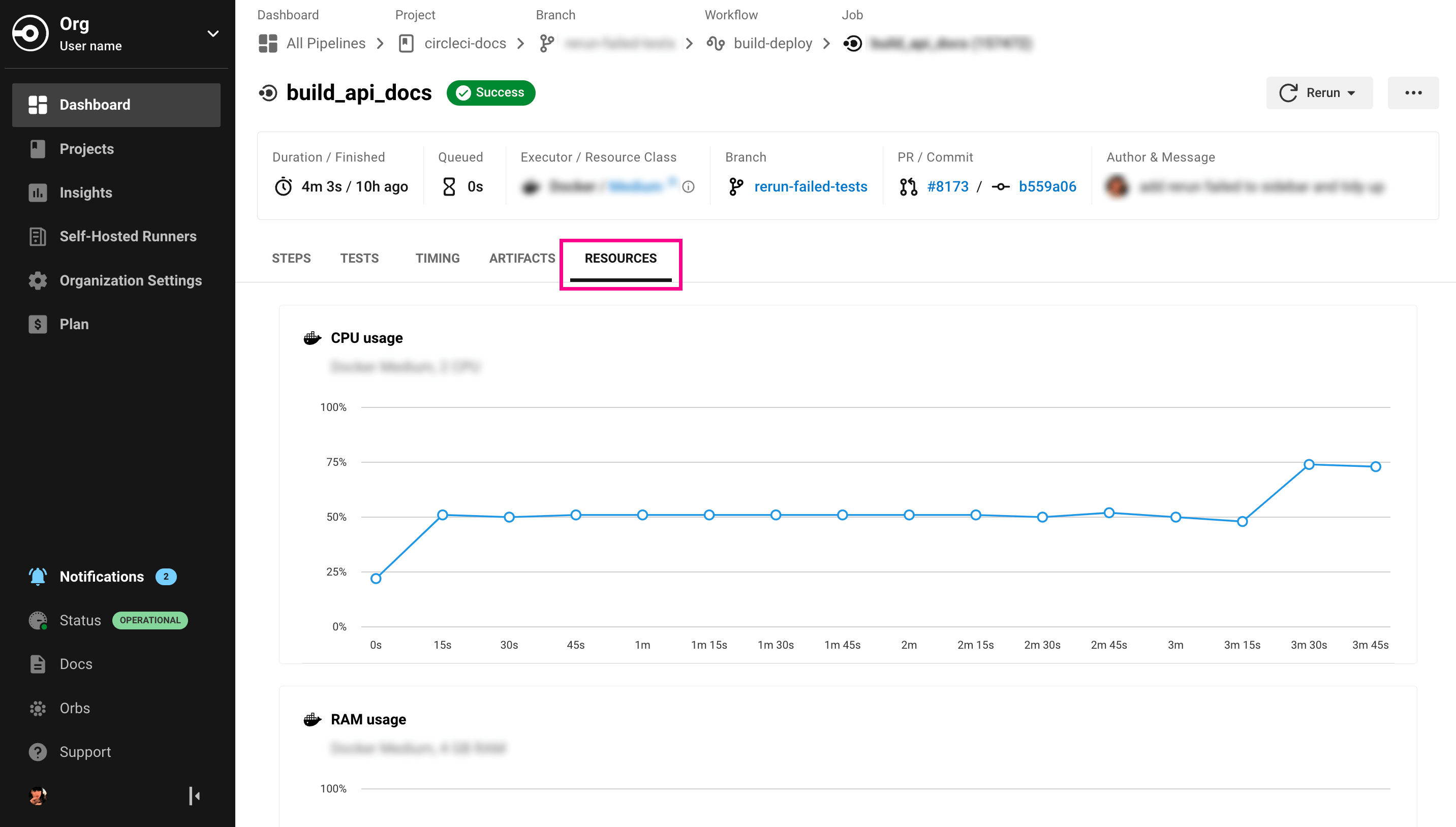
To view the compute resource usage for the duration of a job in the CircleCI web app:
-
In the CircleCI web app, select your org from the org cards on your user homepage.
-
Select Pipelines from the sidebar and locate your pipeline from the list. You can use the project, branch, date, and status search options to help.
-
Select the job you want to access by selecting the job name.
-
Select the Resources tab to view CPU and RAM usage for the duration of the job.
You can use these insights to decide whether to make changes to the job’s configured resource class.
Linux VM generations
Gen2
Resource classes running on gen2 infrastructure offer significant performance and cost improvements over their gen1 equivalents.
Performance improvements
Using more modern compute, gen2 instances deliver up to 24% faster performance compared to gen1 equivalents. This figure comes from real-world benchmarks across open source projects.
On a per-resource-class basis, gen2 pricing can be higher or lower than its gen1 equivalent. See our Pricing Page for details.
Pre-installed software
You can find the most up-to-date list of pre-installed software on the Discuss page.
If you are already using an image, you can verify all the packages that come pre-installed. Run the apt list --installed command as a step, like in the example below:
version: 2.1
...
jobs:
  whats-installed:
    machine: # executor type
      image: ubuntu-2604:current
    steps:
      - run: apt list --installed
...
You can install additional packages with sudo apt-get install <package>. If the package is not found, run sudo apt-get update before installing it.
Use machine with Docker
Using the machine executor also means that you get full access to the Docker process. This allows you to run privileged Docker containers and build Docker images.
The following example uses an image and enables Docker Layer Caching (DLC) which is useful when you are building Docker images during your jobs.
machine:
  image: ubuntu-2604:current
  docker_layer_caching: true    # default - false
Using machine and IP ranges
CircleCI reserves the IP range 192.168.53.0/24 for internal use on the machine executor. Do not use this range in your jobs.
Next steps
To find out about migrating a project from using the Docker executor to using machine, see the Executor Migration from Docker to Machine document.