

How to find IDs
You may need to find the ID of specific CircleCI elements to perform various actions, including:
-
Making a request to the CircleCI API.
-
Running a command from the local CircleCI CLI.
-
Identifying a CircleCI element in logs or webhook payloads.
The API and CLI methods on this page require a CircleCI personal API token. See Managing API Tokens for setup instructions. Set your token as an environment variable before using any API or CLI command: export CIRCLE_TOKEN=<your-api-token>.
|
Get IDs from the built-in environment variables
Built-In Environment Variables, scoped at the job level, include the following IDs:
-
CIRCLE_ORGANIZATION_ID: The organization ID. -
CIRCLE_PROJECT_ID: The project ID. -
CIRCLE_PIPELINE_ID: The pipeline run ID. -
CIRCLE_WORKFLOW_ID: The workflow ID. -
CIRCLE_WORKFLOW_JOB_ID: The job ID.
To view all environment variables available at the job level, follow these steps:
-
In the CircleCI web app, select your org from the org cards on your user homepage.
-
Select Pipelines from the sidebar and locate your pipeline from the list. You can use the project, branch, date, and status search options to help.
-
Select the job you want to access by selecting the job name.
-
On the job page, expand the Preparing environment variables step.
-
Locate the relevant environment variable(s) and note the associated value(s).

Find your user ID
The user ID is a unique identifier for a user.
-
Web app
-
API v3
-
API v2
-
CLI
-
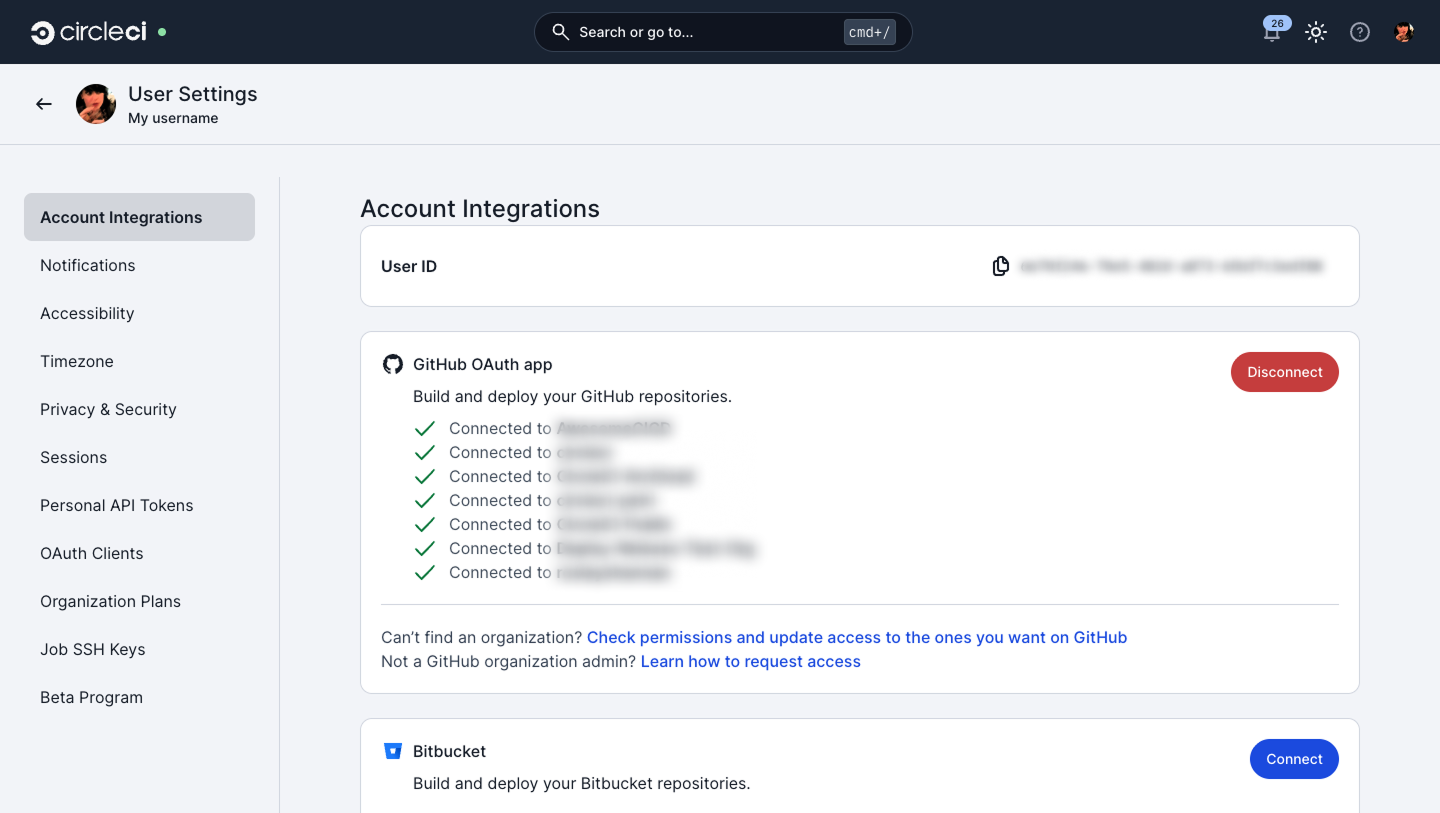
In the CircleCI web app, select your avatar at the top right corner in the web app.
-
Select User Settings.
-
On the Account Integrations page, locate the User ID label.
-
Note the value or select the Copy icon next to your user ID.
To return your user profile, including your user ID:
curl -g 'https://circleci.com/api/v3/users?filter[user_id]=me' \
  --header "Authorization: Bearer $CIRCLE_TOKEN" | jq .
The response includes your user ID in the data[0].id field:
{
  "data": [
    {
      "id": "<your-user-id>",
      "attributes": {
        "login": "your-login",
        "name": "Your Name"
      }
    }
  ]
}
To return your user profile, including your user ID:
curl 'https://circleci.com/api/v2/me' \
  --header "Authorization: Bearer $CIRCLE_TOKEN" | jq .
The response includes your user ID in the id field:
{
  "id": "<your-user-id>",
  "login": "your-login",
  "name": "Your Name"
}
To return your user ID:
$ circleci auth me --json --jq '.id'Find an organization ID
The organization ID is a unique identifier for an organization.
You can access the organization ID through the CIRCLE_ORGANIZATION_ID Built-In Environment Variable, or use one of the following methods to find it.
-
Web app
-
API v3
-
API v2
-
CLI
-
In the CircleCI web app, select your org from the org cards on your user homepage.
-
Select Org from the sidebar to open your organization settings page.
-
Select the Copy icon next to the organization ID to copy it to your clipboard.
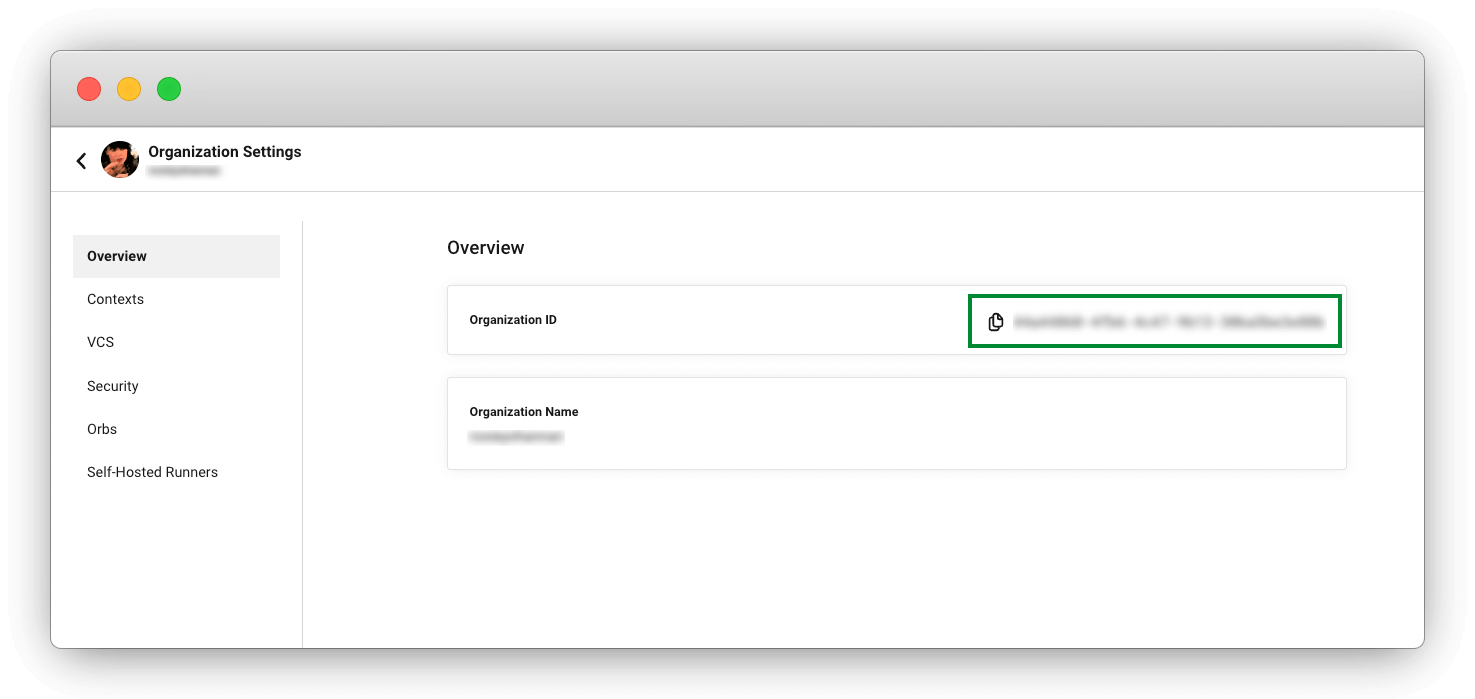 Figure 2. Organization ID available in organization settings
To list all organizations you belong to, each with an id field:
curl -g 'https://circleci.com/api/v3/orgs' \
  --header "Authorization: Bearer $CIRCLE_TOKEN" | jq .
The response returns a list of organizations. The id field for each entry is the organization ID:
{
  "data": [
    {
      "id": "<your-org-id>",
      "attributes": {
        "avatar": {
          "url": "https://avatars.githubusercontent.com/..."
        },
        "name": "my-org"
      }
    }
  ]
}
To extract only the IDs:
curl -g 'https://circleci.com/api/v3/orgs' \
  --header "Authorization: Bearer $CIRCLE_TOKEN" | jq '.data[].id'
To list all organizations (collaborations) you have access to, each with an id field:
curl 'https://circleci.com/api/v2/me/collaborations' \
  --header "Authorization: Bearer $CIRCLE_TOKEN" | jq .
The response returns a list of collaborations. The id field for each entry is the organization ID:
[
  {
    "id": "<your-org-id>",
    "name": "my-org",
    "slug": "gh/my-org",
    "vcs_type": "github",
    "avatar_url": "https://avatars.githubusercontent.com/..."
  }
]
To list all organizations you belong to:
$ circleci org list --jsonTo extract only the IDs, append a --jq filter:
$ circleci org list --json --jq '.[].id'Find an organization slug
The organization slug identifies an organization in API v2 requests and CLI commands. It takes the form <provider>/<organization>, for example gh/my-org.
An organization that uses the GitHub App has a slug in the form circleci/<organization-id>.
Use one of the following methods to find it.
-
Web app
-
API v2
-
In the CircleCI web app, select your org from the org cards on your user homepage.
-
Select Org from the sidebar to open your organization settings page.
-
The Overview page lists the organization slug.
To list all organizations (collaborations) you have access to, each with a slug field:
curl 'https://circleci.com/api/v2/me/collaborations' \
  --header "Authorization: Bearer $CIRCLE_TOKEN" | jq .
The slug field for each entry is the organization slug:
[
  {
    "id": "<your-org-id>",
    "name": "my-org",
    "slug": "gh/my-org",
    "vcs_type": "github"
  }
]
If you know the organization ID, you can look up one organization. The response contains the slug:
curl 'https://circleci.com/api/v2/organization/<your-org-id>' \
  --header "Authorization: Bearer $CIRCLE_TOKEN" | jq .
Find a project ID
The project ID is a unique identifier for a project.
You can access the project ID through the CIRCLE_PROJECT_ID Built-In Environment Variable, or use one of the following methods to find it.
-
Web app
-
API v3
-
API v2
-
CLI
-
In the CircleCI web app, select your org from the org cards on your user homepage.
-
Select Projects from the sidebar and locate your project from the list. You can use the search to help.
-
Select the ellipsis

 next to your project and select Project Settings.
You can also access project settings from each project overview page using the Settings button. -
Select the Copy icon next to the project ID to copy it to your clipboard.
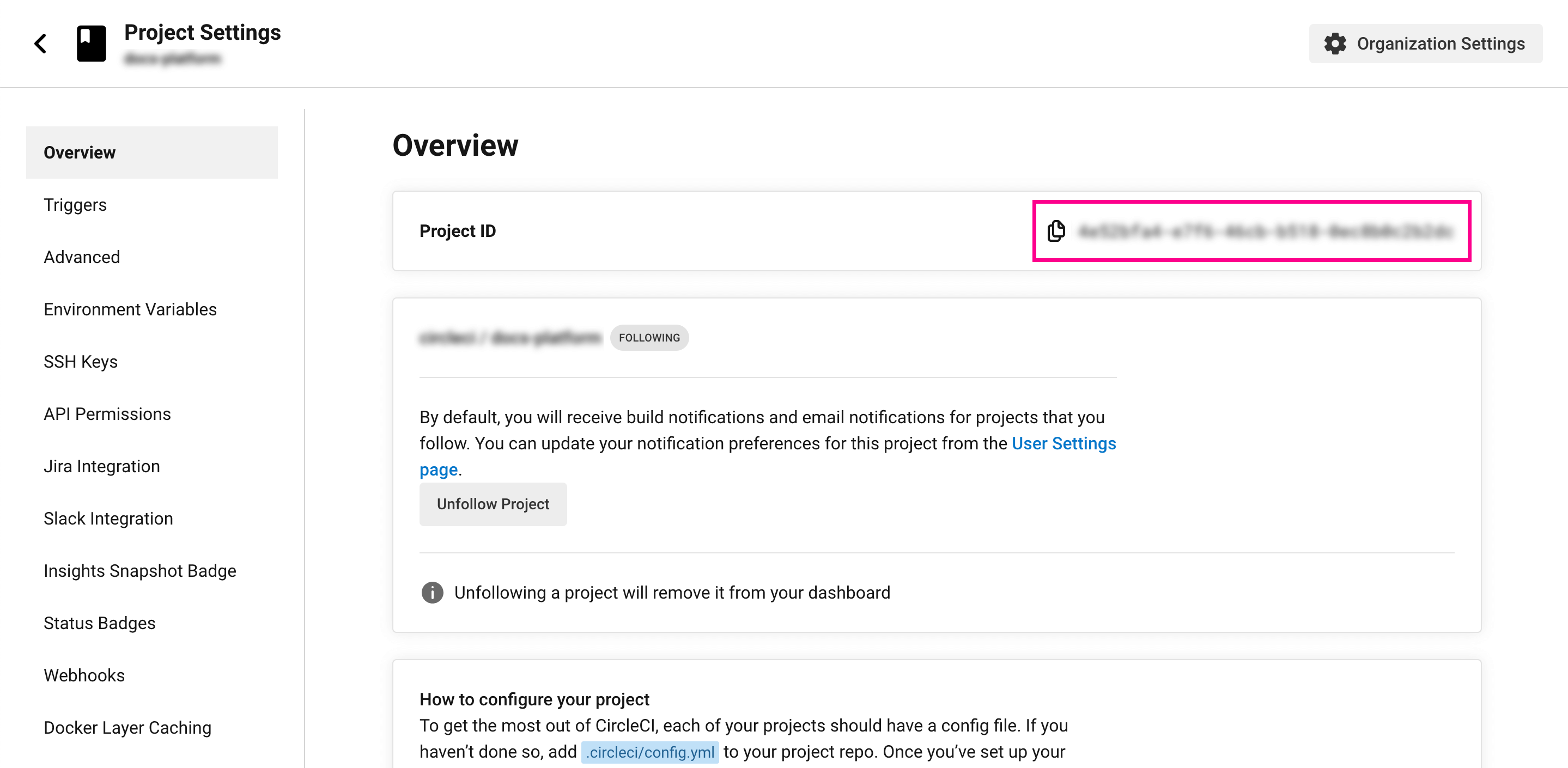 Figure 3. Project ID available in project settings overview
To list projects in your organization, replace <your-org-id> with your organization ID:
curl -g 'https://circleci.com/api/v3/projects?filter[org_id]=<your-org-id>' \
  --header "Authorization: Bearer $CIRCLE_TOKEN" | jq .
The response returns a list of projects. The id field for each entry is the project ID:
{
  "data": [
    {
      "id": "<your-project-id>",
      "attributes": {
        "name": "my-repo",
        "is_followed": true
      },
      "references": {
        "org": {
          "id": "<your-org-id>",
          "attributes": {
            "name": "my-org"
          }
        }
      }
    }
  ]
}
To look up a single project by its slug:
curl -g 'https://circleci.com/api/v3/projects?filter[slug]=gh/my-org/my-repo' \
  --header "Authorization: Bearer $CIRCLE_TOKEN" | jq '.data[0].id'
To return details for a specific project, replace <project-slug> with your project slug (for example, gh/my-org/my-repo):
curl 'https://circleci.com/api/v2/project/<project-slug>' \
  --header "Authorization: Bearer $CIRCLE_TOKEN" | jq .
The response includes the project ID in the id field:
{
  "id": "<your-project-id>",
  "slug": "gh/my-org/my-repo",
  "name": "my-repo",
  "organization_name": "my-org"
}
To return the project ID for the current repository:
$ circleci project get --json --jq '.id'To look up a specific project by slug:
$ circleci project list --slug gh/my-org/my-repo --json --jq '.[0].id'Find a project slug
The project slug identifies a project in API v2 requests and CLI commands. It takes the form <provider>/<organization>/<project>, for example gh/my-org/my-repo.
A project in an organization that uses the GitHub App has a slug in the form circleci/<organization-id>/<project-id>.
Use one of the following methods to find it.
-
Web app
-
API v2
-
In the CircleCI web app, select your org from the org cards on your user homepage.
-
Select Projects from the sidebar and locate your project from the list. You can use the search to help.
-
Select the ellipsis
next to your project and select Project Settings.You can also access project settings from each project overview page using the Settings button. -
The Overview page lists the project slug.
If you have a pipeline ID, the pipeline response contains the project slug in project_slug:
curl 'https://circleci.com/api/v2/pipeline/<your-pipeline-id>' \
  --header "Authorization: Bearer $CIRCLE_TOKEN" | jq '.project_slug'
To find a pipeline ID, see Find a pipeline run ID.
Find a pipeline run ID
The pipeline run ID is a unique identifier for a pipeline run.
You can access the pipeline run ID through the CIRCLE_PIPELINE_ID Built-In Environment Variable, or use one of the following methods to find it.
-
From the pipelines dashboard
-
From the workflow page
-
From the job page
-
API v3
-
API v2
-
CLI
-
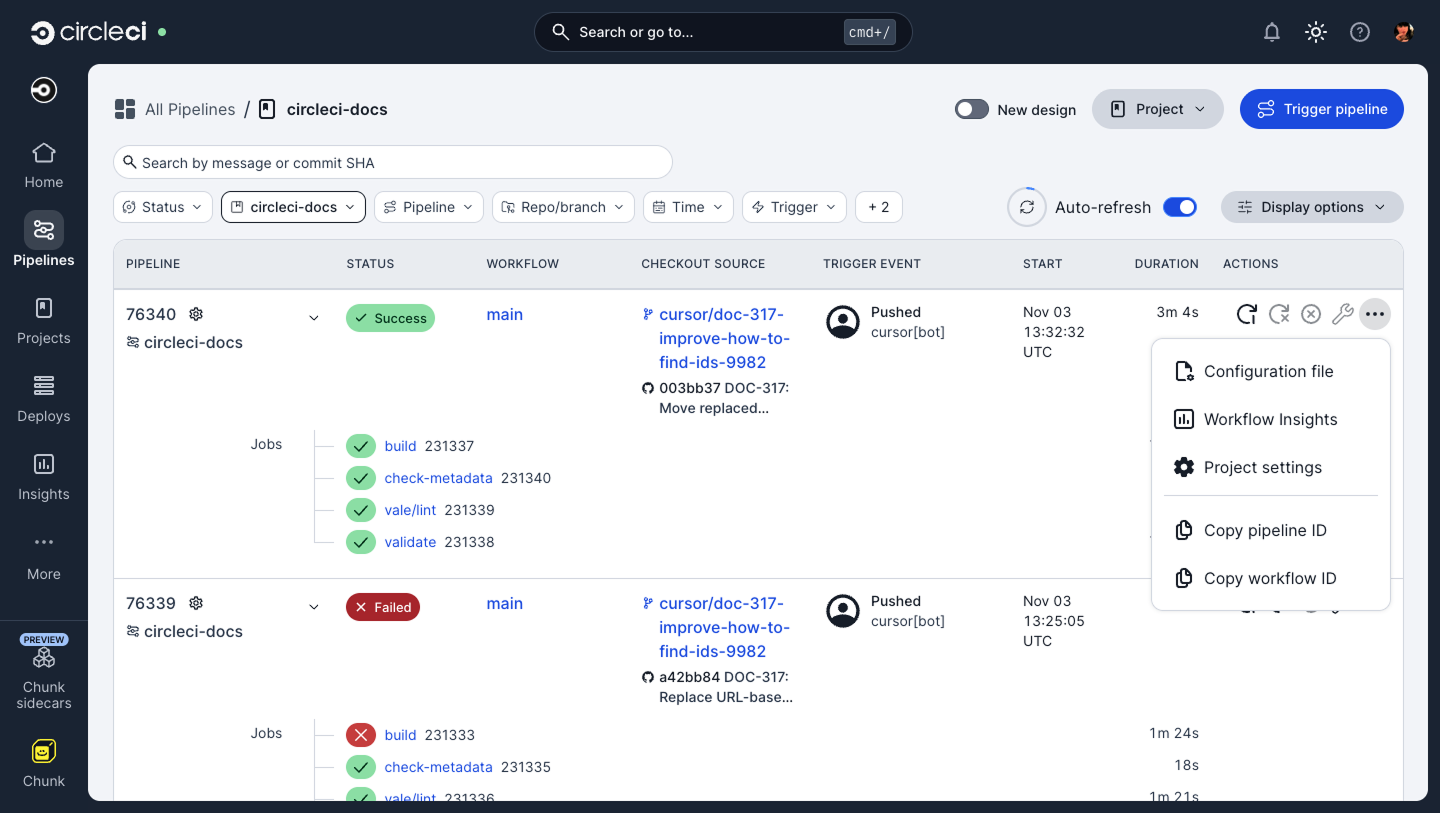
In the CircleCI web app, select your org from the org cards on your user homepage.
-
Select Projects from the sidebar and locate your project from the list. You can use the search to help.
-
Select the Pipelines next to your project.
-
Select the ellipsis
next to any workflow run of the pipeline. -
In the contextual menu, select Copy Pipeline ID.
-
In the CircleCI web app, select your org from the org cards on your user homepage.
-
Select Projects from the sidebar and locate your project from the list. You can use the search to help.
-
Select the Pipelines next to your project.
-
Select any workflow run of the pipeline you want to find the ID for.
-
On the workflow page, open the Project menu.
-
In the contextual menu, select Copy Pipeline ID.
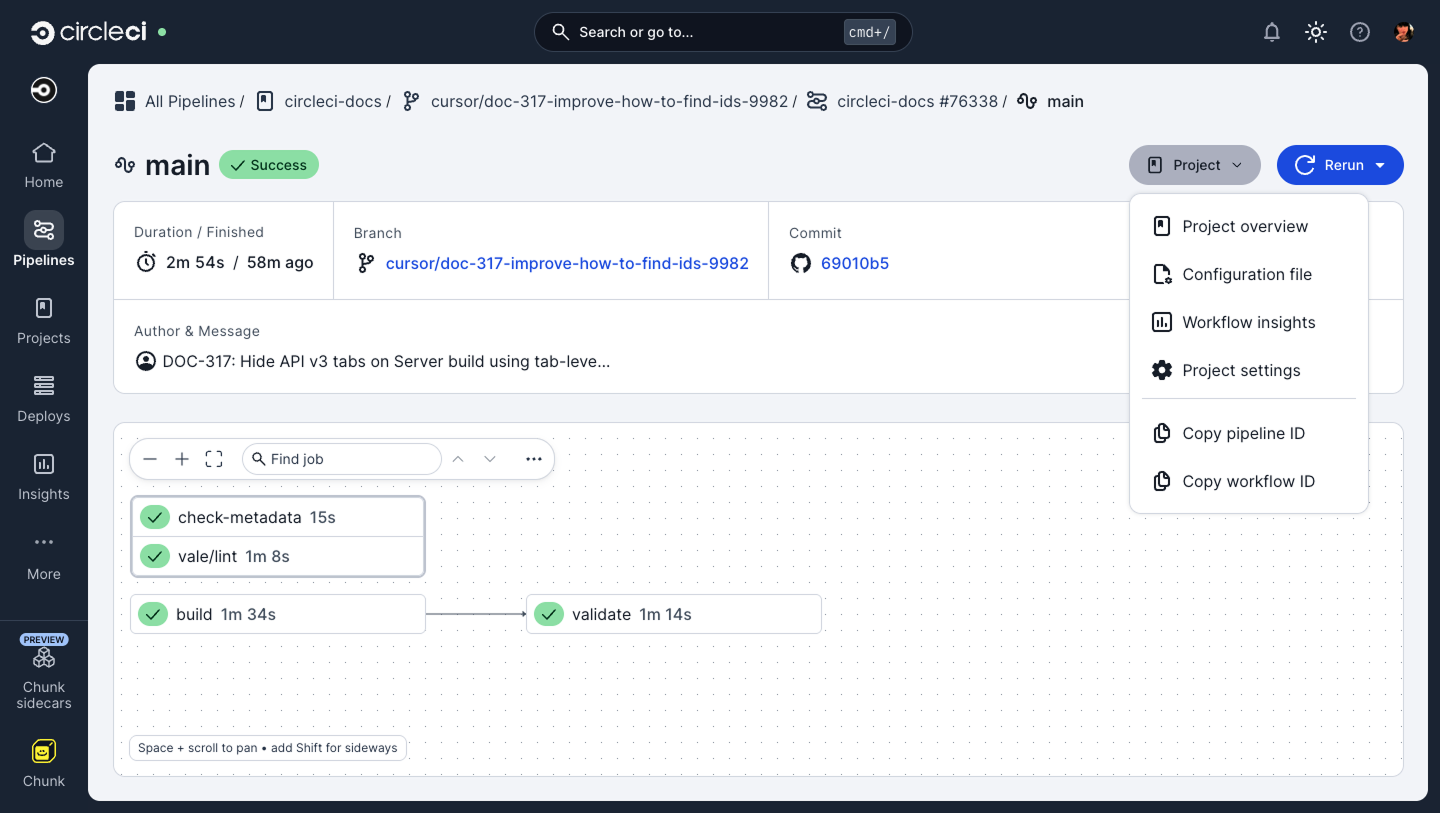
-
In the CircleCI web app, select your org from the org cards on your user homepage.
-
Select Projects from the sidebar and locate your project from the list. You can use the search to help.
-
Select the Pipelines next to your project.
-
Select any workflow run from the pipeline you want to find the ID for.
-
Select any job from that workflow run.
-
On the job page, select the ellipsis
at the top-right of the page. -
In the contextual menu, select Copy Pipeline ID.
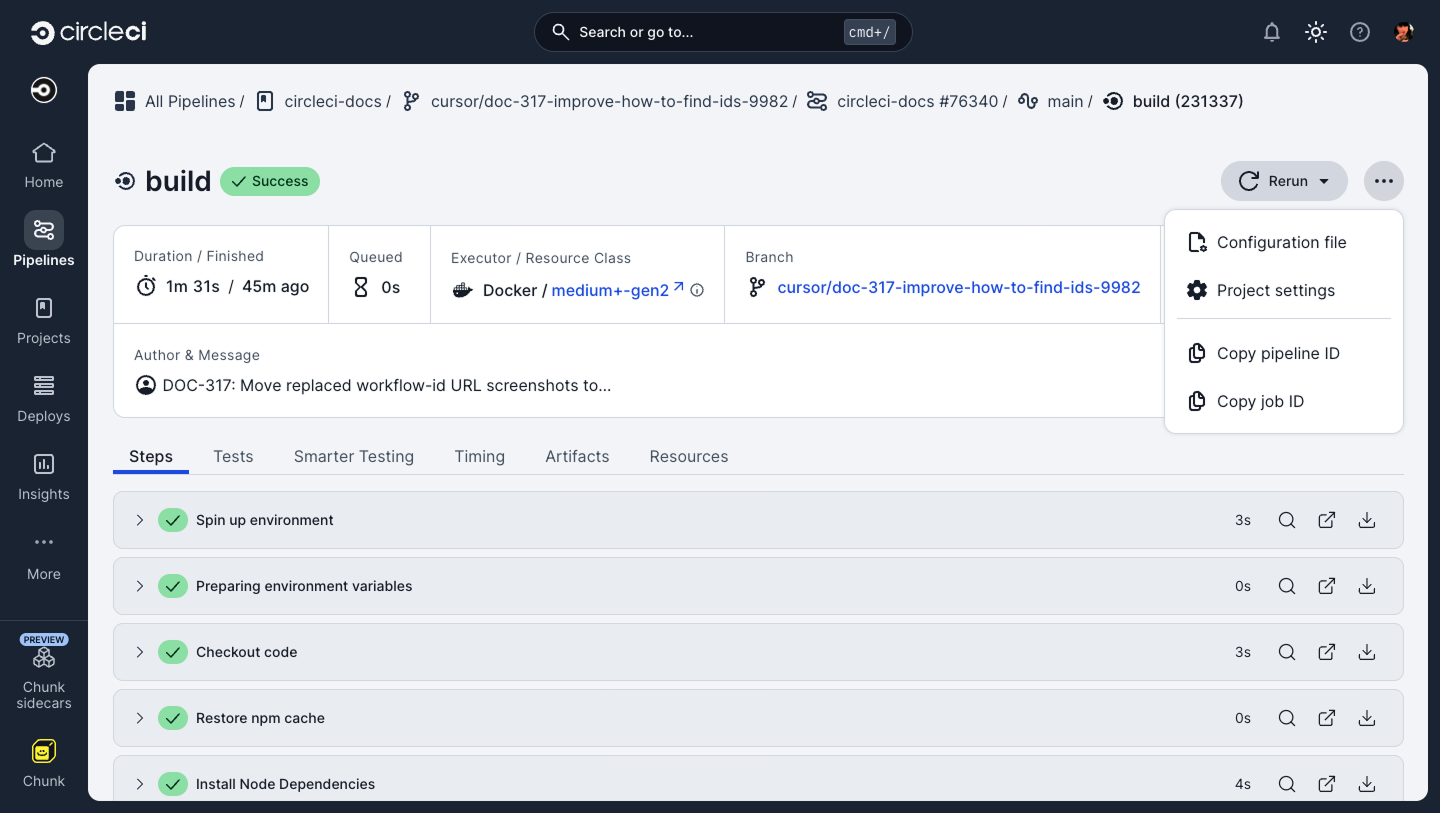
API v3 uses the term run for a pipeline run. The run ID corresponds to the CIRCLE_PIPELINE_ID environment variable.
To list recent runs for a project, replace <your-project-id> with your project ID:
curl -g 'https://circleci.com/api/v3/runs?filter[project_id]=<your-project-id>&page[limit]=10' \
  --header "Authorization: Bearer $CIRCLE_TOKEN" | jq '.data[] | {id: .id, branch: .attributes.branch}'
The id field for each run is the pipeline run ID:
{
  "data": [
    {
      "id": "<your-pipeline-run-id>",
      "attributes": {
        "branch": "main",
        "created_at": "2026-01-15T10:00:00Z"
      }
    }
  ]
}
To list recent pipelines for a project, replace <project-slug> with your project slug (for example, gh/my-org/my-repo):
curl 'https://circleci.com/api/v2/project/<project-slug>/pipeline' \
  --header "Authorization: Bearer $CIRCLE_TOKEN" | jq '.items[] | {id: .id, branch: .vcs.branch}'
The id field for each pipeline is the pipeline run ID:
{
  "items": [
    {
      "id": "<your-pipeline-run-id>",
      "vcs": {
        "branch": "main"
      },
      "created_at": "2026-01-15T10:00:00Z"
    }
  ]
}
To list recent pipeline run IDs for the current project:
$ circleci run list --json --jq '.[].id'To filter by branch:
$ circleci run list --branch main --json --jq '.[].id'Find a workflow ID
The workflow ID is a unique identifier for a triggered workflow.
You can access the workflow ID through the CIRCLE_WORKFLOW_ID Built-In Environment Variable, or use one of the following methods to find it.
-
From the pipelines dashboard
-
From the workflow page
-
API v3
-
API v2
-
CLI
-
In the CircleCI web app, select your org from the org cards on your user homepage.
-
Select Projects from the sidebar and locate your project from the list. You can use the search to help.
-
Select the Pipelines next to your project.
-
Select the ellipsis
next to any workflow run of the pipeline. -
In the contextual menu, select Copy Workflow ID.
-
In the CircleCI web app, select your org from the org cards on your user homepage.
-
Select Projects from the sidebar and locate your project from the list. You can use the search to help.
-
Select the Pipelines next to your project.
-
Select the workflow run you want to find the ID for.
-
On the workflow page, open the Project menu.
-
In the contextual menu, select Copy Workflow ID.
To list workflows for a run, replace <your-run-id> with your pipeline run ID (referred to as a run ID in API v3):
curl -g 'https://circleci.com/api/v3/workflows?filter[run_id]=<your-run-id>' \
  --header "Authorization: Bearer $CIRCLE_TOKEN" | jq '.data[] | {id: .id, name: .attributes.name}'
The id field for each workflow is the workflow ID:
{
  "data": [
    {
      "id": "<your-workflow-id>",
      "attributes": {
        "name": "build-and-test",
        "phase": "ended",
        "outcome": "succeeded"
      }
    }
  ]
}
To list workflows for a pipeline, replace <pipeline-run-id> with your pipeline run ID:
curl 'https://circleci.com/api/v2/pipeline/<pipeline-run-id>/workflow' \
  --header "Authorization: Bearer $CIRCLE_TOKEN" | jq '.items[] | {id: .id, name: .name}'
The id field for each workflow is the workflow ID:
{
  "items": [
    {
      "id": "<your-workflow-id>",
      "name": "build-and-test",
      "status": "success",
      "pipeline_id": "<your-pipeline-run-id>"
    }
  ]
}
To list workflow IDs for the latest run on the current branch:
$ circleci run get --json --jq '.workflows[].id'To list workflow IDs for a specific run, use the run UUID:
$ circleci workflow list <run-uuid> --json --jq '.[].id'Find a job ID
The job ID is a unique identifier for a job execution.
You can access the job ID through the CIRCLE_WORKFLOW_JOB_ID Built-In Environment Variable, or use one of the following methods to find it.
-
From the job page
-
API v3
-
API v2
-
CLI
-
In the CircleCI web app, select your org from the org cards on your user homepage.
-
Select Projects from the sidebar and locate your project from the list. You can use the search to help.
-
Select the Pipelines next to your project.
-
Select the workflow run that contains the job.
-
Select the job you want to find the ID for.
-
On the job page, select the ellipsis
at the top-right of the page (next to the Rerun button). -
In the contextual menu, select Copy Job ID.
To list jobs in a workflow, replace <your-workflow-id> with your workflow ID:
curl -g 'https://circleci.com/api/v3/jobs?filter[workflow_id]=<your-workflow-id>' \
  --header "Authorization: Bearer $CIRCLE_TOKEN" | jq '.data[] | {id: .id, name: .attributes.name}'
The id field for each job is the job ID:
{
  "data": [
    {
      "id": "<your-job-id>",
      "attributes": {
        "name": "build",
        "phase": "ended",
        "outcome": "succeeded"
      }
    }
  ]
}
To list jobs in a workflow, replace <workflow-id> with your workflow ID:
curl 'https://circleci.com/api/v2/workflow/<workflow-id>/job' \
  --header "Authorization: Bearer $CIRCLE_TOKEN" | jq '.items[] | {id: .id, name: .name}'
The id field for each job is the job ID:
{
  "items": [
    {
      "id": "<your-job-id>",
      "name": "build",
      "status": "success",
      "job_number": 1
    }
  ]
}
To list job IDs for the latest run on the current branch:
$ circleci run get --json --jq '.workflows[].jobs[].id'To list job IDs for a specific workflow, use the workflow UUID:
$ circleci workflow get <workflow-uuid> --json --jq '.jobs[].id'Find a pipeline definition ID
The pipeline definition ID is a unique identifier for a pipeline definition.
-
Web app
-
API v3
-
CLI
-
In the CircleCI web app, select your org from the org cards on your user homepage.
-
Select Projects from the sidebar and locate your project from the list. You can use the search to help.
-
Select the ellipsis
next to your project and select Project Settings.You can also access project settings from each project overview page using the Settings button. -
Select Project Setup from the menu, or if you are using Bitbucket Cloud, select Pipelines from the menu.
-
Locate the pipeline you want to find the definition ID for.
-
Select the Copy icon next to the pipeline definition ID to copy it to your clipboard. If you are using Bitbucket Cloud, the user interface is different to the one shown in the image.
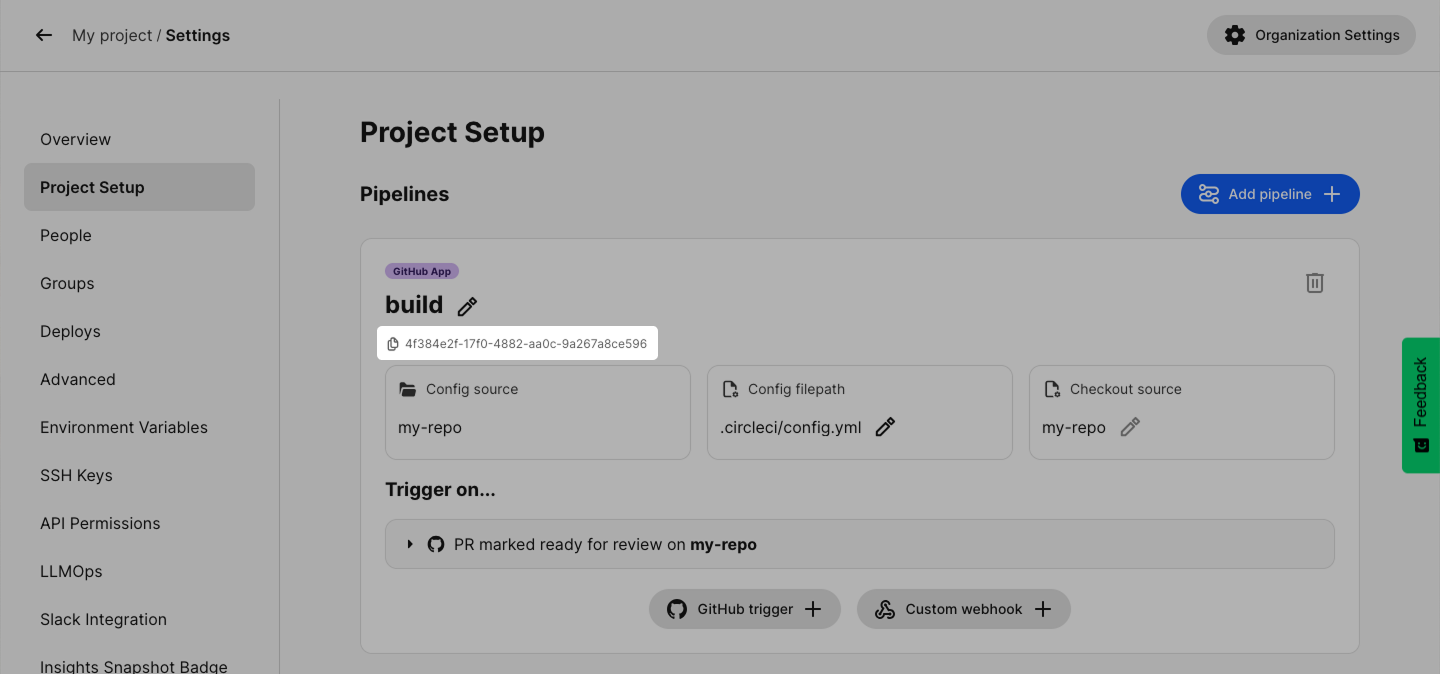 Figure 10. Pipeline definition ID on the Project Setup page
To list pipeline definitions for a project, replace <your-project-id> with your project ID:
curl -g 'https://circleci.com/api/v3/pipelines?filter[project_id]=<your-project-id>' \
  --header "Authorization: Bearer $CIRCLE_TOKEN" | jq '.data[] | {id: .id, name: .attributes.name}'
The id field for each pipeline definition is the pipeline definition ID:
{
  "data": [
    {
      "id": "<your-pipeline-definition-id>",
      "attributes": {
        "name": "my-pipeline"
      }
    }
  ]
}
To list pipeline definitions for the current project:
$ circleci pipeline list --json --jq '.[].id'To list pipeline definitions for a specific project:
$ circleci pipeline list --project gh/my-org/my-repo --json --jq '.[].id'