

Integrate with Finout for cost management
Finout provides cost tracking and usage reporting for CircleCI, allowing you to monitor CI/CD spending alongside your cloud infrastructure and SaaS tools in a centralized platform. The integration automatically imports your CircleCI usage data and converts credits into USD-based cost reports.
Introduction
Finout obtains your CircleCI usage data through the CircleCI Usage Export API. The Finout integration enables you to:
-
Track CircleCI credit consumption and costs in a unified cost management platform.
-
Filter and group costs by organization, project, workflow, and job name.
-
Allocate CI/CD expenses to teams using custom cost allocation.
-
Monitor budgets and detect usage anomalies.
-
Correlate CircleCI cost changes with related infrastructure shifts.
Finout can import up to 13 months of historical data when you first connect, allowing for comprehensive historical analysis and cost trending.
This guide provides instructions for connecting CircleCI to Finout and configuring cost tracking and allocation. You can also read Finout’s docs on connecting Finout to CircleCI.
Prerequisites
Before setting up the Finout integration, ensure you meet the following requirements:
-
CircleCI organization administrator permissions:
-
If you have an organization of type
circleci, permissions are controlled through CircleCI. See the Roles and Permissions Overview page for more information. -
If you have an organization of type
githuborbitbucket, you must be an administrator in the connected GitHub or Bitbucket organization.
-
-
Finout account with permissions to create cost centers.
-
Contracted credit price(s) and effective date ranges for accurate cost calculation.
1. Generate a CircleCI personal API token
| CircleCI personal API tokens do not support fine-grained permission scoping. The token you create will have full access to your organization’s data. The CircleCI API v2 requires a personal API token. Project tokens are not supported. |
To connect Finout to CircleCI, you need to create a personal API token.
-
Log in to the CircleCI web app.
-
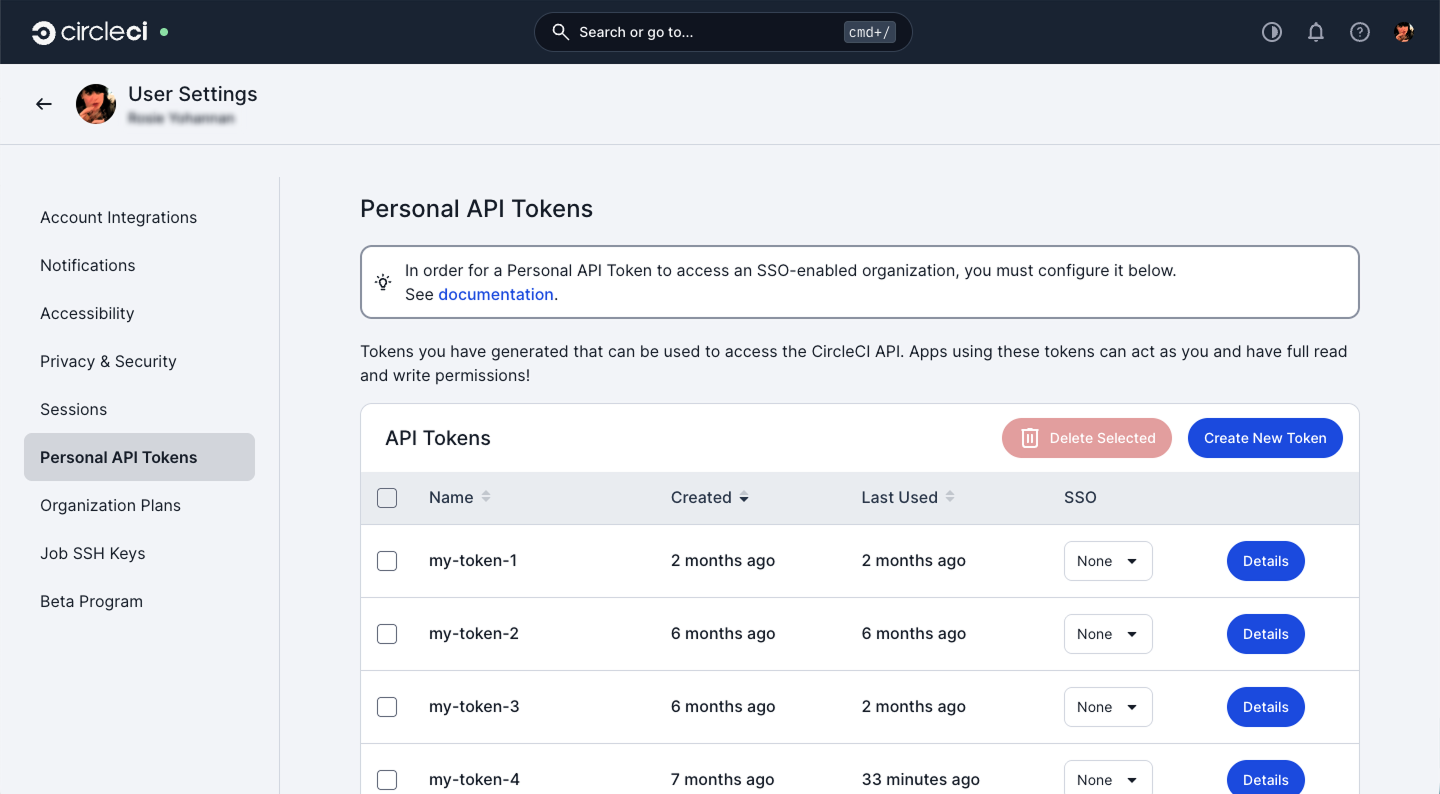
Select your avatar at the top right of the screen and select User Settings from the menu.
-
Select Personal API Tokens.
-
Select Create new token.
-
Provide a descriptive name for the token (for example, "Finout Integration").
-
Set an expiry date for the token. You must choose a date no more than one year in the future.
-
Select Add API Token.
-
Copy the token right away, as you cannot view it again.
2. Copy your organization ID
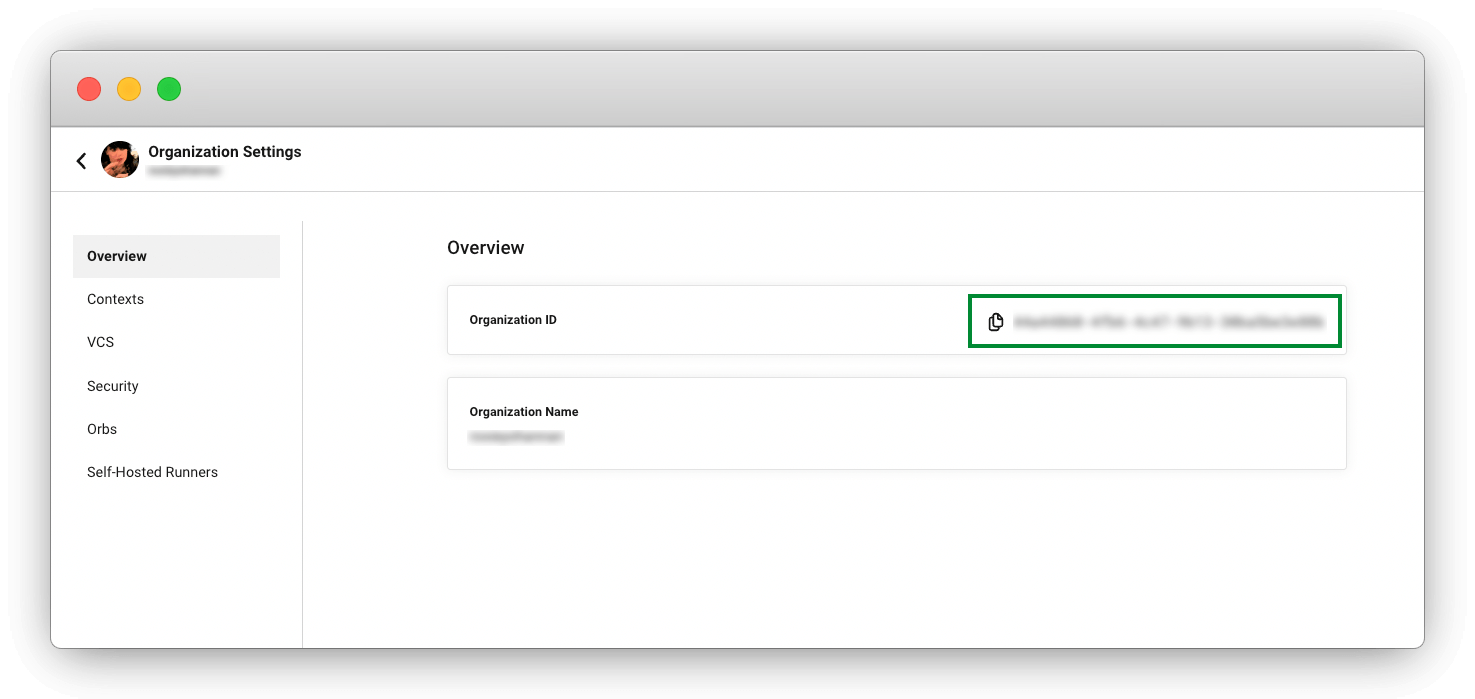
The organization ID is a unique identifier for an organization. Follow these steps to find it in the CircleCI web app:
-
In the CircleCI web app, select your org from the org cards on your user homepage.
-
Select Org from the sidebar to open your organization settings page.
-
Note the value or select the Copy icon next to the organization ID.
3. Configure the integration in Finout
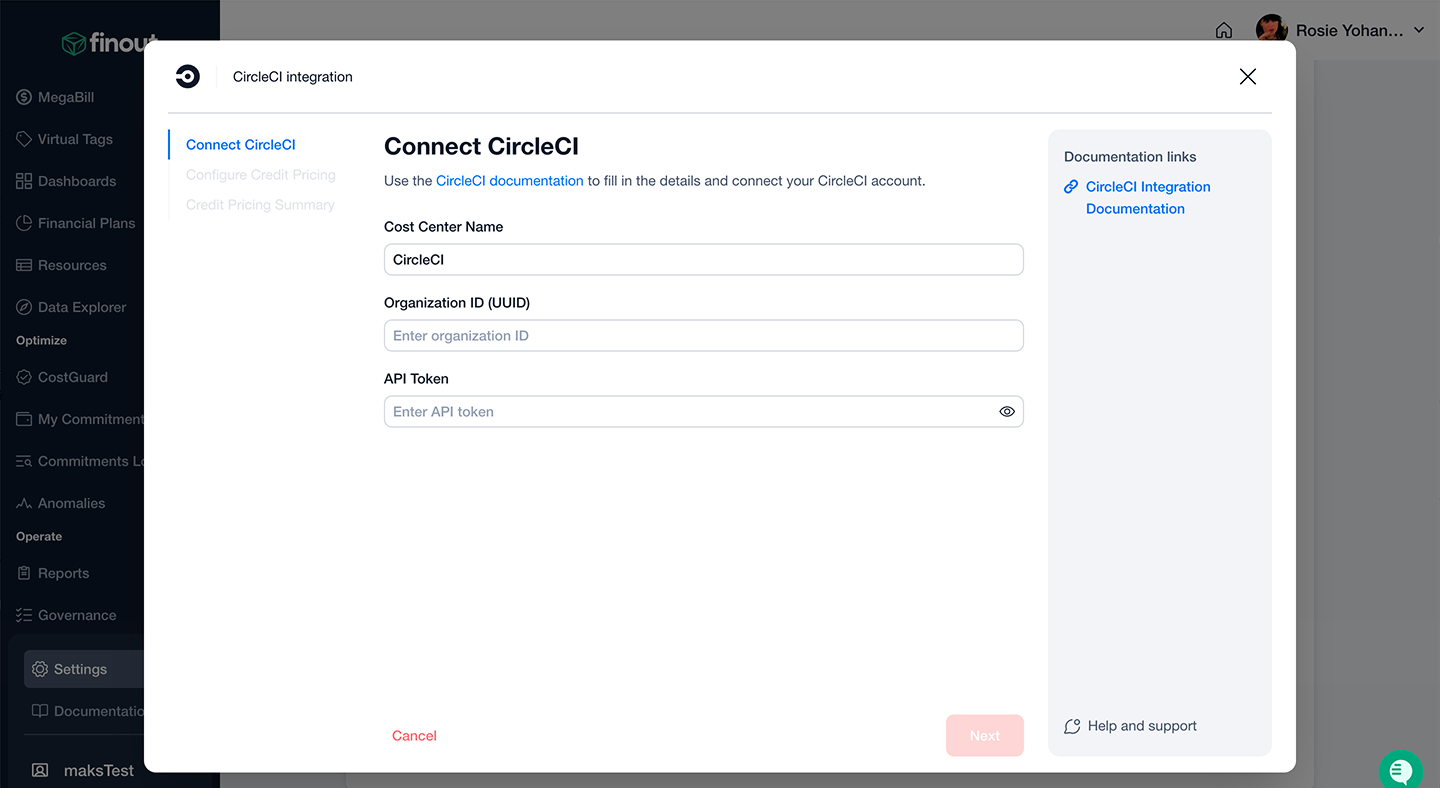
Connect your CircleCI organization to Finout using your personal API token and organization ID.
-
Log in to your Finout account.
-
Navigate to Settings, then select Cost Centers.
-
Select Add cost center.
-
Locate and select CircleCI from the available integrations and select Connect Now.
-
Complete the integration form with the following information:
-
Cost Center name: Provide a name to identify this connection.
-
Organization ID: Enter your organization ID from step 2.
-
API Token: Paste the personal API token you created in step 1.
-
-
Select Next.
4. Configure credit pricing
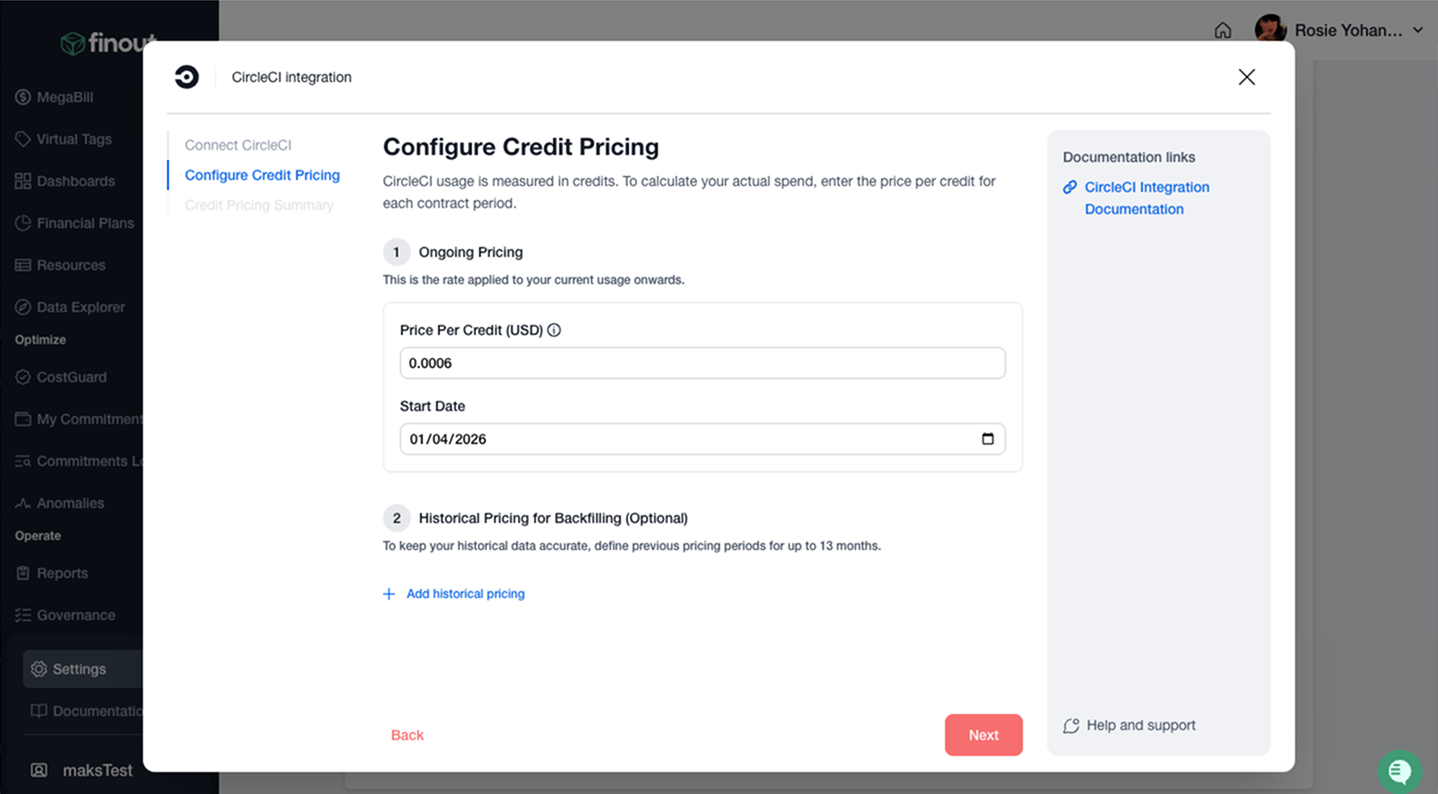
Configure your CircleCI credit pricing to ensure accurate cost calculations. Finout calculates costs based on your usage data and the configured price per credit. Configure ongoing and historical pricing, as follows:
-
Ongoing pricing covers your current usage, but you can backdate it to the start of your contract.
-
Historical pricing for backfilling is an optional section that you can use if you have had different contracted USD per credit agreements over the time you have used CircleCI.
-
In the "Ongoing pricing" section, enter $0.0006, which is the standard price you pay (in US dollars) to purchase a credit. If you have an alternative pricing agreement, alter this value to reflect your contracted rate.
-
Select a start date for usage at this rate.
-
Optionally, add historical pricing periods for backfilling historical cost data:
-
-
Select Add historical pricing.
-
Enter the Price per Credit in USD.
-
Enter the Effective From date.
-
Enter the Effective Until date (leave blank if this is your current pricing).
-
Repeat for each historical pricing period (up to 13 months is recommended for comprehensive historical analysis).
-
Select Next.
-
Finout begins importing your CircleCI usage data. You will receive an email notification when the data sync is complete. The initial import can include up to 13 months of historical data based on your configured pricing periods.
Review your pricing configuration summary and select Complete setup.
Next steps
Refer to the Finout documentation for detailed guides on setting up cost tracking and reporting capabilities.