

Publish to npm using OIDC trusted publishing
In this how-to guide, you will learn how to configure CircleCI to publish to npm using trusted publishing. Trusted publishing uses OpenID Connect (OIDC) to exchange a short-lived CircleCI token for an npm publish token at publish time. No long-lived NPM_TOKEN exists to store, rotate, or leak.
For a functional example you can clone and adapt, see the CircleCI npm trusted publishing example.
| If trusted publishing is not an option for your package or registry, see Publish to npm With an Authentication Token. |
Introduction
Trusted publishing is the recommended way to publish to npm from CircleCI. Compared to using a long-lived NPM_TOKEN environment variable, trusted publishing offers the following benefits:
-
Removes the need to create, store, and rotate a publish token.
-
Issues a short-lived publish token that is valid only for the duration of the publishing job.
-
Lets you scope publishing to a specific organization, project, pipeline definition, and (optionally) context.
| Provenance attestations are not currently supported for packages published from CircleCI via trusted publishing. |
Automate setup with the onboarding tool
The npm trusted publishing onboarding tool automates the configuration described in this guide, gathering the required CircleCI identifiers and setting up the trusted publisher for you. Use it to skip the manual data gathering and setup steps:
-
Single project: Onboard one npm package to trusted publishing.
-
Bulk onboarding: Onboard many npm packages at once.
To understand each step, read the manual instructions below.
Prerequisites
-
A CircleCI Cloud account integrated with a supported VCS. See Sign Up and Try CircleCI for more information.
-
A project on CircleCI that builds your npm package.
-
An npm package that has already been published at least once. npm requires an existing package before a trusted publisher can be configured for it.
-
npm CLI version 11.5.1 or later, and Node.js 22.14.0 or later, in the Docker image (or executor) used by your publishing job.
-
Maintainer or owner access to the npm package.
1. Gather the data you need
npm needs four CircleCI identifiers to configure your project as a trusted publisher. Collect these before you visit npm.
1.1 Organization ID
You need your CircleCI organization ID, in UUID format. You can find your org ID in , or follow these steps:
-
In the CircleCI web app, select your org from the org cards on your user homepage.
-
Select Org from the sidebar to open your organization settings page.
-
Select the Copy icon next to the organization ID to copy it to your clipboard.
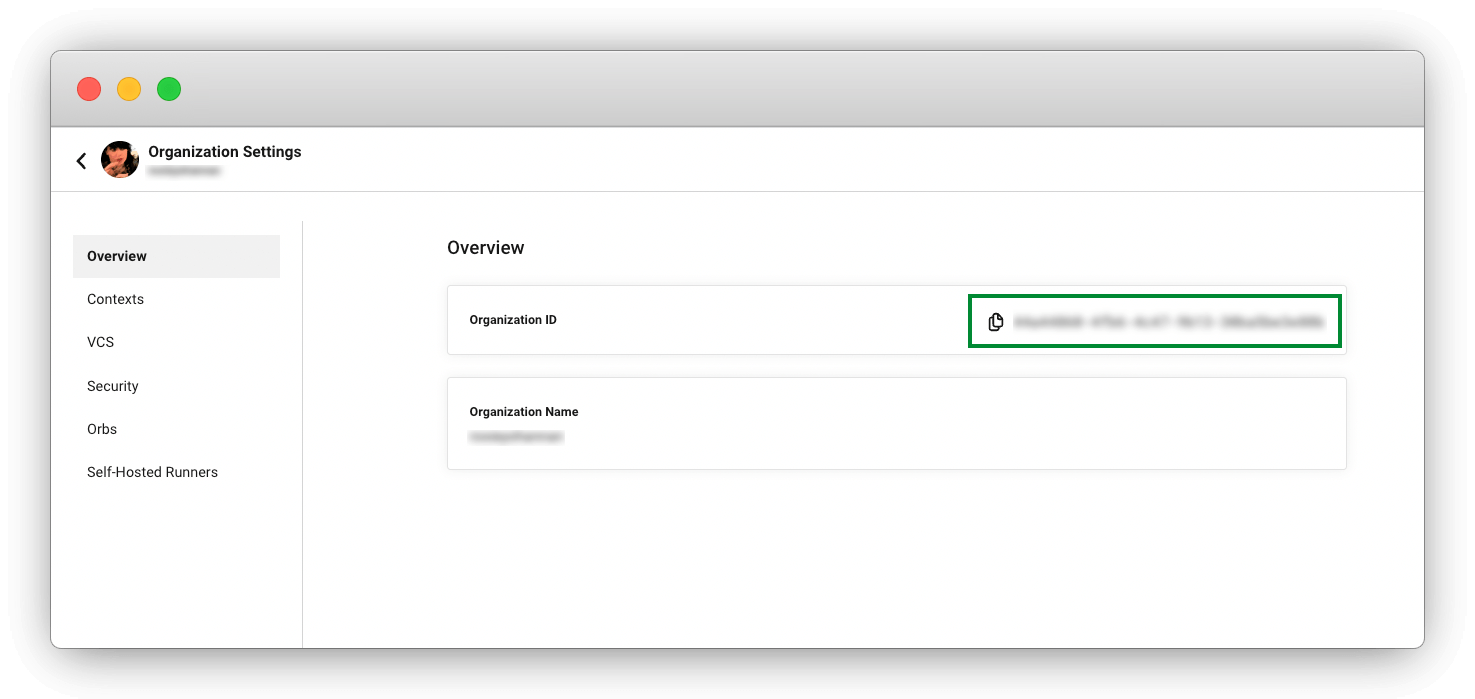 Figure 1. Organization ID available in organization settings
1.2 Project ID
You need your CircleCI project ID, in UUID format. You can find your project ID in , or follow these steps:
-
In the CircleCI web app, select your org from the org cards on your user homepage.
-
Select Projects from the sidebar and locate your project from the list. You can use the search to help.
-
Select the ellipsis

 next to your project and select Project Settings.
You can also access project settings from each project overview page using the Settings button. -
Select the Copy icon next to the project ID to copy it to your clipboard.
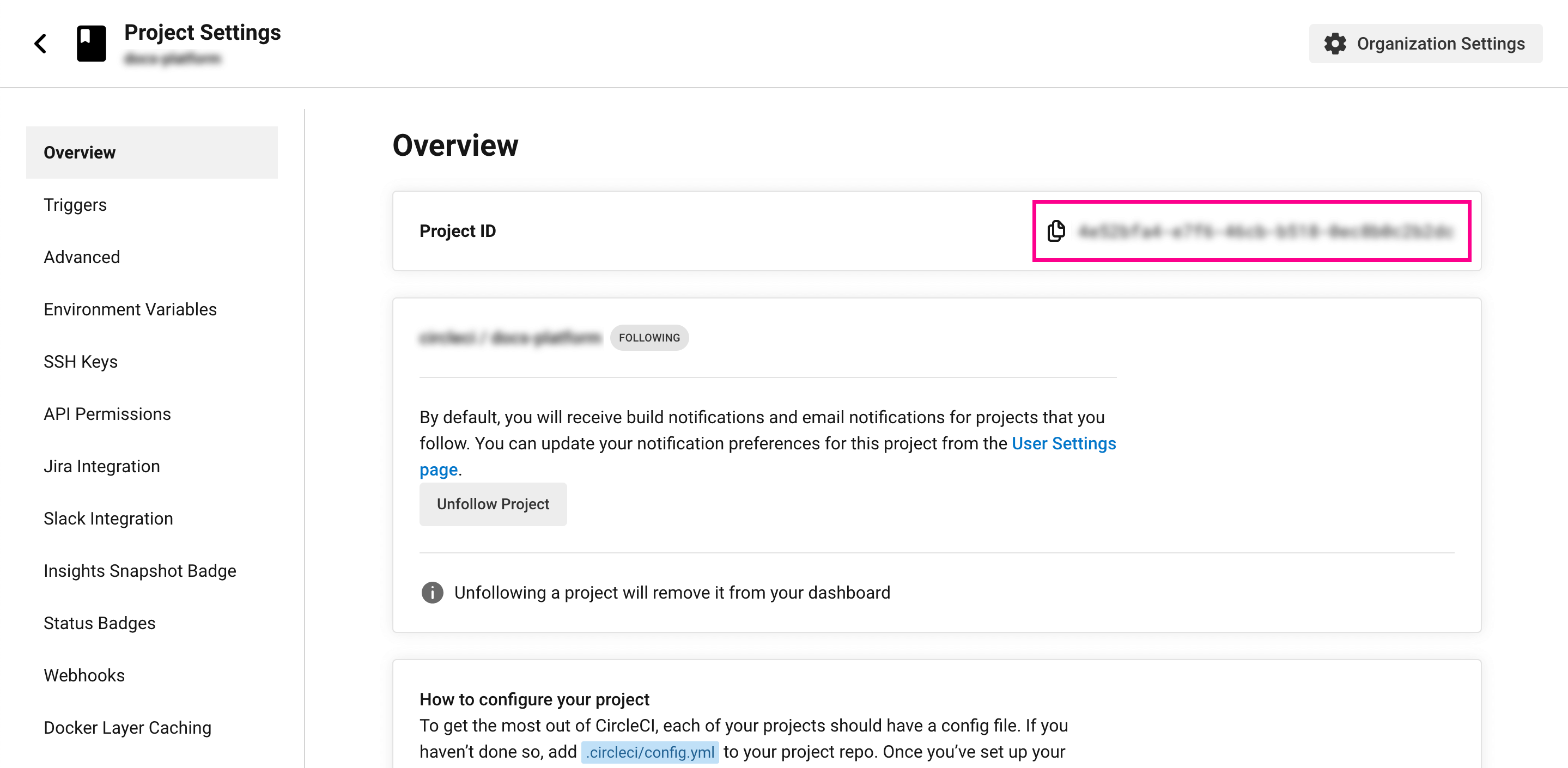 Figure 2. Project ID available in project settings overview
1.3 Pipeline definition ID
You need your pipeline definition ID, in UUID format. You can find your pipeline definition ID in , where you will find details of all pipelines that have been set up for your project. Follow these steps to find your pipeline definition IDs:
-
In the CircleCI web app, select your org from the org cards on your user homepage.
-
Select Projects from the sidebar and locate your project from the list. You can use the search to help.
-
Select the ellipsis
next to your project and select Project Settings.You can also access project settings from each project overview page using the Settings button. -
Select Project Setup from the menu, or if you are using Bitbucket Cloud, select Pipelines from the menu.
-
Locate the pipeline you want to find the definition ID for.
-
Select the Copy icon next to the pipeline definition ID to copy it to your clipboard. If you are using Bitbucket Cloud, the user interface is different to the one shown in the image.
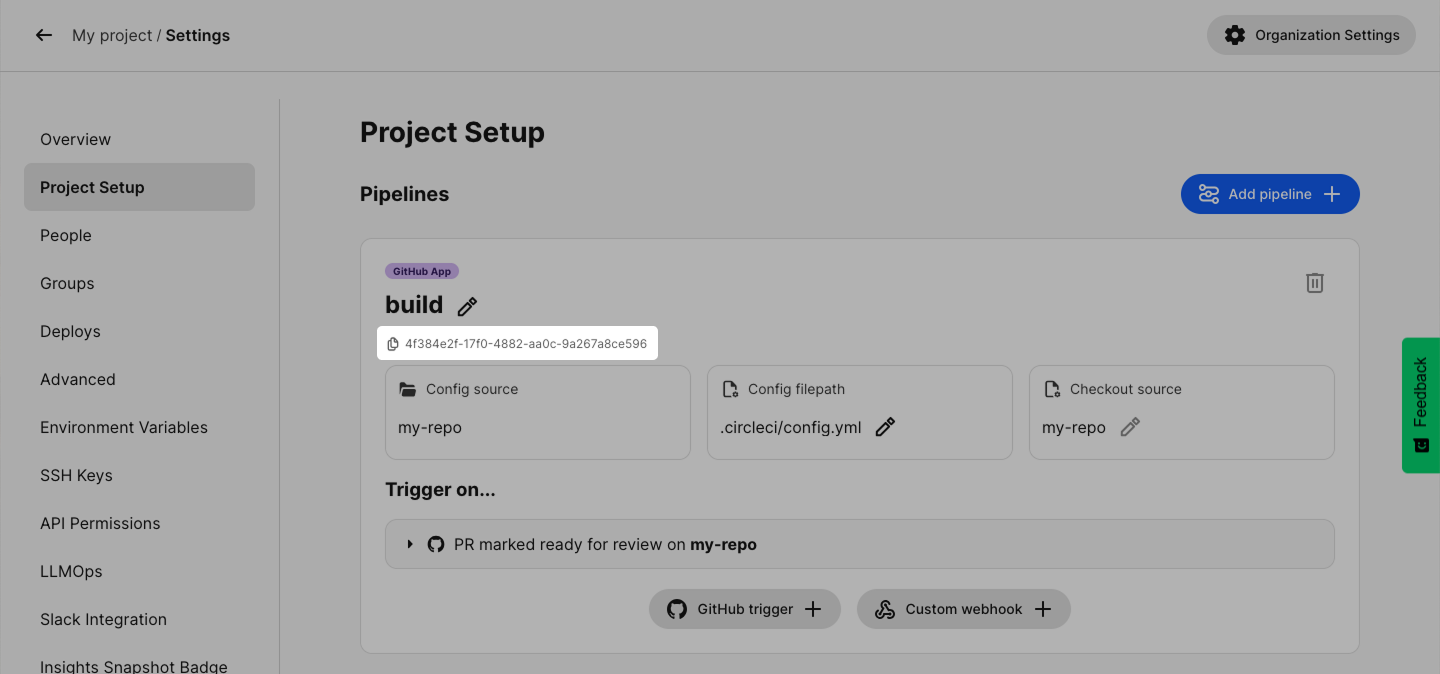 Figure 3. Pipeline definition ID on the Project Setup page
1.4 VCS origin
You need the version control system origin URL for your project, for example github.com/myorg/myrepo or gitlab.com/mylab/myproject.
1.5 Context IDs (optional)
If you intend to restrict publishing to a CircleCI context (recommended, see Lock it down with protected contexts) you will need the UUID for each context. To find a context ID, follow these steps:
-
In the CircleCI web app, select your org from the org cards on your user homepage.
-
Select Org from the sidebar to open your organization settings page.
-
Select Contexts from the menu.
-
Select the context you want to find the ID for.
-
Select the Copy icon next to the context ID to copy it to your clipboard.
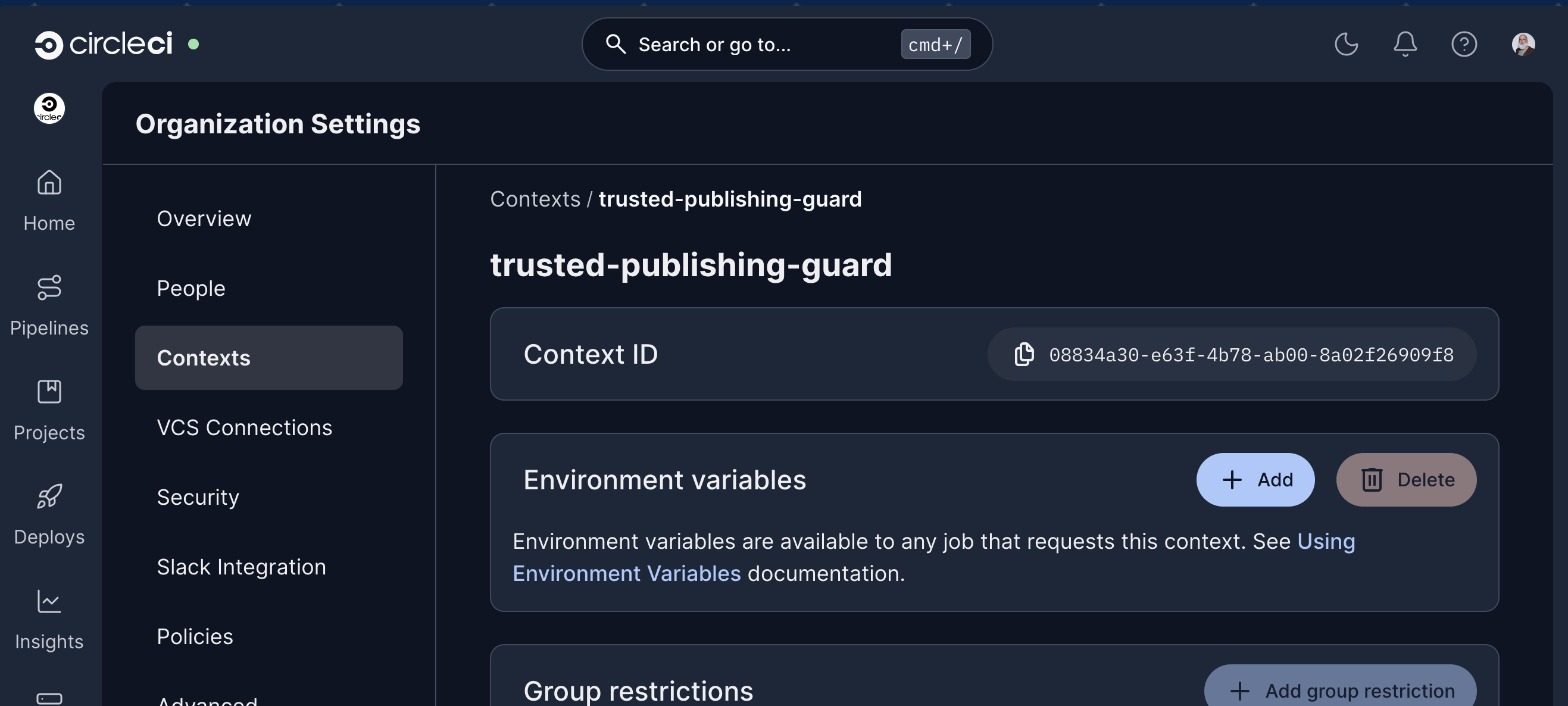
Gather context IDs for each context you want to restrict publishing to.
2. Set up the trusted publisher on npmjs.com
-
Sign in to npmjs.com and navigate to your package page.
-
Select the Settings tab.
-
Under Trusted Publishing, select CircleCI.
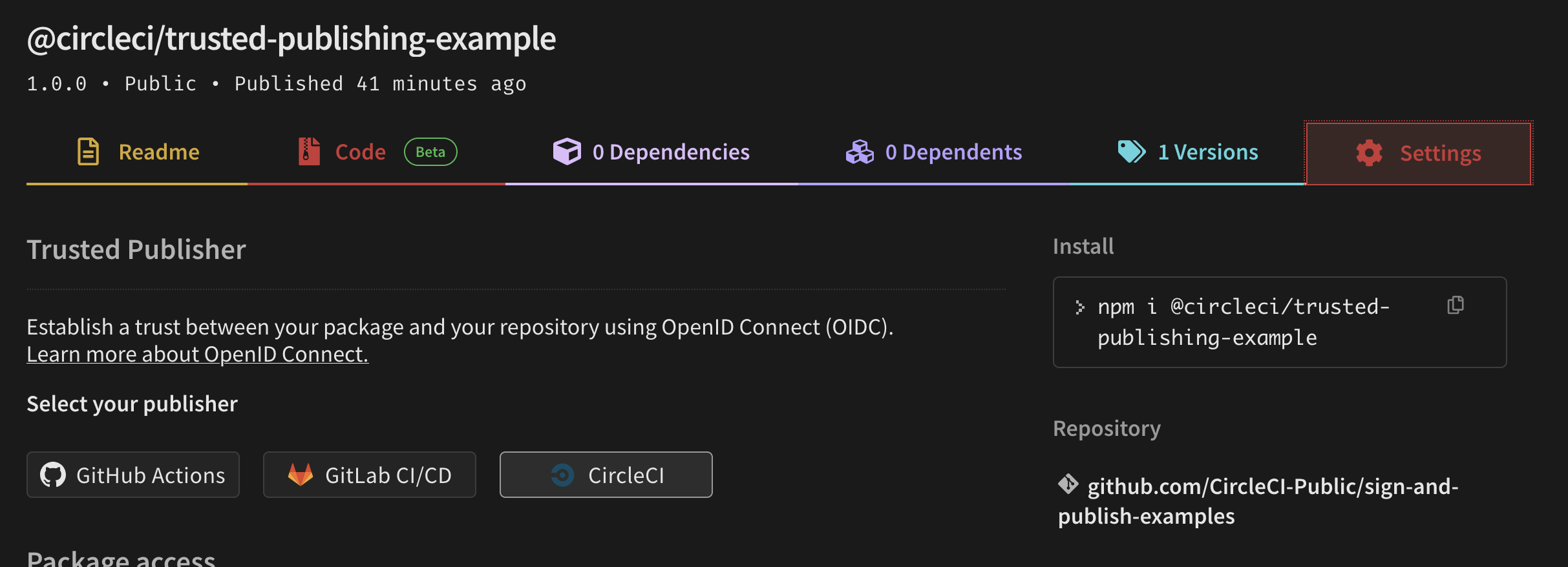 Figure 5. Selecting CircleCI as the trusted publisher on npmjs.com
 -
Fill in the fields with the values you collected in the previous step:
-
Organization ID
-
Project ID
-
Pipeline Definition ID
-
VCS origin
-
Context IDs (optional)
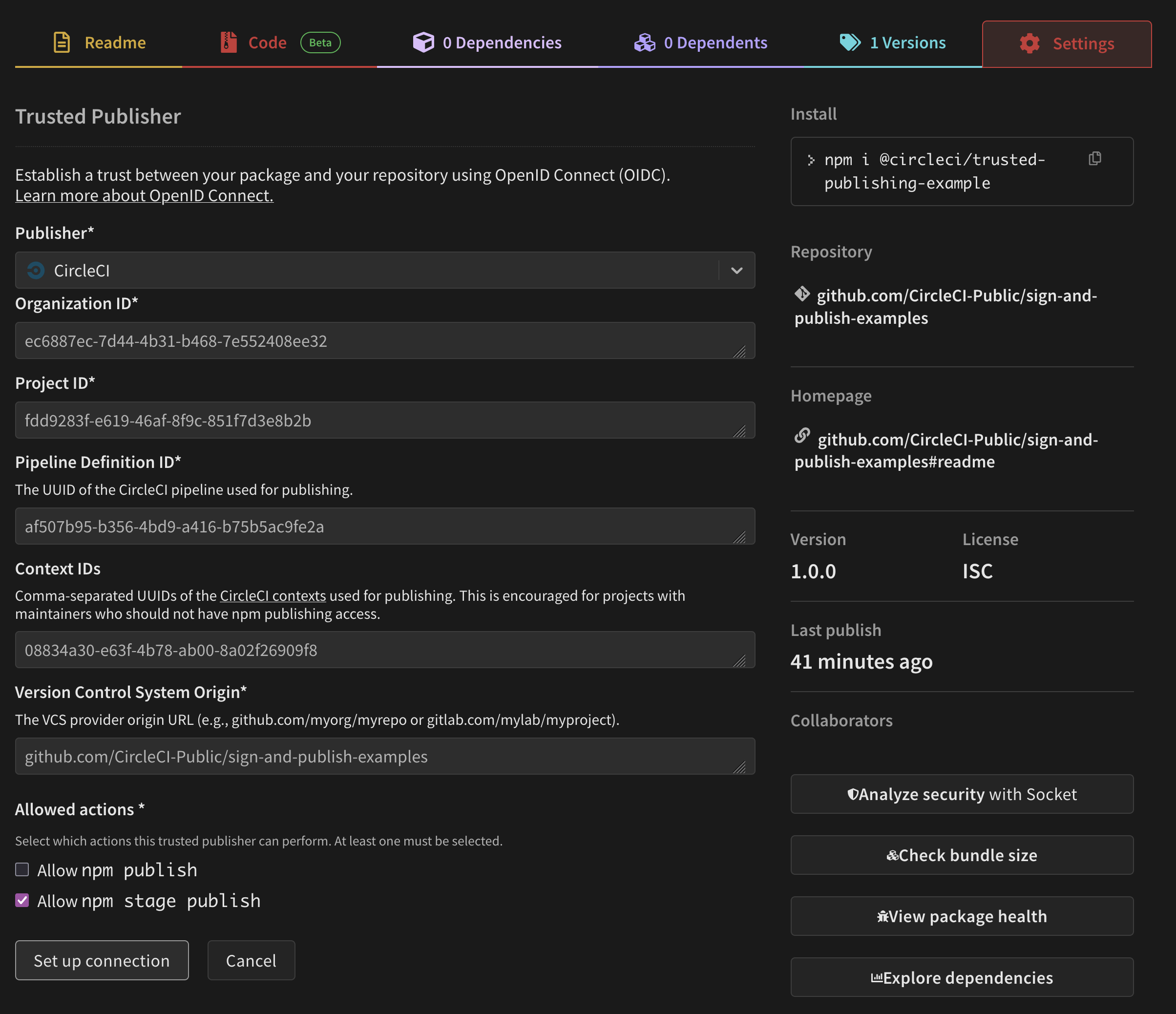 Figure 6. Trusted publisher form with the CircleCI identifiers filled in
-
-
Choose which actions this trusted publisher can perform (
npm publish,npm stage publish, or both) and save.
3. Lock it down with protected contexts
This step is optional but recommended. If you do not want context-based restrictions, skip to Step 4.
You can further restrict who and what can run the publishing job by attaching the job to a CircleCI Context and applying restrictions to that context. If you do this, remember to record the context’s UUID under Context IDs when you configure the trusted publisher on npm (see Step 2). Three types of restrictions are available, as described in the following sections.
- Security group restrictions
-
Security Group Restrictions limit job execution to members of a specific group. Anyone outside the group who attempts to run the job fails. Use a security group restriction when you want only a small set of people to be able to publish.
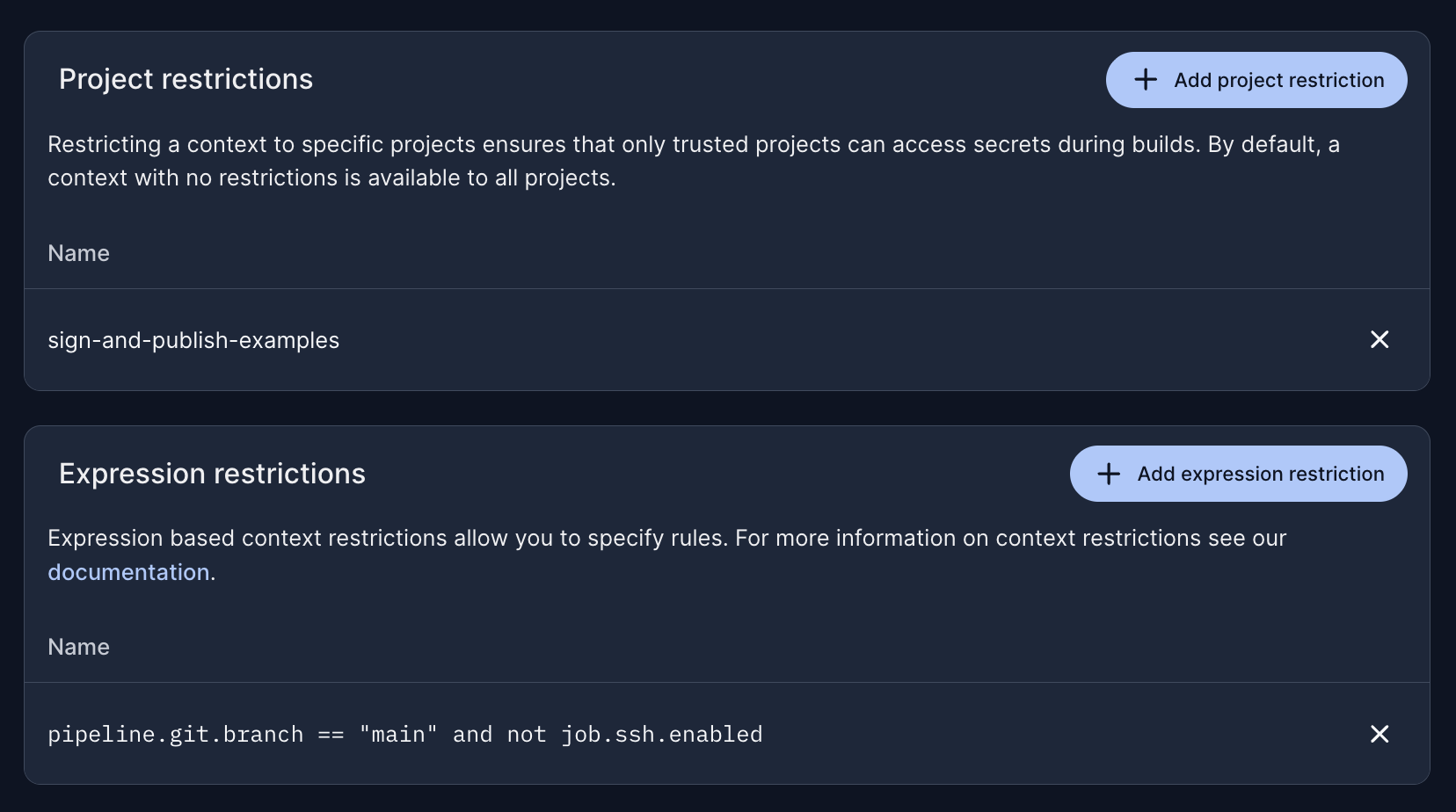
- Project restrictions
-
Project Restrictions limit a context to one or more specific projects. With a project restriction in place, a job in any other project that tries to use the context will fail. Use a project restriction to ensure the publishing context can only be used by the project that owns your npm package.
- Expression restrictions
-
Expression Restrictions are more powerful. The most common use is restricting a context to a specific branch. For example:
pipeline.git.branch == "main"This causes any job on a different branch that tries to use the context to fail.
SSH rerun restrictions
npm rejects any OIDC token whose
ssh_rerunclaim istrue. As defense in depth, you can also add the following expression restriction to your publishing context so that the job cannot be re-run with SSH at all:not job.ssh.enabledYou can combine expressions to restrict the context to a specific branch and disallow SSH reruns in a single rule:
pipeline.git.branch == "main" and not job.ssh.enabled
4. Configure your CircleCI pipeline
Add a publishing job to your .circleci/config.yml. The job retrieves an OIDC token for the npm:registry.npmjs.org audience and assigns it to the NPM_ID_TOKEN environment variable. When NPM_ID_TOKEN is set, the npm CLI automatically exchanges it for a short-lived publish token, so no NPM_TOKEN is needed.
In the example below, the job is attached to the context from Step 3 (here named trusted-publishing-guard) and the workflow filters to the main branch only. If you skipped Step 3, remove the context: block from the workflow.
version: 2.1

jobs:
  publish:
    docker:
      - image: cimg/node:22.14
    steps:
      - checkout
      - run:
          name: Install dependencies
          command: npm ci
      - run:
          name: Run tests
          command: npm test
      - run:
          name: Build
          command: npm run build --if-present
      - run:
          name: Publish to npm
          command: |
            export NPM_ID_TOKEN=$(circleci run oidc get --claims '{"aud": "npm:registry.npmjs.org"}')
            npm publish --access public

workflows:
  publish:
    jobs:
      - publish:
          context:
            - trusted-publishing-guard
          filters: pipeline.git.branch == "main" # only run the publish job on the main branch
For background on OIDC tokens in CircleCI, see Use OpenID Connect Tokens in Jobs.
5. Publish a new version
With the workflow above, every merge to main publishes a new version. To bump the package version, run npm version on a feature branch:
npm version 10.0.1Open a pull request and merge to main. CircleCI runs the publishing workflow on the merge commit, and the npm CLI exchanges the OIDC token for a short-lived publish token to upload the package.
As an alternative to manually bumping the version, you can compute a version at build time from CIRCLE_BUILD_NUM so each merge to main produces a monotonically increasing version automatically. See the CircleCI npm trusted publishing example for one approach.
|
Notes
-
npm supports staged publishing. You can configure your trusted publisher to allow
npm stage publishin addition to (or instead of)npm publish, which lets you stage a release for review before promoting it. Staged publishing requires npm CLI version 11.15.0 or later and Node version 22.14.0 or higher. -
Pull requests from forks do not have access to CircleCI secrets, including OIDC tokens. A fork cannot trigger a publish.
Track your deployments with deploy markers
Deploy markers provide a way to track and manage your npm package publications in the CircleCI web app. When you add deploy markers to your deployment job, you can view a timeline of all deployments, track their status, and enable rollback and deploy pipelines.
You have two options for setting up deploy markers:
-
In-app setup: Use the guided setup in the CircleCI web app when configuring a Rollback Pipeline or Deploy Pipeline. The setup will walk you through adding deploy markers to your configuration. If you are using GitHub and have the CircleCI GitHub App installed, you can use AI to generate the deploy marker configuration automatically.
-
Manual setup: Add deploy marker commands directly to your
.circleci/config.ymlfile by following the Configure Deploy Markers guide.
Both approaches will enable you to track deployment history and manage rollbacks directly from the CircleCI web app.
Feedback
If you have questions or feedback, drop by the CircleCI Discuss forum or the CircleCI Discord community.