

Install machine runner 3 on Docker
This page describes how to install CircleCI’s machine runner 3 with the Docker executor. If you are looking to set up self-hosted runners in a private Kubernetes cluster, visit the Container runner page.
Machine-based approach with Docker
Prerequisites
Resource requirements
The host needs to have Docker installed. Once the runner container is started, the container will immediately attempt to start running jobs. The container will be reused to run more jobs indefinitely until it is stopped.
The number of containers running in parallel on the host is constrained by the host’s available resources and your jobs' performance requirements.
Self-hosted runner terms agreement
-
Web app installation
-
CLI installation
Before you can install self-hosted runners through the web app, you will need to agree to the CircleCI Runner Terms. To access the Runners section of the CircleCI web app an organization admin must agree to the terms at .
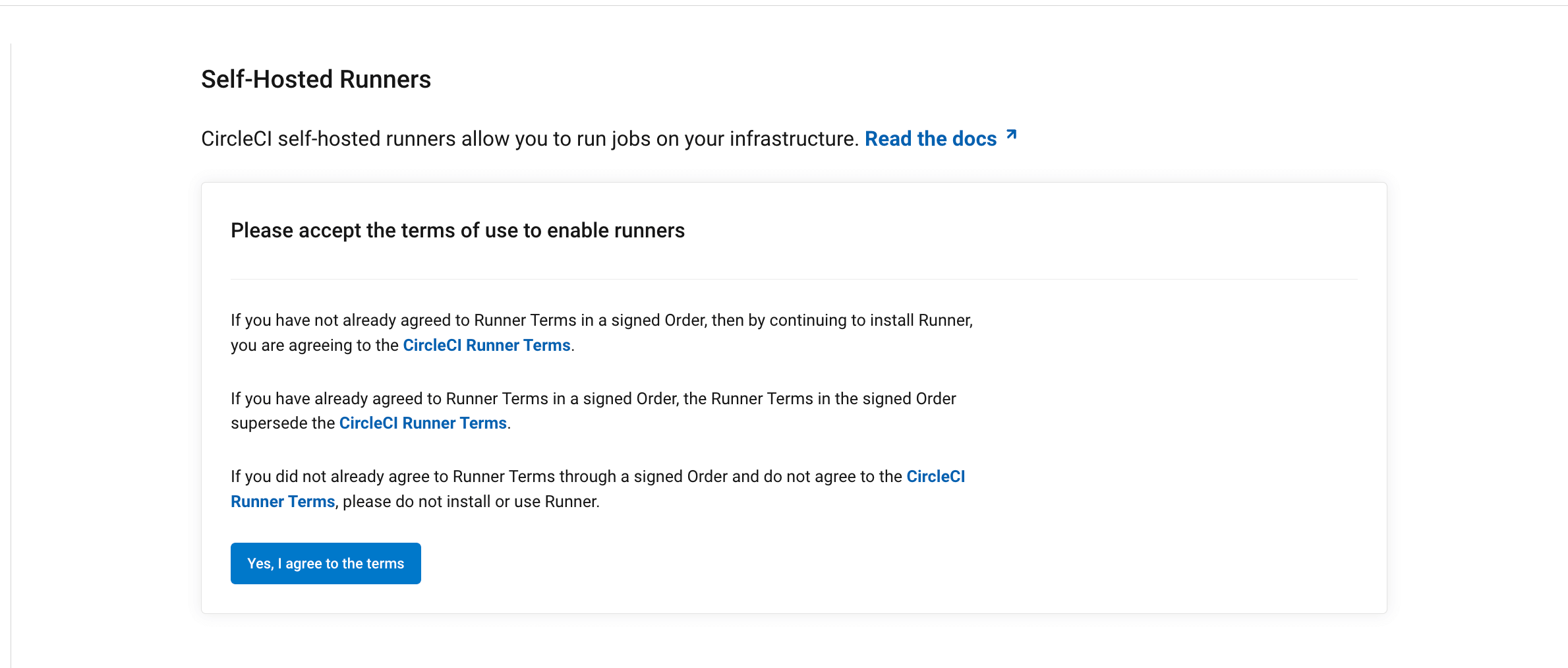
Once the terms have been accepted, Runners will appear permanently in the side navigation.
Your role within your org is determined differently depending on how you integrate with your code, as follows:
-
If you have a
githuborbitbuckettype organization, CircleCI mirrors VCS permissions for organizations. If you are an admin on your organization’s VCS, you are an admin on CircleCI. If you are unsure, check the admin permissions on your VCS. -
If you have a
circlecitype organization, you can check roles by navigating to . Full details on roles and permissions are available in the Roles and Permissions Overview.
| Find out about organization types in the Users, Organizations and Integrations Guide. |
If you are installing and using self-hosted runners through the CLI, you are agreeing to the CircleCI Runner Terms.
1. Create namespace and resource class
-
Web app installation
-
CLI installation
To install self-hosted runners, you need to create a CircleCI namespace and resource class. Once set up you will receive a resource class token. You must be an organization admin to complete this process. View your installed runners on the inventory page in the web app by selecting Runners from the sidebar.
| If you already create orb in your organization you will already have a namespace configured. You must use this same namespace for runners. Each organization can only create a single namespace. |
-
On the CircleCI web app, navigate to Runners and select Create Resource Class.
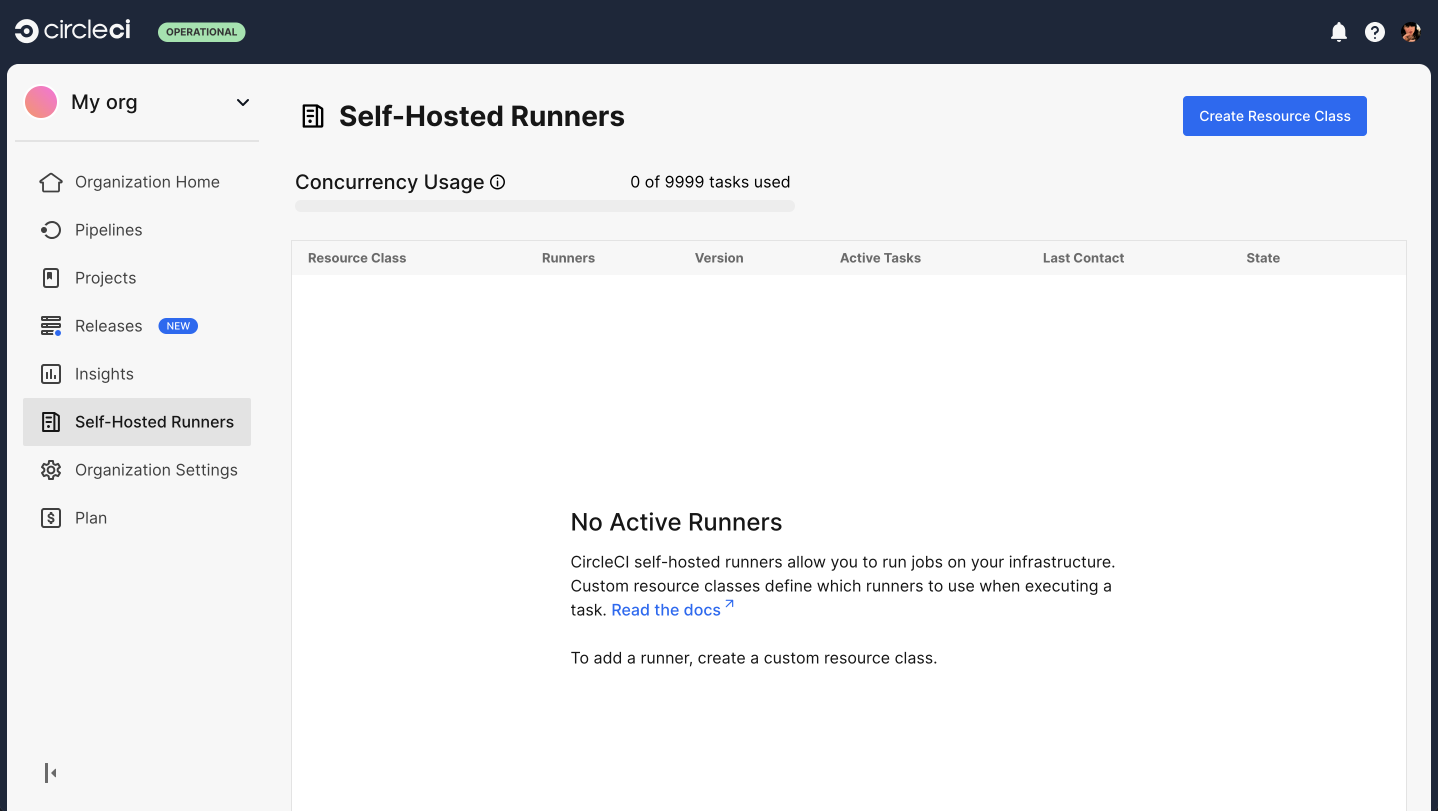 Figure 2. Runner set up, step one - Get started
 -
Create a custom Resource Class. You will configure jobs to use this resource class when you want them to run on your self-hosted runner.
We suggest using a lowercase representation of your CircleCI account name for your namespace. CircleCI will populate your org name as the suggested namespace by default in the UI.
Namespace and resource classes must follow specific naming conventions:
-
The namespace can contain lowercase letters, numbers, underscores, and dashes.
-
The resource class name can contain uppercase and lowercase letters, numbers, colons, underscores, dashes, and plus signs.
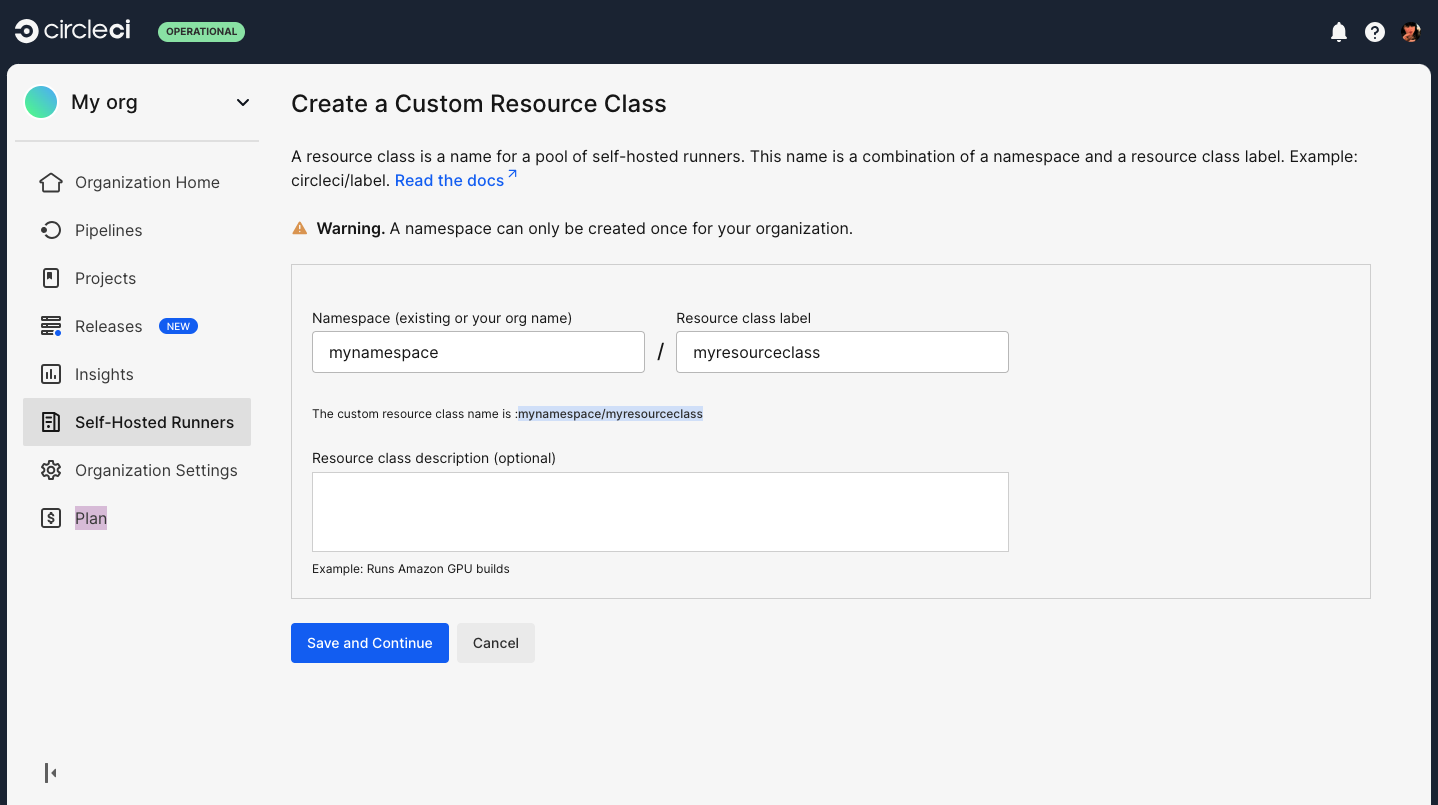 Figure 3. Runner set up, step two - Create a namespace and resource class
-
-
Enter a description for your resource class. The description is an optional field.
-
Select Save and continue to save and view your resource class token.
-
Copy and save the resource class token. Self-hosted runners use this token to claim work for the associated resource class.
The token is only displayed once, be sure to store it safely. 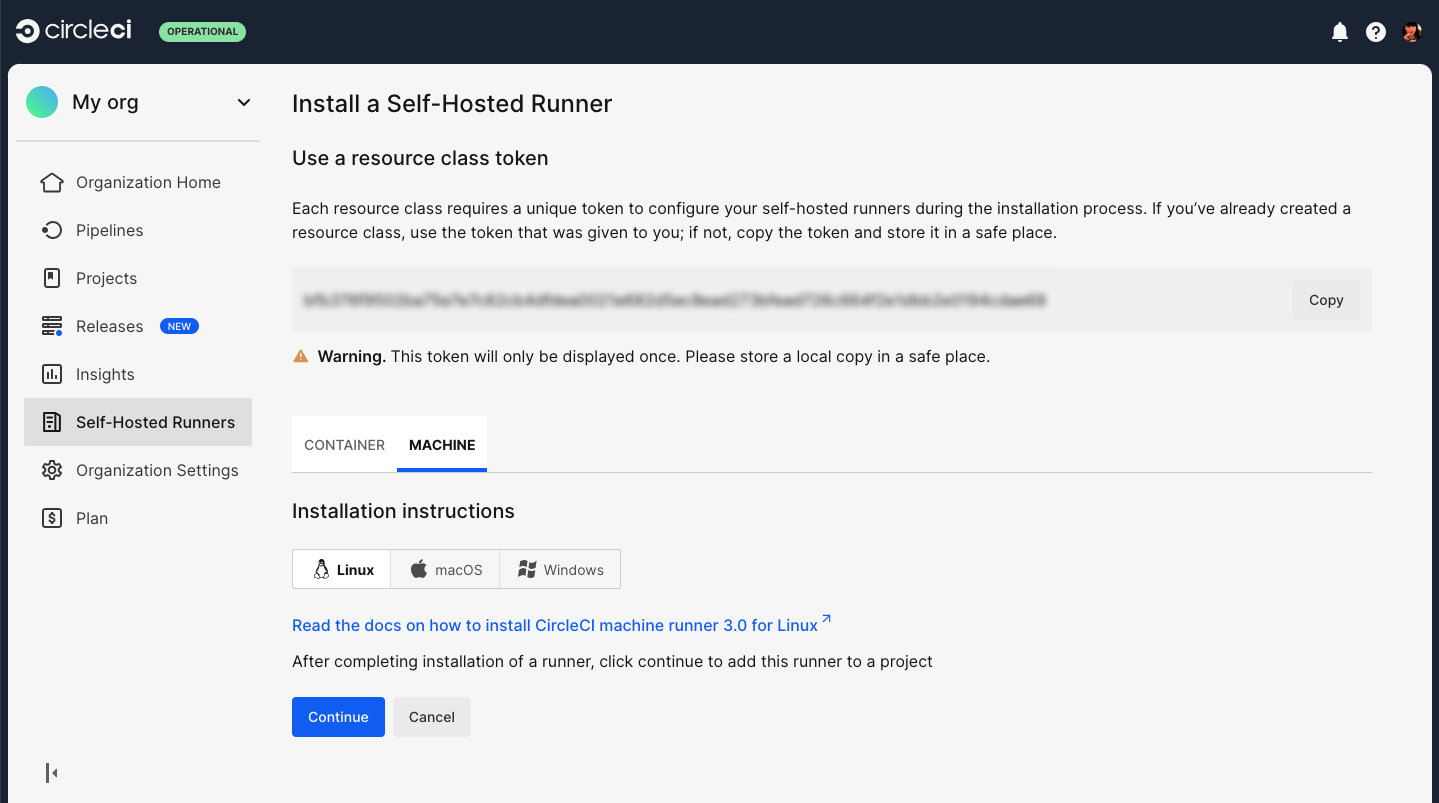 Figure 4. Runner set up, step three - Create a resource class token
 -
Select the Machine tab and progress on to the platform-specific instructions in the next section of this installation guide.
If you are installing self-hosted runners for server, the CircleCI CLI needs to be configured using your server API key. Run circleci setup to configure the CLI and access the option to supply a new API token if required.
|
To install self-hosted runners, you need to create a CircleCI namespace and resource class. Once set up you will receive a resource class token. You must be an organization admin to complete this process. View your installed runners on the inventory page in the web app by selecting Runners from the sidebar.
| If you already create orb in your organization you will already have a namespace configured. You must use this same namespace for runners. Each organization can only create a single namespace. |
-
Create a namespace for your organization’s self-hosted runners if you do not already have one configured. We suggest using a lowercase representation of your CircleCI organization’s account name.
Use the following command to create your CircleCI organization’s namespace:
$ circleci namespace create <name> --org-id <your-organization-id> -
Create a resource class for your runner using the following command. You will configure jobs to use this resource class when you want them to run on your slef-hosted runner:
$ circleci runner resource-class create <namespace>/<resource-class> <description> --generate-tokenMake sure to replace
<namespace>and<resource-class>with your org namespace and desired resource class name, respectively. You can add a description but this is optional.Resource class names must follow specific naming conventions.
-
The namespace can contain lowercase letters, numbers, underscores, and dashes.
-
The resource class name can contain uppercase and lowercase letters, numbers, colons, underscores, dashes, and plus signs.
The resource class token is returned after the runner resource class is successfully created.
The token is only displayed once, so be sure to store it safely.
-
2. Create a Dockerfile that extends the machine runner 3 image
Create a Dockerfile.runner.extended file. In this example, Python 3 is installed on top of the base image.
FROM circleci/runner-agent:machine-3
RUN sudo apt-get update; \
    sudo apt-get install --no-install-recommends -y \
python34. Start the Docker container
The environment variable values are not available to the docker command, so these environment variables are not visible in ps output.
|
-
Cloud
-
Server
CIRCLECI_RUNNER_NAME=<runner-name> CIRCLECI_RUNNER_API_AUTH_TOKEN=<runner-token> docker run --env CIRCLECI_RUNNER_NAME --env CIRCLECI_RUNNER_API_AUTH_TOKEN --name <container-name> <image-id-from-previous-step>When starting the Docker container on server, the CIRCLECI_RUNNER_API_URL environment variable will also need to be passed in using the --env flag.
CIRCLECI_RUNNER_NAME=<runner-name> CIRCLECI_RUNNER_API_AUTH_TOKEN=<runner-token> CIRCLECI_RUNNER_API_URL=<server_host_name> docker run --env CIRCLECI_RUNNER_NAME --env CIRCLECI_RUNNER_API_AUTH_TOKEN --env CIRCLECI_RUNNER_API_URL --name <container-name> <image-id-from-previous-step>When the container starts, it will immediately attempt to start running jobs.
Remove the Docker container
In some cases you might need to fully remove a stopped machine runner container from the system, such as when recreating a container using the same name.
docker stop <container-name>; docker rm <container-name>;Migrating from launch agent
In machine runner 3, the environment variable name prefix has changed from LAUNCH_AGENT_ to CIRCLECI_RUNNER_.
|
To migrate from launch agent to machine runner 3 on Docker, stop and remove the launch agent containers and replace them with machine runner 3 containers. The commands described above can be used to accomplish this.
Machine runner configuration example
Once you have installed the runner, select Continue in the CircleCI web app. You will be presented with an example configuration snippet showing a job configured to use your new self-hosted runner resource class.
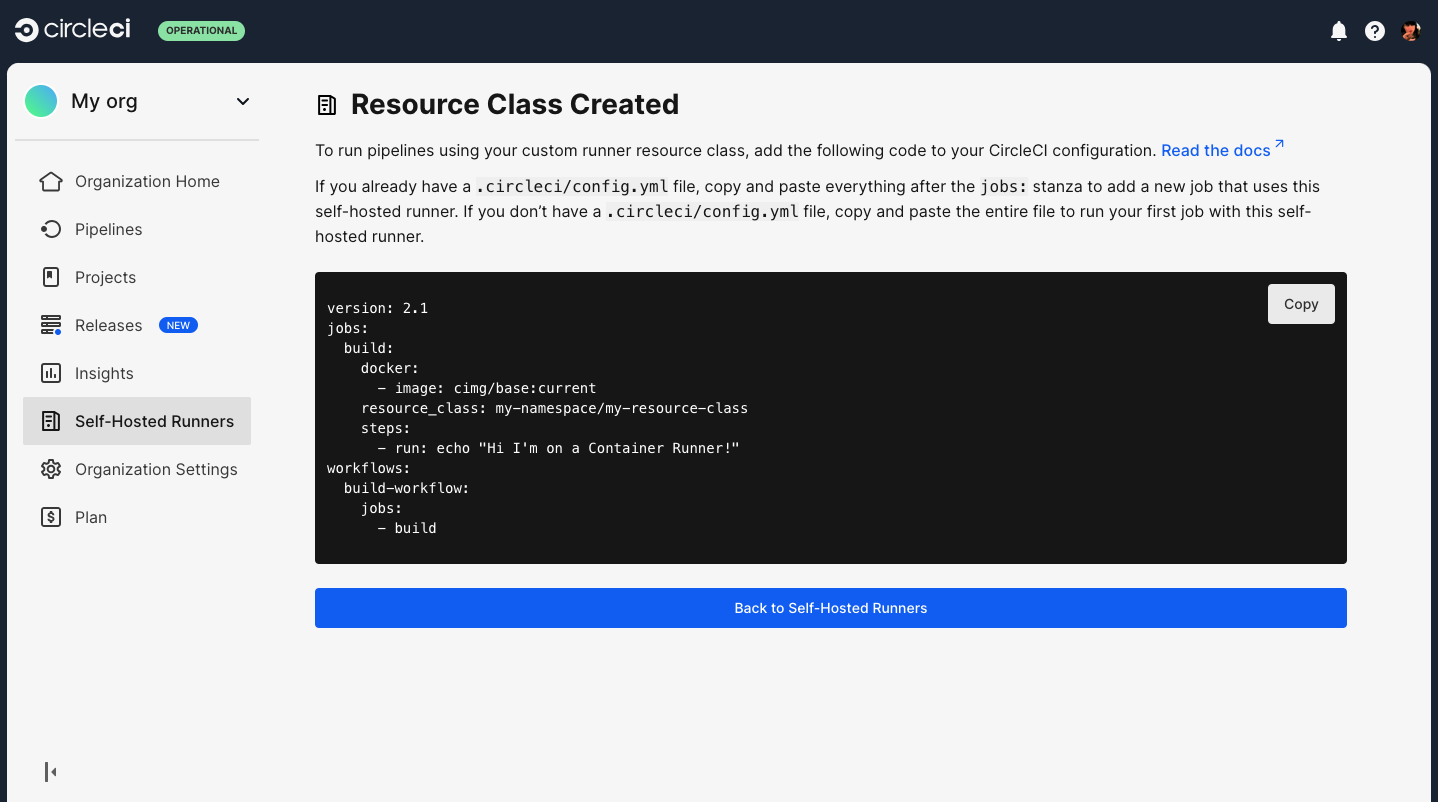
The fields you must set for a specific job to run using your machine runners are:
-
machine: true -
resource_class: <namespace>/<resource-class>
Simple example of how you could set up a job:
version: 2.1

workflows:
  build-workflow:
    jobs:
      - runner
jobs:
  runner:
    machine: true
    resource_class: <namespace>/<resource-class>
    steps:
      - run: echo "Hi I'm on Runners!"
The job will then execute using your self-hosted runner when you push the .circleci/config.yml to your VCS provider.