

Using OpenID Connect tokens in jobs
CircleCI provides OpenID Connect ID (OIDC) tokens in environment variables. Jobs can be configured to use these OIDC tokens to access compatible cloud services without long-lived credentials being stored in CircleCI.
Some advantages to using OIDC over using static credentials:
-
Improved security: By using OIDC authentication, storing credentials directly in your CircleCI configuration or environment variables is avoided, reducing the risk of exposure.
-
Simplified credential management: OIDC allows CircleCI to automatically manage the authentication process, eliminating the need to manually manage and rotate credentials.
-
Fine-grained access control: By associating a cloud provider role with OIDC authentication, exact permissions granted to CircleCI can be controlled, ensuring a least-privilege approach.
OpenID Connect tokens
CircleCI provides three OpenID Connect ID tokens in environment variables. They differ in what the sub claim tells your cloud provider about where a job came from.
| Environment variable | What the sub claim identifies |
Use it when | Availability |
|---|---|---|---|
|
Organization, project, and user. |
Your trust policy only needs to check the project or user. The |
Cloud and Server v4.4+ |
|
Organization, project, and user, plus the repository ( |
Your trust policy needs to restrict access by repository or branch. |
Cloud and Server v4.4+ |
|
Organization, project, and user, plus the checkout source and reference, and the config source and reference. Uses |
Recommended for new setups. Your trust policy can check where the pipeline configuration comes from as well as the code it checks out. |
Cloud only |
Use $CIRCLE_OIDC_TOKEN_V3 for new setups. If you already have trust policies that use $CIRCLE_OIDC_TOKEN or $CIRCLE_OIDC_TOKEN_V2, they continue to work. See OpenID Connect ID tokens format for the claims in each token. See Choose a token version for a detailed comparison and migration steps.
| What about forks? OIDC tokens will only be generated for forked builds if the Pass secrets to builds from forked pull requests setting is enabled. See OIDC in open source projects. |
Set up cloud provider authentication
Before your cloud service will accept CircleCI’s OIDC tokens, you need to configure it to trust CircleCI as an identity provider. This tells your cloud service that tokens issued by CircleCI for your organization are legitimate and can be accepted.
An identity provider is a configuration in your cloud service that defines a trusted source of authentication tokens.
You can use CircleCI’s OIDC tokens with multiple cloud services.
The following sections describe how to configure CircleCI jobs to authenticate with a cloud provider. Follow steps for your cloud provider, either AWS or GCP.
AWS
The following instructions cover the following:
-
A one-time configuration of your AWS account to trust CircleCI’s OIDC tokens.
-
Running a job that uses the OIDC token to interact with AWS.
| See the Pull an Image From AWS ECR With OIDC how-to guide after following this setup section. |
Prerequisites
You will need to have the following to continue your AWS OIDC setup:
-
A CircleCI account. You must be a member of an organization. See Sign Up and Try CircleCI for more information.
-
A project set up that you want to configure to use OIDC.
-
An AWS account with the necessary permissions to create an IAM identity provider and role.
1. Set up identity provider in AWS
In this step you will allow your AWS account to trust CircleCI’s OpenID Connect tokens. Follow the steps in this section to create an Identity and Access Management (IAM) identity provider, and an IAM role in AWS.
Creating the identity provider is a one-time configuration to get set up.
To create your identity provider you will need to know your OpenID Provider, which is unique to your organization. The OpenID Provider URL is https://oidc.circleci.com/org/<organization_id>, where organization_id is your unique organization identifier.
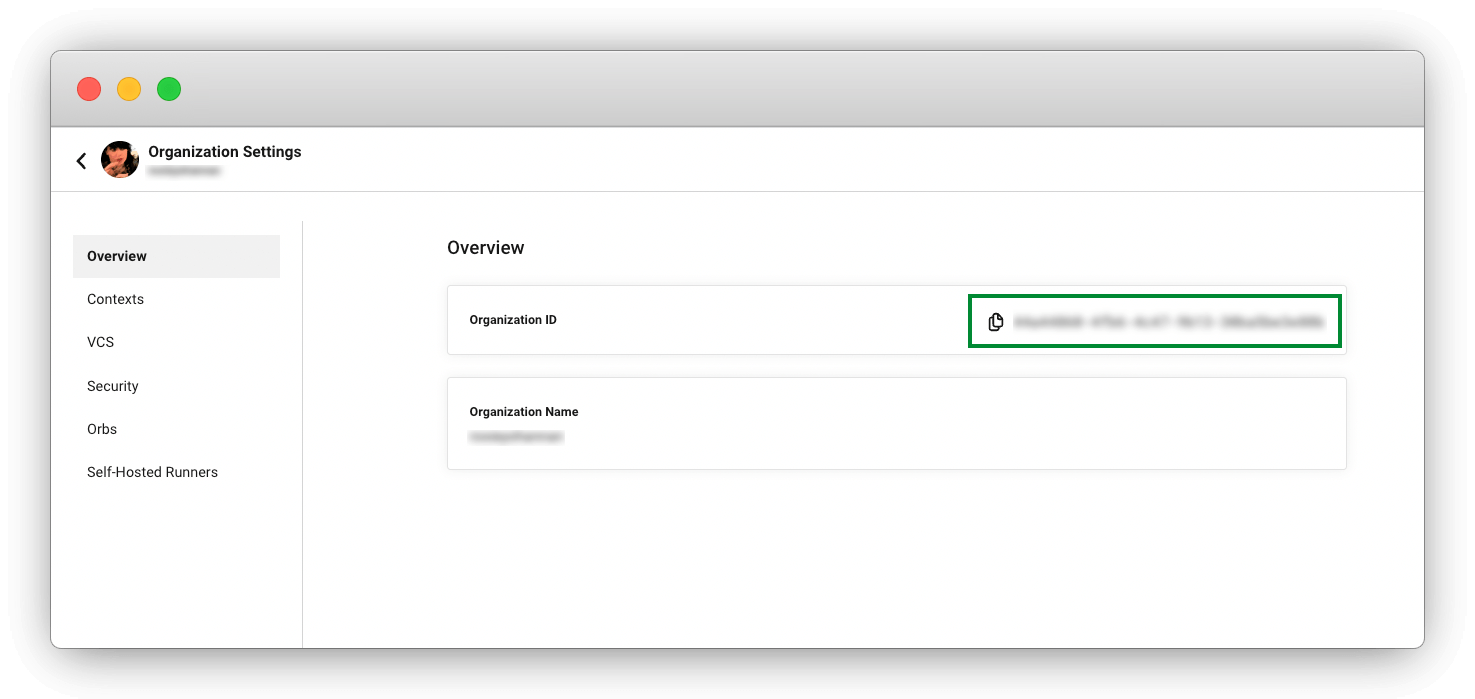
To find your organization ID and organization slug, select Org in the CircleCI web app sidebar to open your organization settings page.
The organization ID is available to copy from the org settings overview page.
The default OpenID Connect ID tokens issued by CircleCI have a fixed audience (see aud in the table below). This audience is also the organization ID. To generate tokens with custom audience claims, see the OIDC Tokens With Custom Claims page.
Visit the Creating OpenID Connect (OIDC) identity providers page of the AWS docs and follow the instructions. Multiple setup options are available including using the management console or CLI.
You will need to provide the following:
-
OpenID Provider URL: Enter
https://oidc.circleci.com/org/<your-organization-id>, whereyour-organization-idis the ID of your CircleCI organization. -
Audience: Enter your organization ID.
2. Assign a role to your identity provider
Now you have your identity provider set up, you can assign roles to it and decide how to manage the associated role(s). You can update the role permissions using policies to fit your use cases. You can also create roles specific to each use.
Once you have created your identity provider, a banner appears at the top of the AWS console with the option to Assign role. Select this button to create a new role, or visit the Creating a role for web identity or OIDC section of the AWS docs and follow the steps there. You will need to select the following:
-
The identity provider that you just created.
-
For Audience, choose the only option, which is your organization ID that you entered when creating the identity provider.
-
On the Add Permissions page you can specify what your CircleCI jobs can and cannot do. Choose only permissions that your job will need. Choosing minimal permissions is an AWS best practice. You can also write your own policies to lock down permissions to exactly what you need for a specific use case.
AWS STS supports a dedicated condition key for CircleCI’s oidc.circleci.com/project-id claim. Use this key in your role’s trust policy to restrict which CircleCI projects can assume the role. See Limit role access based on project for sample policies.
|
3. Add AWS to your CircleCI configuration file
Now that you have set up your trusted identity provider and IAM role, you are ready to configure a CircleCI job that authenticates with AWS using OIDC. Use CircleCI’s AWS CLI orb to generate temporary keys and configure a profile that uses OIDC.
|
When using OIDC authentication, you do not need to manually create or store AWS credentials files in CircleCI. The Orbs are reusable packages of YAML configuration that condense repeated pieces of configuration into a single line of code. The AWS CLI orb enables you to generate a temporary session token, AWS Access Key ID, and AWS secret access key with a single command in your configuration. |
-
In your
.circleci/config, import theaws-cliorb.version: 2.1 orbs: aws-cli: circleci/aws-cli@5.4.1 -
Configure your job to run the
aws-cli/setupcommand before interacting with any AWS services. Provide theaws-cli/setupcommand with therole_arnassociated with the role you have created in the step above along with yourregion, which is your AWS region.jobs: aws-example: environment: AWS_REGION: us-west-1 docker: - image: cimg/aws:2025.01 steps: - checkout # run the aws-cli/setup command from the orb - aws-cli/setup: role_arn: "arn:aws:iam::123456789012:role/OIDC-ROLE" region: ${AWS_REGION} # optional parameters profile_name: "OIDC-PROFILE" role_session_name: ${CIRCLE_JOB} session_duration: "1800"You can optionally provide a
profile_name,role_session_name, andsession_duration. If you provide aprofile_name, the temporary keys and token will be configured to that specific profile. You must use that sameprofile_namewith the rest of your AWS commands. If aprofile_nameis not provided, the keys and token will be configured to the default profile.If you do not provide a
role_session_nameorsession_duration, their default values are${CIRCLE_JOB}(your job’s name) and 3600 seconds respectively.
Below is an example of a complete configuration with a job that configures a profile with OIDC and uses it to log into AWS ECR. The same profile can be used to run other AWS commands, such as S3, EKS, ECS, and more, as long as the role_arn has been configured with appropriate permissions.
version: 2.1

orbs:
  aws-cli: circleci/aws-cli@5.4.1
jobs:
  aws-example:
    environment:
      AWS_REGION: us-west-1
    docker:
      - image: cimg/aws:2025.01
    steps:
      - checkout
      # run the aws-cli/setup command from the orb
      - aws-cli/setup:
          role_arn: "arn:aws:iam::123456789012:role/OIDC-ROLE"
          region: ${AWS_REGION}
          # optional parameters
          profile_name: "OIDC-PROFILE"
          role_session_name: ${CIRCLE_JOB}
          session_duration: "1800"
- run:
name: Log-into-AWS-ECR
command: |
# must use same profile specified in the step above
aws ecr get-login-password --profile "OIDC-PROFILE"
workflows:
OIDC-with-AWS:
jobs:
- aws-example:
context: awsAdvanced usage
You can take advantage of the format of the claims in CircleCI’s OIDC tokens to limit what your CircleCI jobs can do in AWS.
Limit role access based on project
If a project needs to access only certain AWS resources, you can restrict your IAM role so that only CircleCI jobs in that project can assume that role.
To do this, edit your IAM role’s trust policy so that only an OIDC token from your chosen project can assume that role. The trust policy determines under what conditions the role can be assumed.
-
Go to an individual project’s page in the CircleCI web app and navigate to to find your Project ID.
-
Add the following condition to your role’s trust policy, so that only jobs in your chosen project can assume that role. Replace
<organization_id>with your CircleCI organization ID and<project-id>with your CircleCI project ID. See How to Find IDs for help.Option 1: Using the CircleCI project-id claim (recommended)
AWS STS maps CircleCI’s
oidc.circleci.com/project-idOIDC claim to a Web Identity Federation condition key. This key identifies the CircleCI project in which the job is running. Its value is a string containing a UUID that uniquely identifies the CircleCI project. Use this condition key with string operators in your trust policy to restrict access to specific CircleCI projects.{ "Version": "2012-10-17", "Statement": [ { "Effect": "Allow", "Principal": { "Federated": "arn:aws:iam::123456789012:oidc-provider/oidc.circleci.com/org/<organization_id>" }, "Action": "sts:AssumeRoleWithWebIdentity", "Condition": { "StringEquals": { "oidc.circleci.com/org/<organization_id>:aud": "<organization_id>", "oidc.circleci.com/org/<organization_id>:oidc.circleci.com/project-id": "<project-id>" } } } ] }The oidc.circleci.com/project-idcondition key is evaluated duringsts:AssumeRoleWithWebIdentityand is not available as a session tag after the role is assumed.Option 2: Using the sub claim
Update trust policy to restrict access to specific project"StringLike": { "oidc.circleci.com/org/<organization_id>:sub": "org/<organization_id>/project/<project-id>/user/*" }For
$CIRCLE_OIDC_TOKEN_V3, which separates the parts of thesubclaim with:, use this pattern instead:Update trust policy to restrict access to specific project (V3)"StringLike": { "oidc.circleci.com/org/<organization_id>:sub": "org:<organization_id>:project:<project-id>:user:*" }This uses StringLike to match the
subclaim of CircleCI’s OIDC token in your chosen project. Now, jobs in your other projects cannot assume this role.
Limit role access based on branch
You can also restrict access to specific branches. For $CIRCLE_OIDC_TOKEN_V3, the sub claim includes the config source and ref as well as the checkout source and ref. The following StringLike condition restricts the role to pipeline runs in which both the checkout and the config come from the main branch of a repository in the my-org GitHub organization.
"StringLike": {
  "oidc.circleci.com/org/<organization_id>:sub": "org:<organization_id>:project:*:user:*:checkout-source:github.com/my-org/*:checkout-ref:refs/heads/main:config-source:github.com/my-org/*:config-ref:refs/heads/main"
}
Checking config-source and config-ref as well as the checkout values stops a pipeline run from using configuration on an unprotected branch to get access that the checkout alone would not allow.
The repository part of the sub claim contains a host prefix that depends on your VCS provider. Replace github.com/my-org/ with the appropriate value for your provider. See VCS-origin and VCS-ref values by provider for the full list. For example, a GitLab.com project would use gitlab.com/my-group/ and a Bitbucket Cloud project would use bitbucket.org/my-workspace/.
For $CIRCLE_OIDC_TOKEN_V2, the following trust policy restricts the AssumeRoleWithWebIdentity action to pipeline runs on the main branch in the my-org GitHub organization and the CircleCI organization with the ID organization_id. The sub claim uses the $CIRCLE_OIDC_TOKEN_V2 format.
{
    "Version": "2012-10-17",
    "Statement": [
        {
            "Effect": "Allow",
            "Principal": {
                "Federated": "arn:aws:iam::123456789012:oidc-provider/oidc.circleci.com/org/<organization_id>"
            },
            "Action": "sts:AssumeRoleWithWebIdentity",
            "Condition": {
                "StringLike": {
                    "oidc.circleci.com/org/<organization_id>:sub": "org/<organization_id>/project/*/user/*/vcs-origin/github.com/my-org/*/vcs-ref/refs/heads/main"
                }
            }
        }
    ]
}
Google Cloud Platform
The following instructions cover:
-
A one-time configuration of your GCP settings to trust CircleCI’s OIDC tokens.
-
Running a job that uses the OIDC token to interact with GCP.
| The Google Cloud CLI reads your configuration file to authenticate. You can read about external identity providers on Google Cloud’s docs. |
Prerequisites
You will need to have the following to continue your GCP OIDC setup:
-
A CircleCI account where you are a member of an organization. See Sign Up and Try CircleCI for more information.
-
A project set up that you want to configure to use OIDC.
-
A GCP account with the necessary permissions to create a Workload Identity pool and provider.
1. Set up GCP
The steps in this section are based on Google Cloud Platform’s Configuring Workload Identity federation documentation.
To create your identity provider you will need to know your OpenID Provider, which is unique to your organization.
The OpenID Provider URL is https://oidc.circleci.com/org/<organization_id>, where organization_id is your unique organization identifier.
| You can find your CircleCI organization ID by navigating to in the CircleCI web app. |
The default OpenID Connect ID tokens issued by CircleCI have a fixed audience (see aud in the table below). This audience is also the organization ID. To generate tokens with custom audience claims, see the OIDC Tokens With Custom Claims page.
2. Configure GCP Workload Identity federation
GCP Workload Identity Federation is a feature that allows you to use CircleCI’s OIDC tokens to authenticate with GCP. It allows applications outside Google Cloud to access Google Cloud resources without storing service account credentials. You can use Identity and Access Management (IAM) to grant access to specific Google Cloud resources.
In the GCP web UI, follow the steps to add CircleCI as an external identity provider:
-
Navigate to the IAM & Admin panel.
-
On the side panel, navigate to Workload Identity Federation.
-
Select Add Provider.
-
Select OpenID Connect (OIDC) from the "Select a provider" dropdown and select Save.
-
Fill out the Provider details form.
-
Select Allowed audiences since the
audclaim in the JSON Web Token is a UUID. Set theaudienceto your CircleCI organization ID. -
The issuer is
https://oidc.circleci.com/org/<organization_id>, whereorganization_idis your CircleCI organization ID.
-
-
Select Continue to configure provider attributes.
Configuring the provider attributes provides an opportunity to map claims in CircleCI’s token to Google’s "understanding". Use this mapping:
Table 1. Token to GCP mapping google.subjectassertion.subattribute.org_idassertion.audattribute.projectassertion['oidc.circleci.com/project-id'] -
Navigate to Service Account in the IAM & Admin Panel to create a service account, and give appropriate permission.
-
Navigate back to Workload Identity Federation and select the provider from the table.
-
Select Grant access.
-
A modal will open and you will select the service account you created from the dropdown. The token will impersonate this account and receive all its associated permissions.
-
Under Select principals, you can add conditions, or leave the default.
-
Select Save. A pop-up will appear with options to configure and download the configuration file. You can also download this file later by navigating to Connected Service Accounts.
3. Configure your CircleCI pipeline
You have two options for configuring your CircleCI pipeline to use the GCP configuration file. You can download the file once and commit it to your repository. Alternatively, you can generate the file dynamically in your CircleCI pipeline.
| Dynamic configuration generation is more secure (no secrets in repo), but more complex to set up. Choosing the file download option is simpler to set up. However, the config file will be in your repository and visible to anyone with access. |
-
Dynamic
-
Download
If you choose to generate the configuration file dynamically in your pipeline, you can use the GCP CLI.
The following example is an excerpt from the full configuration file below:
gcloud iam workload-identity-pools create-cred-config \
  "${GCP_WORKLOAD_IDENTITY_POOL_AUDIENCE}" \
  --output-file="${GCP_CREDENTIAL_CONFIGURATION_FILE}" \
  --service-account="${GCP_SERVICE_ACCOUNT_EMAIL}" \
  --credential-source-file="${GCP_CREDENTIAL_SOURCE_FILE}"
Download the configuration file once and commit this to your repository. You can name the file anything you like but best practice is to give it a descriptive name, for example, gcp-config-dev.json. You will reference this file in your CircleCI configuration.
An example of the configuration file is shown below along with descriptions for some fields.
| Placeholder | Description |
|---|---|
|
The unique identifying number generated for your project. |
|
An ID that references the Workload Identity pool, for example |
|
An ID that references the Workload Identity pool provider, for example, |
 {
  "type": "external_account",
  "audience": "//iam.googleapis.com/projects/<project_number>/locations/global/workloadIdentityPools/<pool_id>/providers/<provider_id>",
  "subject_token_type": "urn:ietf:params:oauth:token-type:jwt",
  "token_url": "https://sts.googleapis.com/v1/token",
  "service_account_impersonation_url": "https://iamcredentials.googleapis.com/v1/projects/-/serviceAccounts/circleci-test@incubator-344312.iam.gserviceaccount.com:generateAccessToken",
  "credential_source": {
    "file": "CIRCLE_OIDC_TOKEN_FILE",
    "format": {
      "type": "text"
    }
  }
}
In this configuration, credential_source will attempt to find your identity token in the CIRCLE_OIDC_TOKEN_FILE file. The file name can be anything, as long as it matches the file name specified in credential_source.file in your downloaded configuration file.
If your token comes from an API response, it might be useful to set up the configuration to read a JSON file. In this case, the type will need to be set to json and you will need to provide a valid path, for example, response.id_token.
  "credential_source": {
    "file": "CIRCLE_OIDC_TOKEN_FILE",
    "format": {
      "type": "json",
      "path": "response.id_token"
    }
  }
You will need to write one of CircleCI’s OIDC tokens to a file in your job. You can use $CIRCLE_OIDC_TOKEN, $CIRCLE_OIDC_TOKEN_V2, or $CIRCLE_OIDC_TOKEN_V3. The V2 and V3 tokens include additional VCS information (repository and branch) which allows for more granular access control in GCP. The V3 sub claim is longer than the V2 sub claim and can exceed the 127-byte limit for google.subject. See the Google Subject Exceeds 127 Bytes section for a mapping that avoids this. See OpenID Connect ID tokens format for details on the differences. For example:
echo $CIRCLE_OIDC_TOKEN >> CIRCLE_OIDC_TOKEN_FILEThe examples in this section use $CIRCLE_OIDC_TOKEN. To use $CIRCLE_OIDC_TOKEN_V3, which is recommended for new setups, replace the variable name in each example and update the google.subject mapping as described in the Google Subject Exceeds 127 Bytes section.
Add the following environment variables to a context. You will use this context in your CircleCI configuration to give your pipeline access to securely access the environment variables. See the Contexts page for more information.
| Context var name | Example value | Notes |
|---|---|---|
GCP_PROJECT_ID |
|
|
GCP_WIP_ID |
|
|
GCP_WIP_PROVIDER_ID |
|
|
GCP_SERVICE_ACCOUNT_EMAIL |
|
Below is a full example configuration adding GCP to a job and demonstrating that authentication works with the gcp-oidc-authenticate command. This example uses the circleci/gcp-cli orb. Note that you can enable the use of OIDC token when using circleci/gcp-cli orb version 3.0.0 or later.
gcp-cli orb for OIDC authenticationversion: 2.1
orbs:
gcp-cli: circleci/gcp-cli@4.0.1
commands:
gcp-oidc-generate-cred-config-file:
description: "Authenticate with GCP using a CircleCI OIDC token."
parameters:
project_id:
type: env_var_name
default: GCP_PROJECT_ID
workload_identity_pool_id:
type: env_var_name
default: GCP_WIP_ID
workload_identity_pool_provider_id:
type: env_var_name
default: GCP_WIP_PROVIDER_ID
service_account_email:
type: env_var_name
default: GCP_SERVICE_ACCOUNT_EMAIL
gcp_cred_config_file_path:
type: string
default: /home/circleci/gcp_cred_config.json
oidc_token_file_path:
type: string
default: /home/circleci/oidc_token.json
steps:
- run:
command: |
# Store OIDC token in temp file
echo $CIRCLE_OIDC_TOKEN > << parameters.oidc_token_file_path >>
# Create a credential configuration for the generated OIDC ID Token
gcloud iam workload-identity-pools create-cred-config \
"projects/${<< parameters.project_id >>}/locations/global/workloadIdentityPools/${<< parameters.workload_identity_pool_id >>}/providers/${<< parameters.workload_identity_pool_provider_id >>}"\
--output-file="<< parameters.gcp_cred_config_file_path >>" \
--service-account="${<< parameters.service_account_email >>}" \
--credential-source-file=<< parameters.oidc_token_file_path >>
gcp-oidc-authenticate:
description: "Authenticate with GCP using a GCP credentials file."
parameters:
gcp_cred_config_file_path:
type: string
default: /home/circleci/gcp_cred_config.json
steps:
- run:
command: |
# Configure gcloud to leverage the generated credential configuration
gcloud auth login --brief --cred-file "<< parameters.gcp_cred_config_file_path >>"
# Configure ADC
echo "export GOOGLE_APPLICATION_CREDENTIALS='<< parameters.gcp_cred_config_file_path >>'" | tee -a "$BASH_ENV"
jobs:
gcp-oidc-defaults:
executor: gcp-cli/default
steps:
- gcp-cli/install
- gcp-oidc-generate-cred-config-file
- gcp-oidc-authenticate
- run:
name: Verify that gcloud is authenticated
environment:
GCP_SERVICE_ACCOUNT_EMAIL: jennings-oidc-test@makoto-workbench.iam.gserviceaccount.com
command: gcloud iam service-accounts get-iam-policy "${GCP_SERVICE_ACCOUNT_EMAIL}"
workflows:
main:
jobs:
- gcp-oidc-defaults:
name: Generate Creds File and Authenticate
context:
- gcp-oidc-devYou have the ability to use multiple service accounts from the same GCP project, or multiple service accounts from multiple GCP projects. You can read about these methods and find an example in CircleCI’s example repository.
OpenID Connect ID tokens format
CircleCI’s OIDC tokens contain the following standard claims:
| Claim | Description |
|---|---|
|
The issuer, specific to the organization in which the job runs: |
|
The subject. Identifies who is running the job and where. The format depends on the token. See |
|
The audience. By default, this is the organization ID (a UUID). To set a different audience, see OIDC Tokens With Custom Claims. |
|
The time of issuance. CircleCI creates the token shortly before the job starts. |
|
The expiration time, one hour after issuance. |
sub claim format
| Token | sub value |
|---|---|
|
|
|
Pipeline runs triggered by a Custom Webhook have no repository information, so the value has the same format as |
|
|
| Placeholder | Description |
|---|---|
|
UUIDs that identify the CircleCI organization, project, and user. The user is the CircleCI user that caused the job to run. |
|
The URL of the repository that triggered the pipeline run, without the |
|
The Git reference of the code the job checks out, for example |
|
The repository URL (without the |
In $CIRCLE_OIDC_TOKEN_V3, CircleCI replaces any : inside a value with %3A so that it cannot be mistaken for a separator.
Some pipelines have no configuration in a repository. For these pipeline runs, config_source and config_ref are set to unknown.
The $CIRCLE_OIDC_TOKEN_V3 value is empty when the pipeline has no checkout source.
Additional claims
CircleCI’s OIDC tokens also contain some additional claims with extra metadata about the job. The Tokens column shows which tokens include each claim.
| Claim | Tokens | Description |
|---|---|---|
|
V2, V3 |
The reference to the change that triggered the pipeline run, for example |
|
V2, V3 |
The URL of the repository that triggered the pipeline run, without the |
|
V2, V3 |
The reference of the pipeline configuration, for example |
|
V2, V3 |
The URL of the repository that holds the pipeline configuration, without the |
|
All |
An array of UUIDs that identify the contexts used in the job. |
|
All |
A UUID that identifies the job. |
|
All |
A UUID that identifies the organization. |
|
Not V3 |
A UUID that identifies the pipeline definition that created the pipeline. Pipeline definitions are found in your project settings under Project Setup. In V3, the pipeline definition is in |
|
All |
A UUID. In |
|
All |
A UUID that identifies the CircleCI project. Use this claim to restrict access to specific projects. In AWS, it maps to a Web Identity Federation condition key that works with string operators. |
|
V3 |
A UUID that identifies the pipeline run that triggered the job. Same value as |
|
All |
A boolean that indicates whether the job was started using the SSH rerun feature. |
|
Not V3 |
The URL of the repository that triggered the pipeline run, without the |
|
Not V3 |
The Git reference of the change that triggered the pipeline run: |
|
All |
A UUID that identifies the workflow running the job. |
VCS-origin and VCS-ref values by provider
The oidc.circleci.com/vcs-origin and oidc.circleci.com/vcs-ref claims are included in $CIRCLE_OIDC_TOKEN and $CIRCLE_OIDC_TOKEN_V2 for all trigger types except custom webhooks.
vcs-origin-
The repository URL without the
https://scheme. Theoidc.circleci.com/checkout-sourceclaim uses the same format. vcs-ref-
The Git reference. The format is the same for every provider.
-
refs/heads/<branch-name>for branches. -
refs/tags/<tag-name>for tags.
-
The vcs-origin value depends on your VCS provider:
| VCS provider | vcs-origin example |
|---|---|
GitHub App ( |
|
GitHub App Server (GitHub Enterprise) |
|
GitHub OAuth ( |
|
GitHub OAuth on Server (GitHub Enterprise) |
|
GitLab.com |
|
GitLab self-managed |
|
Bitbucket Cloud |
|
Cursor Origin |
|
Choose a token version
Use $CIRCLE_OIDC_TOKEN_V3 for new setups. For an existing trust policy, use the token that matches the sub format and claims in the policy until you migrate it.
CircleCI sets all three variables in a job on Cloud. $CIRCLE_OIDC_TOKEN_V3 is not available on Server. The $CIRCLE_OIDC_TOKEN_V3 value is empty when the pipeline has no checkout source.
Compare token versions
$CIRCLE_OIDC_TOKEN |
$CIRCLE_OIDC_TOKEN_V2 |
$CIRCLE_OIDC_TOKEN_V3 |
|
|---|---|---|---|
|
|
|
|
Repository and reference in |
None |
|
|
|
Yes |
Yes |
No. Use |
|
No |
Yes |
Yes |
|
Pipeline run |
Pipeline run |
Pipeline definition |
|
Not included |
Not included |
Pipeline run |
$CIRCLE_OIDC_TOKEN_V3 is the only token with the config source in the sub claim. A trust policy that matches only the checkout source cannot tell which repository or branch holds the pipeline configuration. To check both, use $CIRCLE_OIDC_TOKEN_V3, or match the config-source and config-ref claims in $CIRCLE_OIDC_TOKEN_V2 where your cloud provider supports claim conditions.
|
Migrate to the V3 token
To move a trust policy from $CIRCLE_OIDC_TOKEN_V2 to $CIRCLE_OIDC_TOKEN_V3, follow these steps.
-
Rewrite each
subpattern to use:as the separator, and add theconfig-sourceandconfig-refparts. -
Replace
vcs-originandvcs-refwithcheckout-sourceandcheckout-ref. -
Replace any condition on
pipeline-idwithrun-id, and any condition onpipeline-definition-idwithpipeline-id. -
Pass
$CIRCLE_OIDC_TOKEN_V3to your cloud provider in your job. If you use the CLI, see Select a Token Version.
OIDC in open source projects
OIDC tokens will only be generated for forked builds if the Pass secrets to builds from forked pull requests setting is enabled. Find this option at Project settings > Advanced.
If you allow OIDC tokens to be generated for forks, you must check the repository claims in your policies to prevent forked builds from accessing unauthorized resources. For $CIRCLE_OIDC_TOKEN_V3, check oidc.circleci.com/checkout-source. If your pipeline configuration comes from a different repository than the code it checks out, also check oidc.circleci.com/config-source. For $CIRCLE_OIDC_TOKEN and $CIRCLE_OIDC_TOKEN_V2, check oidc.circleci.com/vcs-origin.
For more information about building open source projects on CircleCI, see the Build Open Source Projects page.
OIDC on CircleCI Server
OIDC is supported from server v4.4+. However, OIDC is not supported if your server installation is in an air-gapped environment.
$CIRCLE_OIDC_TOKEN_V3 and the --v3 CLI flag are not available on server.